

Managing a schedule becomes difficult when notes, tasks, reminders, and calendars are spread across different tools. You may write action items during a meeting, add events to a calendar later, and then spend extra time searching for the original context.
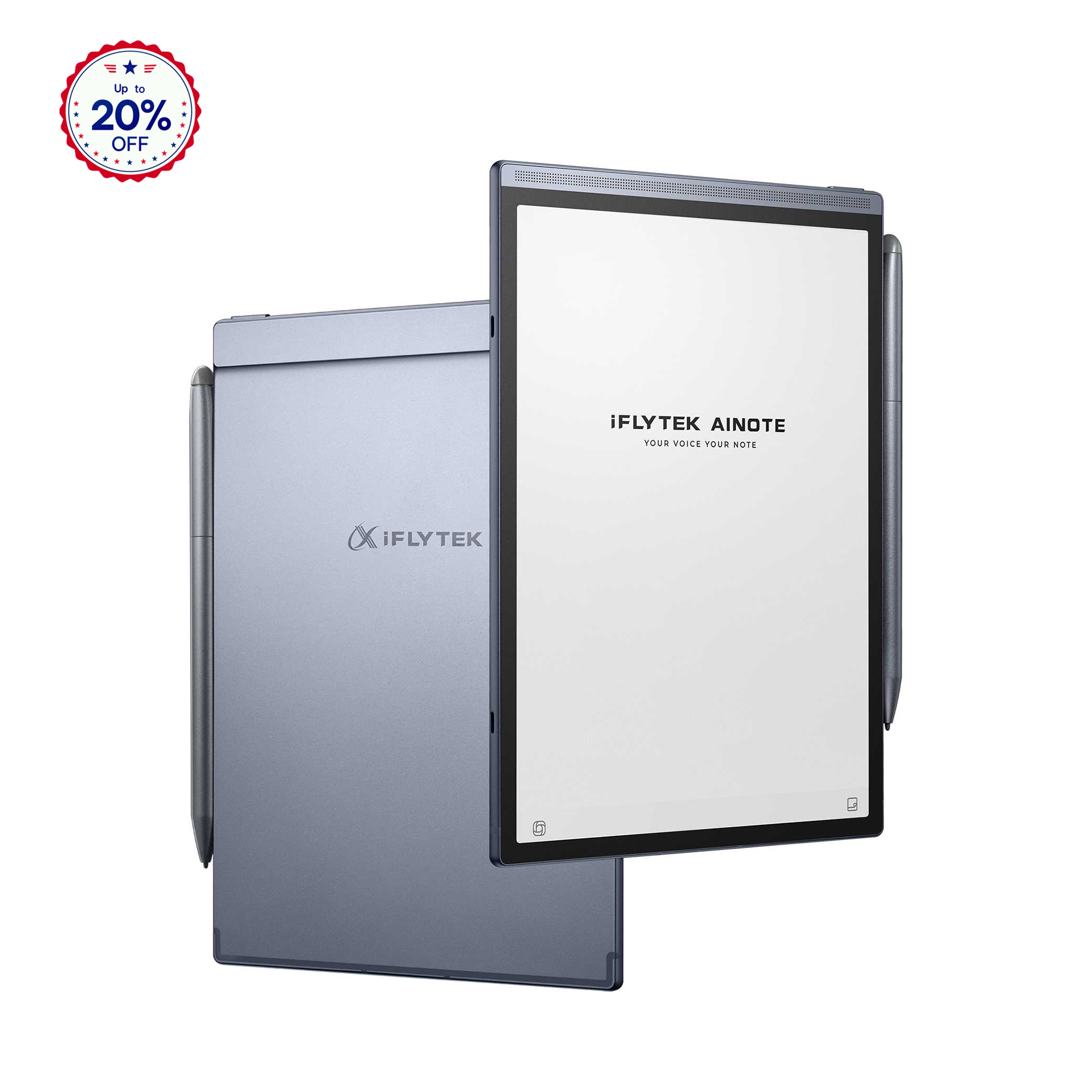
iFLYTEK AINOTE 2 is designed to reduce that gap between note-taking and planning. It connects handwritten notes, task creation, planner review, calendar syncing, and AI summaries in one workflow, so users can turn ideas and action items into schedule items without rebuilding the same information in another app.
Why Schedule Management Feels Fragmented
Many users do not struggle because they lack a calendar. The real problem is that planning information often starts in one place and needs to be manually moved somewhere else.
Meeting notes may contain action items, but those action items are easy to miss if they are not added to a task list. Personal reminders may sit in a calendar, while project notes stay in another app. Over time, users have to check multiple tools just to understand what needs to be done next.
AINOTE 2 gives users a more continuous workflow: write notes, mark important items, turn them into tasks, and review them from the planner without manually rebuilding the same information. Instead of separating note-taking from scheduling, the device keeps tasks connected to their original context.
Key Features of iFLYTEK AINOTE 2 for Schedule Management
AINOTE 2 supports schedule management by helping users capture tasks quickly, sync events across devices, and review daily or weekly work with AI summaries.
Easy Task Creation with Drawing and Voice Input
Tasks can be created while reading, taking meeting notes, or planning ideas. When users create notes on iFLYTEK AINOTE 2, they can write tasks by hand, mark them with drawing gestures, or use voice input when typing or writing is not convenient. This helps important tasks get recorded at the moment they appear, without forcing users to stop their current workflow.
Seamless Sync with Google Calendar Across Devices
AINOTE 2 can sync with Google Calendar, so schedules stay updated across the tablet, phone, and desktop. For users who already rely on Google Calendar, this keeps AINOTE 2 connected to their existing planning system instead of creating another separate task space.
AI-Generated Daily and Weekly Work Summaries
When notes and tasks build up, AI summaries can organize key information into daily or weekly overviews. Users can review priorities, track progress, and prepare for upcoming work without manually sorting through every note or task.
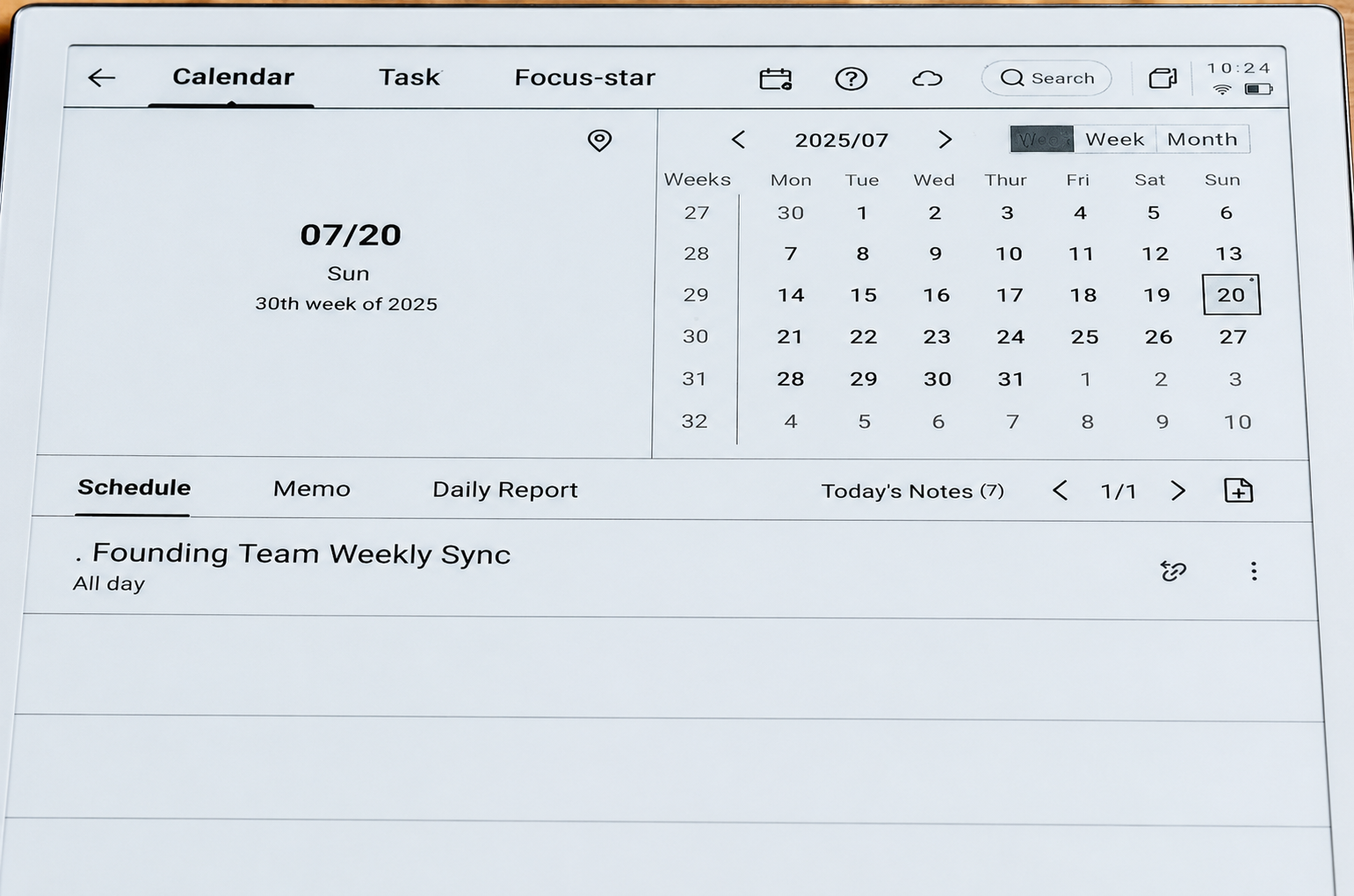
How to Set Up and Manage Your Schedule on iFLYTEK AINOTE 2
After reviewing the main scheduling features, the next step is to use them in a real workflow. On AINOTE 2, schedule management starts from handwritten notes, then moves into task creation, planner review, and calendar organization.
The steps below show how to turn daily notes into actionable schedule items without repeatedly switching between different tools.
Step 1: Enable the Smart Pen Feature
Start by tapping the Smart Pen icon at the top of the screen. Once enabled, iFLYTEK AINOTE 2 can recognize handwritten shapes and gestures while you write.
Schedule-related actions can happen directly inside your notes, so ideas and action items do not have to be moved into another tool right away. For users who often capture tasks during meetings or planning sessions, enabling Smart Pen creates the foundation for a smoother schedule workflow.
Step 2: Draw Circles to Create Tasks from Notes
When writing notes, draw a small circle next to any item that needs follow-up. AINOTE 2 can recognize the circle and turn the related handwritten content into a task.
This step is especially useful when action items appear naturally during a conversation or planning session. Instead of waiting until later and trying to remember what should be added to the schedule, users can mark the item at the moment it appears.
Step 3: Review Tasks in the Planner
After a task is created, open the planner or schedule section to review it. Tasks collected from handwritten notes will appear together, giving users a clearer view of what needs attention.
Scattered handwritten notes can become a more structured schedule without repeated manual entry. For users managing several meetings, projects, or personal responsibilities, the planner helps turn loose notes into a more practical task review system.
Step 4: Return from Tasks to Original Notes
A task alone does not always provide enough context. A short reminder may tell you what to do, but not why it matters, what was discussed, or which details were attached to it.
When users tap a task in the planner, they can return to the original note where it was created. That connection is useful when the task needs surrounding meeting details, project background, or written context.
Users do not have to search through multiple notebooks or pages just to recover the background behind a task.
Step 5: Use Triangle Shapes to Organize Important Sections
For longer notes, draw a triangle next to important sections to create a visual marker. Long pages can become difficult to review when key ideas, decisions, and references are mixed with general notes.
With these markers, important sections are easier to find during later review and less likely to get buried in long notes. For users who manage multiple projects, meetings, or study topics, a consistent marking system can make note navigation more efficient.

Tips to Make Scheduling More Efficient on AINOTE 2
After the basic schedule workflow is set up, small usage habits can make planning faster and easier to review. The goal is not only to create more tasks, but to keep notes organized enough for later action.
Use AI Summaries After Long Notes
After a long meeting or planning session, reviewing every line manually can slow down the schedule management process. AI summaries can help users organise meeting notes by quickly reviewing key points and next steps. Instead of rereading every page, users can identify the main takeaways and decide which tasks need attention first. For long notes, this can make the review stage more efficient and less repetitive.
Keep Task Marking Consistent
A schedule workflow becomes easier to maintain when users apply the same marking system every time. For example, circles can be used for tasks, while triangles can be used for important sections.
Consistent gestures make notes easier to scan and reduce confusion during review. When users know what each shape means, they can move through long pages more quickly and identify schedule-related items with less effort.
Organize Notes by Project or Topic
As notes increase, searching through unrelated pages can become time-consuming. Clear categories help users find information faster, especially when tasks are linked back to their original notes.
Organize notes by project, topic, or time period. A user may keep separate sections for weekly planning, client meetings, personal tasks, or study notes. When notes are structured clearly, the planner connection becomes more useful because users can return to the right context faster.
Combine AINOTE 2 with Your Calendar Workflow
AINOTE 2 works well for capturing and organizing tasks, while calendar tools are useful for fixed time slots, appointments, and deadlines.
Use AINOTE 2 to capture tasks from handwritten notes, then connect them with calendar tools when specific dates or times are needed. This approach helps turn loose ideas into practical plans without forcing users to manage everything in one place.
[How to] The Ultimate Guide to Writing Notes on AINOTE 2
FAQ
How do I organize my notes effectively on AINOTE 2?
Organize notes by project, topic, or time period. You can also use consistent gestures, such as circles for tasks and triangles for important sections, so your notes are easier to review later.
Can I manage both personal and work schedules on AINOTE 2?
Yes. Personal and work tasks can be captured from notes and reviewed in the planner, making it easier to manage different responsibilities in one workflow.
What are the most useful Smart Pen shapes for daily use?
Circles are useful for creating tasks, while triangles can help mark important sections. Using these shapes consistently makes daily note-taking and planning more organized.
Is AINOTE 2 suitable for meeting notes and task tracking?
Yes. AINOTE 2 is suitable for meeting notes because users can write naturally, mark action items during the meeting, and review those tasks later from the planner.
Conclusion
Schedule management becomes easier when notes, tasks, planner review, and calendar syncing are connected instead of separated across different tools. AINOTE 2 supports that workflow by letting users create action items directly from handwritten notes, review them in the planner, and return to the original context when more details are needed.
For simple reminders, a standard calendar may be enough. For users who often manage meetings, weekly goals, project notes, or mixed work and personal responsibilities, an AI-powered paper tablet like AINOTE 2 offers a more connected way to move from handwritten ideas to actionable plans.
The main value is not only writing notes or storing tasks. It is keeping planning information clear, traceable, and easier to review throughout the day.