


Writing meeting minutes from audio recordings is a practical way to capture important discussions without trying to write everything down in real time. It is especially useful for business meetings, interviews, project reviews, and multi-speaker discussions where key decisions and action items can easily be missed.
The challenge is that a recording alone is not a finished meeting document. Long audio files, unclear speakers, poor sound quality, and scattered discussions can make the process slow. To create useful meeting minutes, you need a clear workflow: record the meeting clearly, convert the audio into text, extract key points, organize the notes, and edit them into a concise format.
Why Use Audio Recordings for Meeting Minutes
Meeting minutes need to be accurate, readable, and useful for follow-up. When people take notes during a meeting, they often have to choose between listening carefully and writing quickly. This can lead to missed details, unclear action items, or incomplete summaries.
Audio recordings solve part of this problem by giving you a reliable reference after the meeting. Instead of relying only on memory or rushed notes, you can replay important sections, confirm decisions, and check who was responsible for each task.
Stay Focused During the Meeting
Recording the meeting allows participants to focus more on the discussion instead of typing every detail. This is especially helpful when the meeting involves brainstorming, negotiation, or fast-moving decisions.
You can still take brief notes during the meeting, but the recording gives you a backup for details that need to be checked later.
Reduce Missed or Misunderstood Information
Important points are often missed when several people speak quickly or when topics shift without a clear structure. A recording lets you go back and confirm what was actually said.
This makes the final meeting minutes more reliable, especially for decisions, deadlines, responsibilities, and follow-up tasks.
Make Follow-Up Easier
Good meeting minutes are not just a record of what happened. They help people know what to do next. By reviewing the recording, you can identify action items more clearly and organize them into a format that is easier for the team to follow.
How to Write Meeting Minutes from Audio Recordings
Turning a recording into meeting minutes is easier when you follow a clear process. The goal is not to write down every word, but to record voice effectively and turn the discussion into a structured summary with key points, decisions, and next steps.
Step 1: Review the Recording for Context
Start by listening to the recording to understand the meeting’s overall purpose and flow. Pay attention to the main topics, discussion order, and any decisions that were made.
This first review helps you avoid pulling isolated details out of context. It also makes it easier to decide which parts of the recording are important enough to include in the minutes.
Step 2: Convert the Audio into a Text Draft
Next, turn the recording into text. You can use a voice recorder with transcription, an AI transcription tool, or create notes manually while listening. A transcript gives you a working draft, so you do not have to rely on memory or replay the whole recording repeatedly.
At this stage, the transcript does not need to be perfect. It only needs to help you locate the main discussion points, decisions, and tasks.
Step 3: Extract Key Points and Action Items
After you have a text draft, review it and remove unnecessary conversation. Focus on information that affects follow-up, such as:
- Main discussion points
- Decisions made
- Problems raised
- Tasks assigned
- Owners and deadlines
- Open questions
Avoid turning the minutes into a full transcript. Meeting minutes should be concise and action-oriented.
Step 4: Organize the Notes into Clear Sections
Once the key information is selected, organize it into a simple structure. A practical format can include:
- Meeting title and date
- Attendees
- Meeting purpose
- Discussion summary
- Decisions
- Action items
- Next steps
This makes the document easier to scan and helps readers quickly understand what happened and what needs to be done.
Step 5: Edit for Clarity
Finally, rewrite the notes in clear and simple language. Remove repeated points, filler words, and side conversations. Make sure action items are specific and easy to follow.
For example, instead of writing:
“Team discussed that the report may need some updates later.”
Use:
“Marketing team will update the report by Friday.”
Clear wording makes the meeting minutes more useful for accountability and follow-up.
Tools That Make Meeting Recordings Easier to Turn into Minutes
The quality of your meeting minutes depends not only on how you write them, but also on the tools you use. Poor recordings create poor transcripts, and poor transcripts take more time to clean up.
Use Shared Documents to Organize Notes
Shared documents help teams review and update meeting notes in one place. They are useful for adding comments, confirming responsibilities, and keeping a consistent meeting minutes format over time.
This works well when several team members need to review the final notes or add missing context.
Use AI Transcription to Save Time
AI transcription tools can quickly convert audio into text. This reduces manual typing and gives you a draft to work from.
Some tools can also generate summaries, extract keywords, and identify tasks. These features are useful when you are working with long meetings or repeated weekly discussions.
Use a High-Quality Recorder for Clear Audio
Clear audio is the foundation of accurate meeting minutes. If the recording is noisy, too quiet, or unable to capture multiple speakers clearly, the transcript will be harder to use.
This is a common problem in large meeting rooms, interviews, speeches, or discussions where people sit far from the recording device.
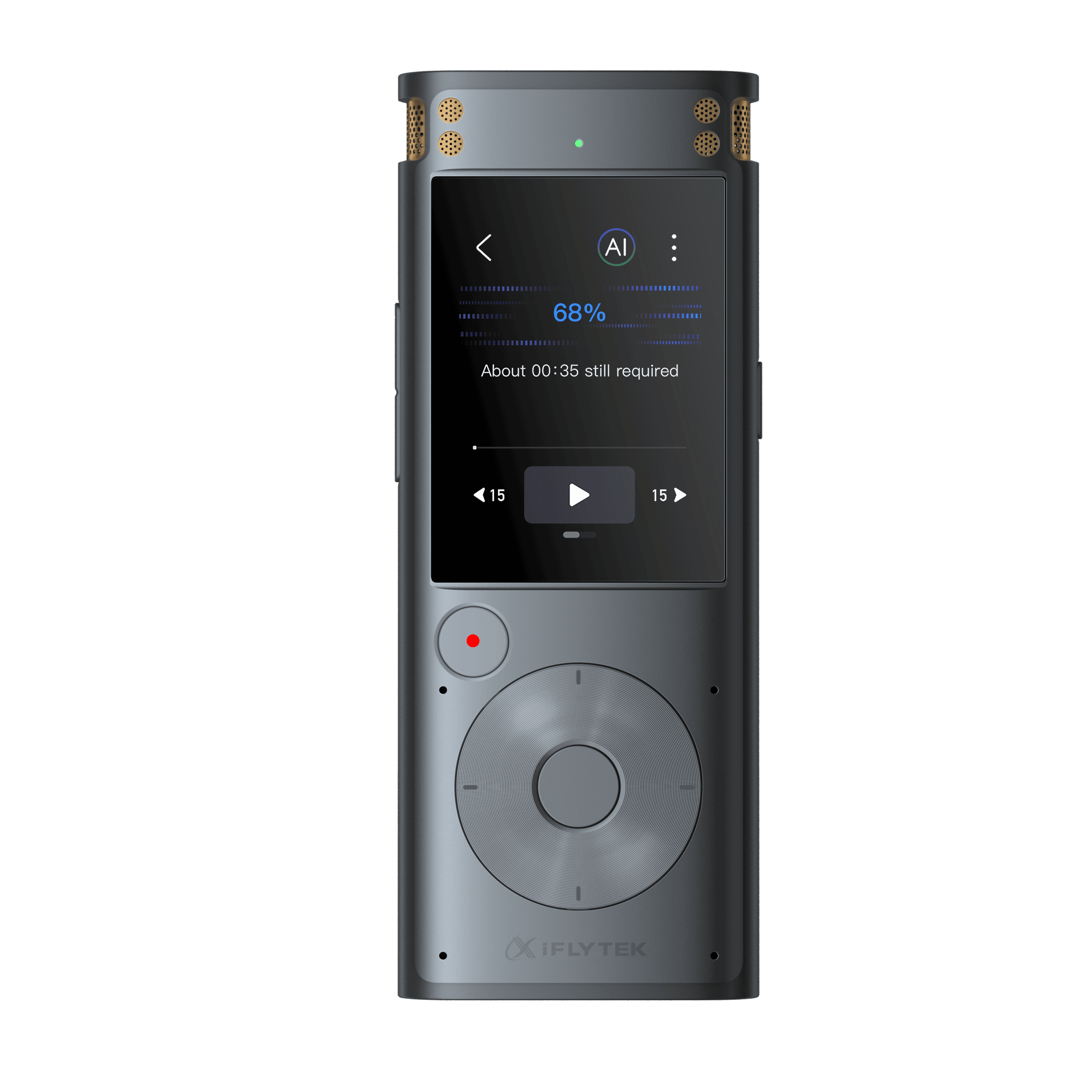
For these situations, a dedicated recorder can be more reliable than a phone. The iFLYTEK AI Recorder S6 supports long-range recording up to 20 meters and uses directional and omnidirectional microphones to capture clearer audio in complex meeting environments. This helps when several speakers are sitting around a room or when the meeting takes place in a larger space.
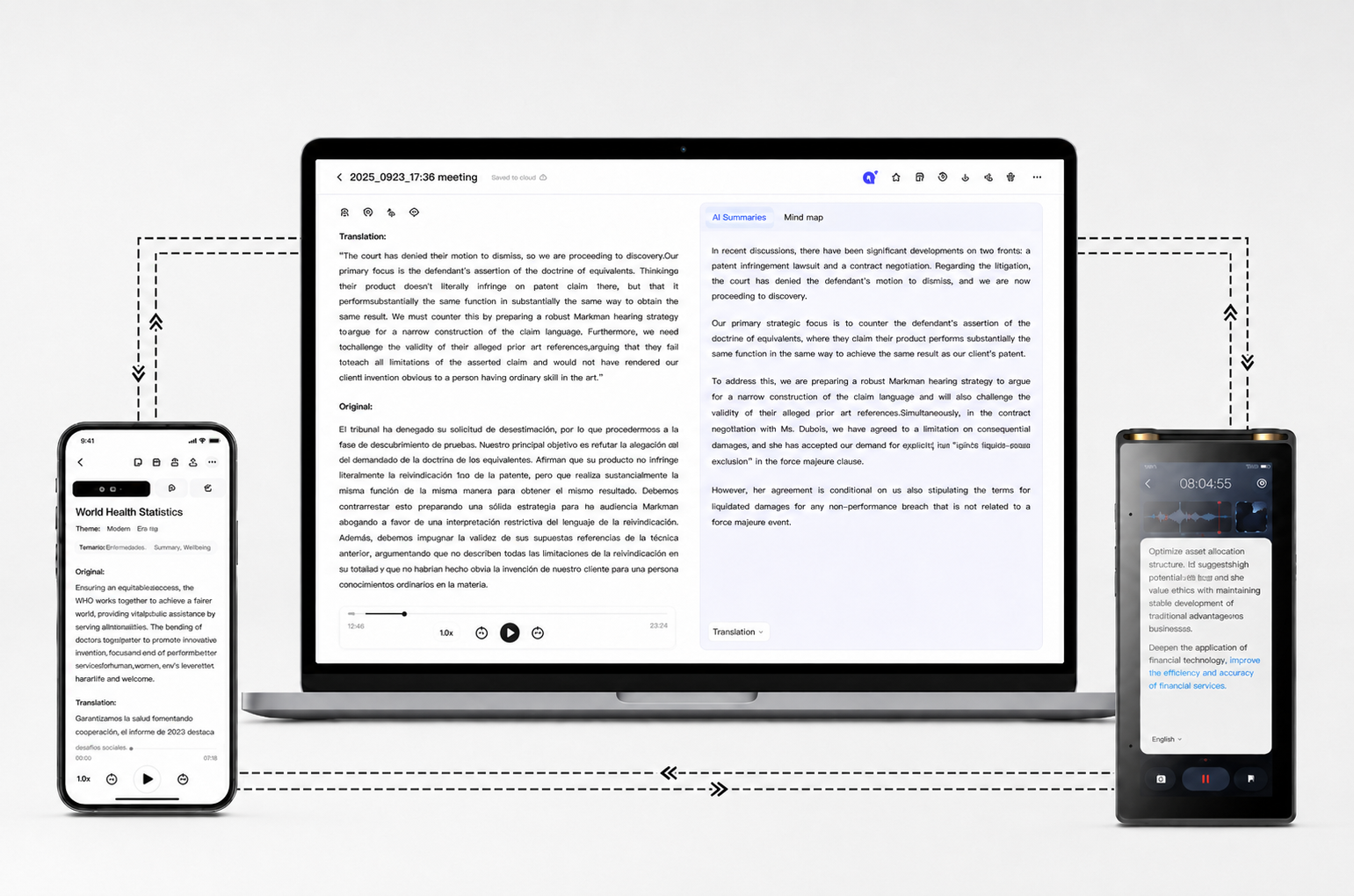
After recording, its AI features can support transcription, summaries, keyword extraction, to-do lists, offline transcription, data protection, and multi-device synchronization. This makes the process easier to manage from raw audio to structured meeting content.
.png?w=1541&h=1020)
Tips for Working with Long Meeting Recordings
Long recordings can slow down the meeting minutes process. The key is to review them efficiently instead of listening from beginning to end multiple times.
Use Playback Speed and Time Markers
Playback speed helps you review less important sections faster. Time markers help you return to important moments without searching through the whole recording.
This is especially useful when you need to confirm a decision, quote a task owner, or check a deadline.
Break Long Recordings into Sections
For long meetings, divide the recording into smaller parts based on agenda items or discussion topics. This makes the content easier to review and prevents the final minutes from becoming scattered. You can handle one section at a time, extract the key points, and then combine everything into a clean final document.
Choose the Right Recording Mode
Different meeting situations need different recording settings. A one-on-one interview, a group meeting, and a formal presentation do not have the same audio needs. Using the right recording mode on a sound recorder device can improve sound quality and make transcription more accurate. The iFLYTEK AI Recorder S6 includes Meeting, Interview, Speech, and Original Sound modes, along with speaker differentiation, which can help organize conversations more clearly during review.
FAQ
Can I use my phone to record meetings?
Yes. A phone can record simple meetings, especially in small and quiet rooms. However, audio quality may be limited in larger spaces or multi-speaker discussions. For professional meetings, a dedicated recorder can capture clearer audio and make transcription easier.
Can AI generate meeting minutes automatically?
Yes. AI tools can transcribe recordings and generate summaries, key points, and action items. However, the final minutes should still be reviewed and edited to make sure decisions, responsibilities, and deadlines are accurate.
How long does it take to write meeting minutes from recordings?
It depends on the recording length, audio quality, and level of detail required. AI transcription can speed up the process, but you still need time to review the content, remove unnecessary details, and organize the final minutes.
What should meeting minutes include?
Meeting minutes should include the meeting topic, date, attendees, key discussion points, decisions, action items, responsible people, and deadlines. The content should be clear enough for people to understand what happened and what needs to happen next.
Conclusion
Writing meeting minutes from audio recordings is most effective when you follow a clear workflow. Start with a clear recording, convert the audio into text, extract only the important information, and organize it into decisions and action items.
Good tools can make this process faster. AI transcription helps reduce manual work, while a reliable recorder improves audio quality from the beginning. For meetings with multiple speakers, longer discussions, or larger rooms, the iFLYTEK AI Recorder S6 can support clearer recording, easier review, and more efficient meeting minutes creation.