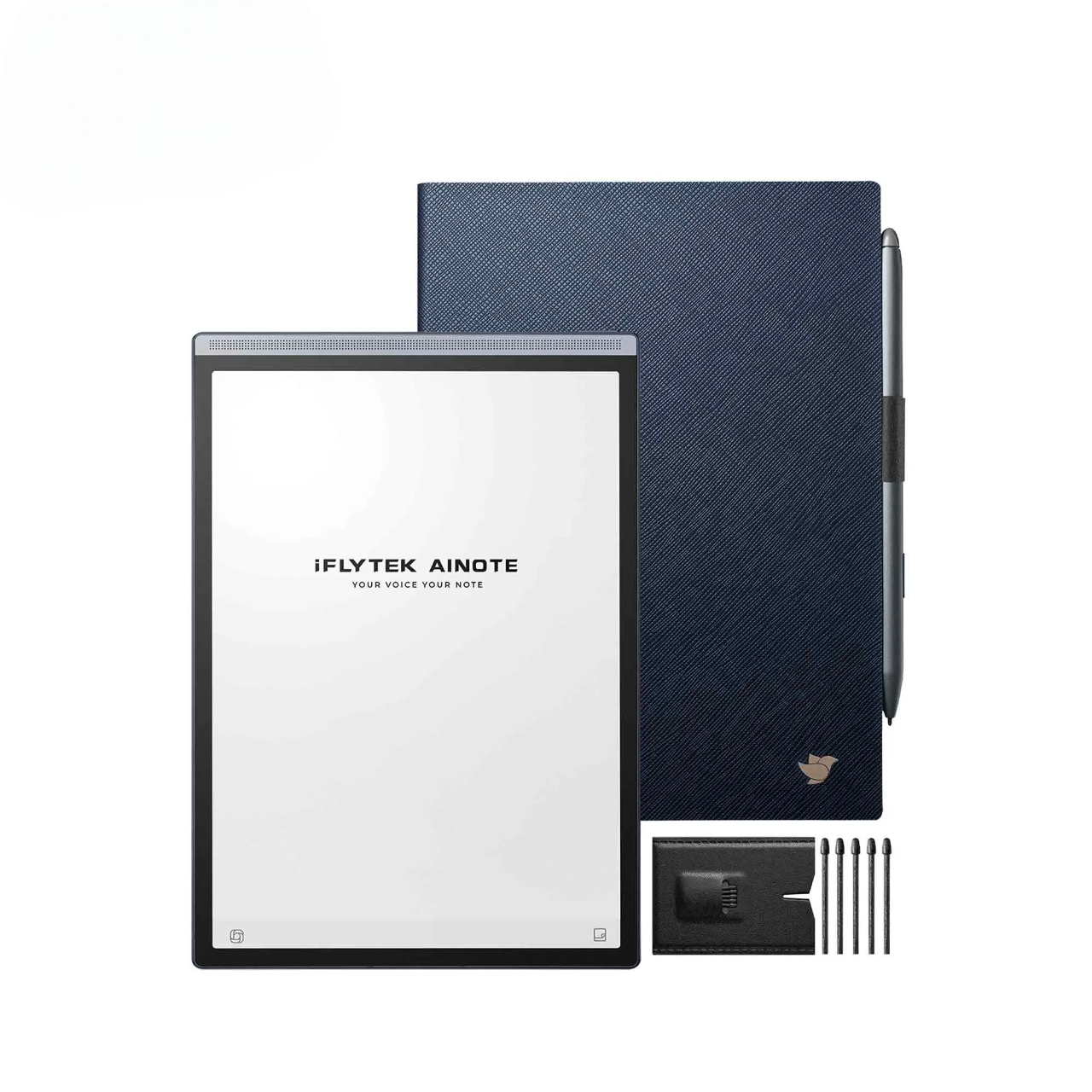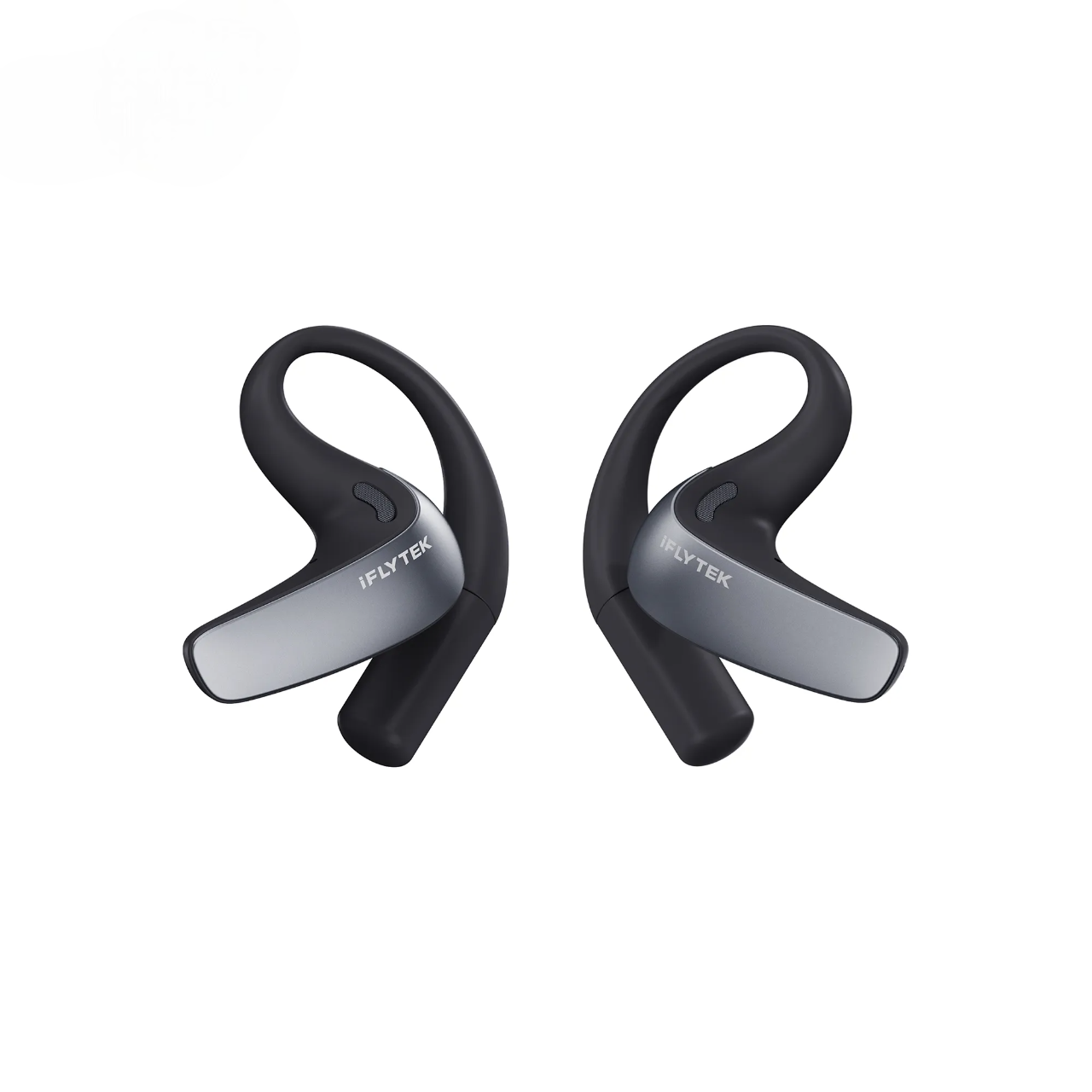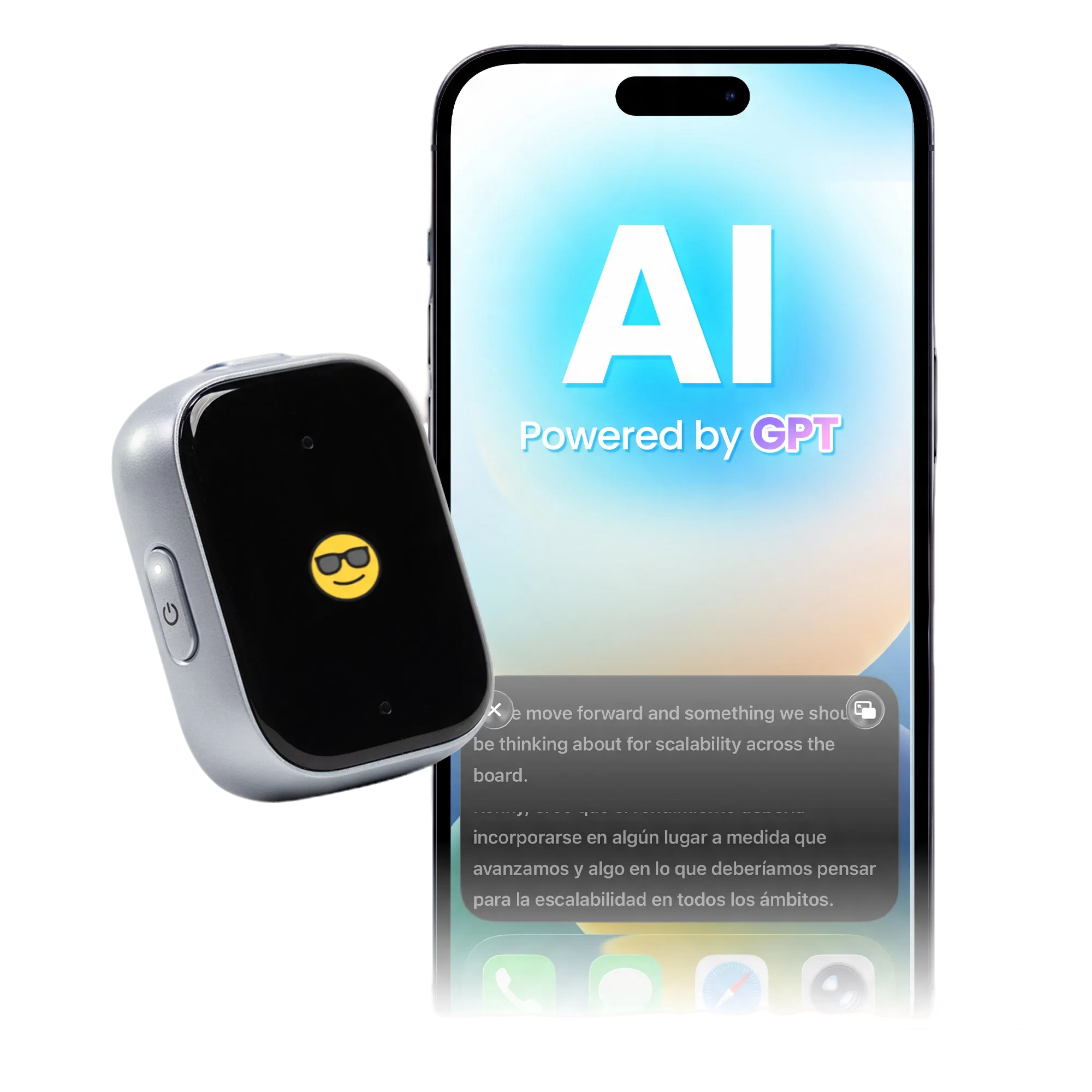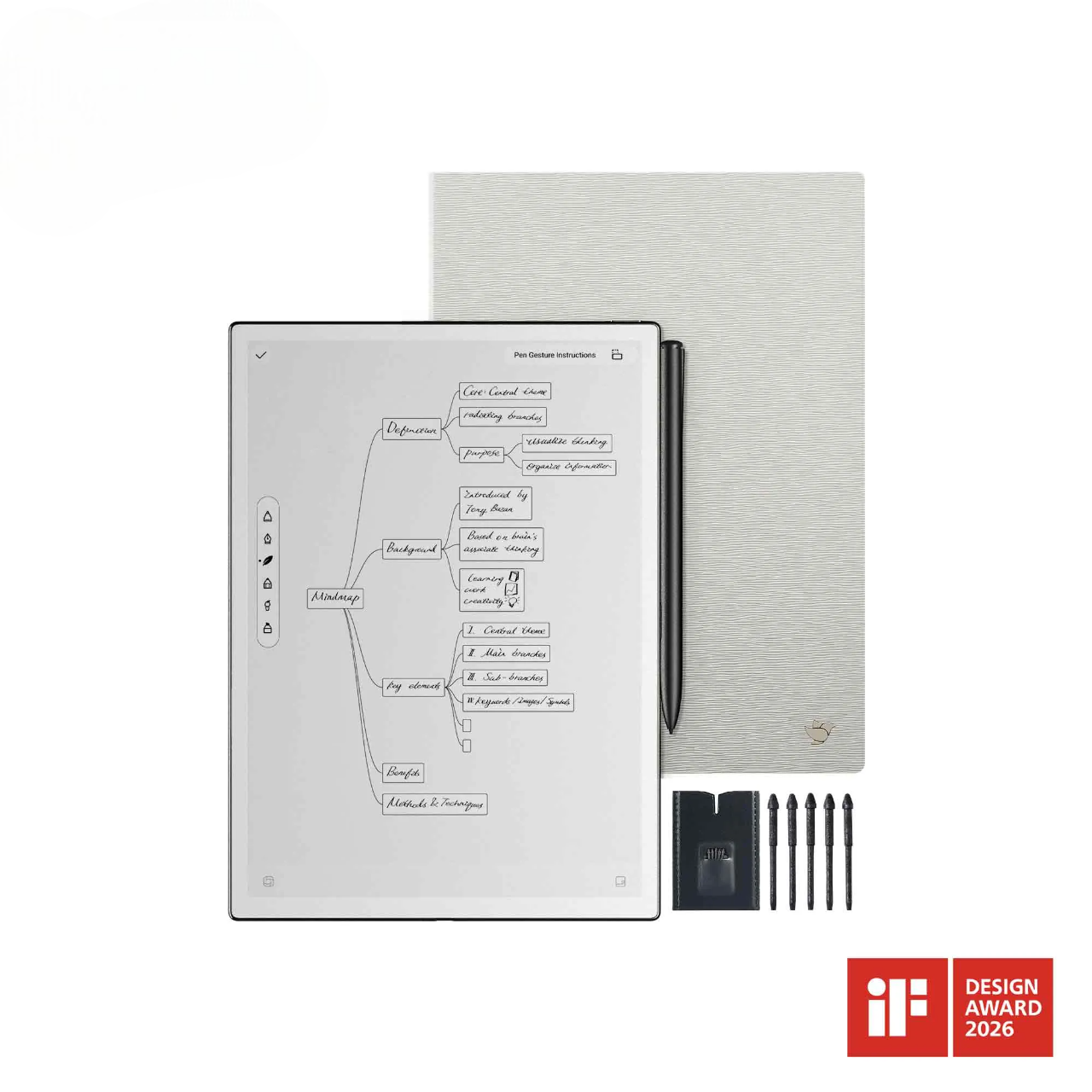
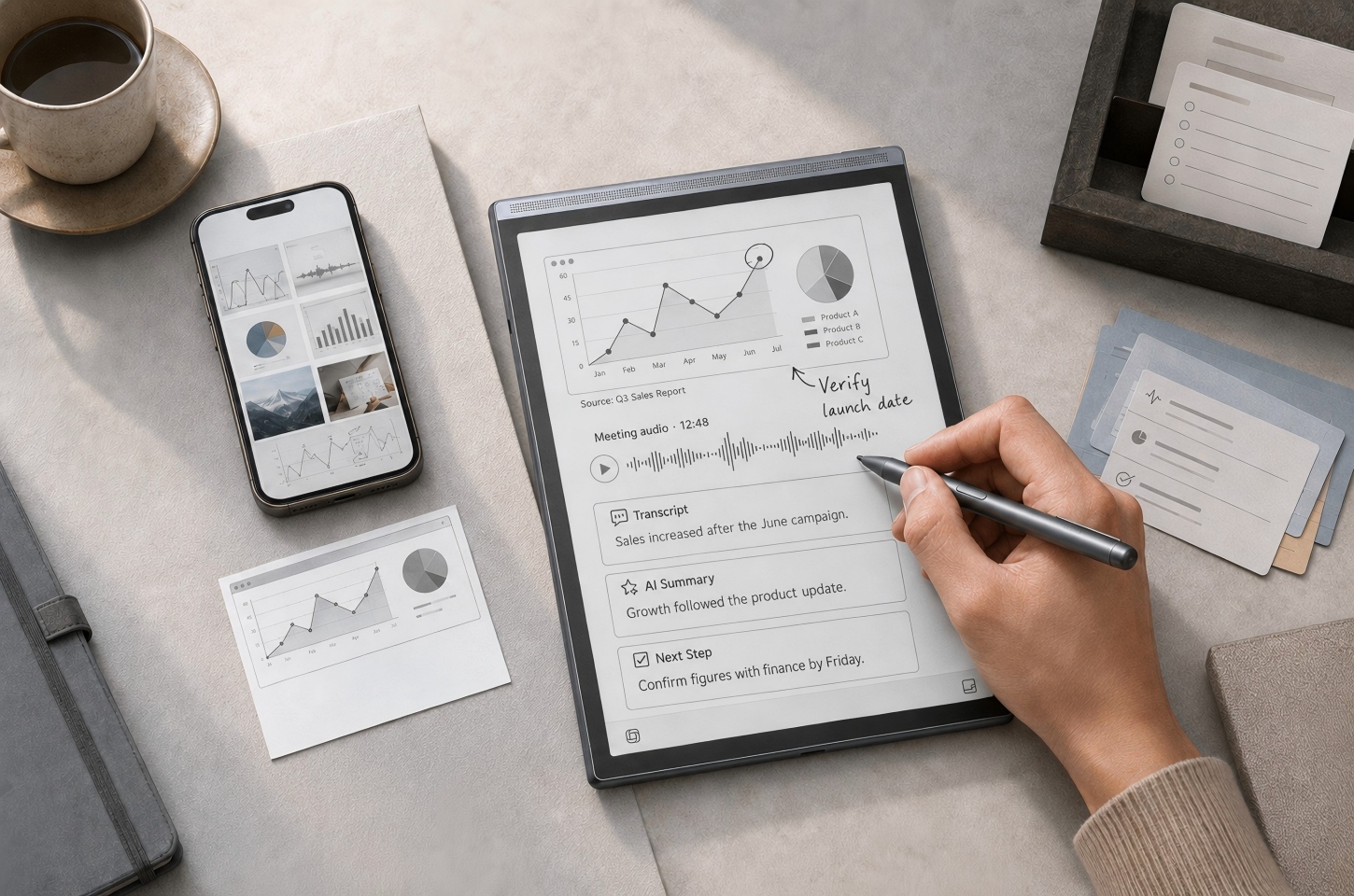
You open your tablet’s screenshot folder and find an image you no longer remember saving. It still takes up space, but the greater loss is the time spent working out where it came from, why it mattered, and what you planned to do next. An AI workflow around tablet screenshots helps prevent that problem by connecting each image with handwritten context, recorded explanations, searchable text, and clear next steps. With a connected workspace such as iFLYTEK AINOTE Air 2, the next screenshot can remain linked to its source, discussion, and follow-up action instead of becoming another forgotten file.
Start With a Useful Tablet Screenshot
A screenshot only becomes useful knowledge when it captures the right information and includes enough context for later review. Before adding transcription or AI summaries, make sure the image can still answer basic questions about its source, purpose, and timing.
Capture the Right Slide, Chart, Webpage, or Document
Take the screenshot when the screen shows the exact information you may need to quote, compare, question, or explain later. Include chart titles, labels, dates, page headings, and visible source information whenever possible. Cropping too tightly may remove the detail that explains what a number represents or where a statement came from. If the content extends beyond one screen, capture several ordered images rather than compressing unrelated information into one crowded screenshot.
Add Quick Context Before the Screenshot Gets Lost
A screenshot that feels obvious now may become difficult to interpret after several days. Add a short note explaining where you found it, why you saved it, and which question, project, or action it supports. Useful context may include a course name, meeting date, speaker, research topic, or intended follow-up. This small step prevents a screenshot folder from becoming a collection of disconnected images that require repeated investigation.
Keep the Original Source for Later Review
Save the document link, webpage address, file name, slide number, or report title beside the screenshot whenever the source may change or require further reading. The screenshot preserves what was visible at that moment, while the source lets you examine the surrounding information and understand how the selected section fits into the full document. This is especially useful for research findings, financial charts, policy documents, product claims, and other material that may influence a decision. When the information is confidential, keep both the screenshot and its source reference in an approved storage location.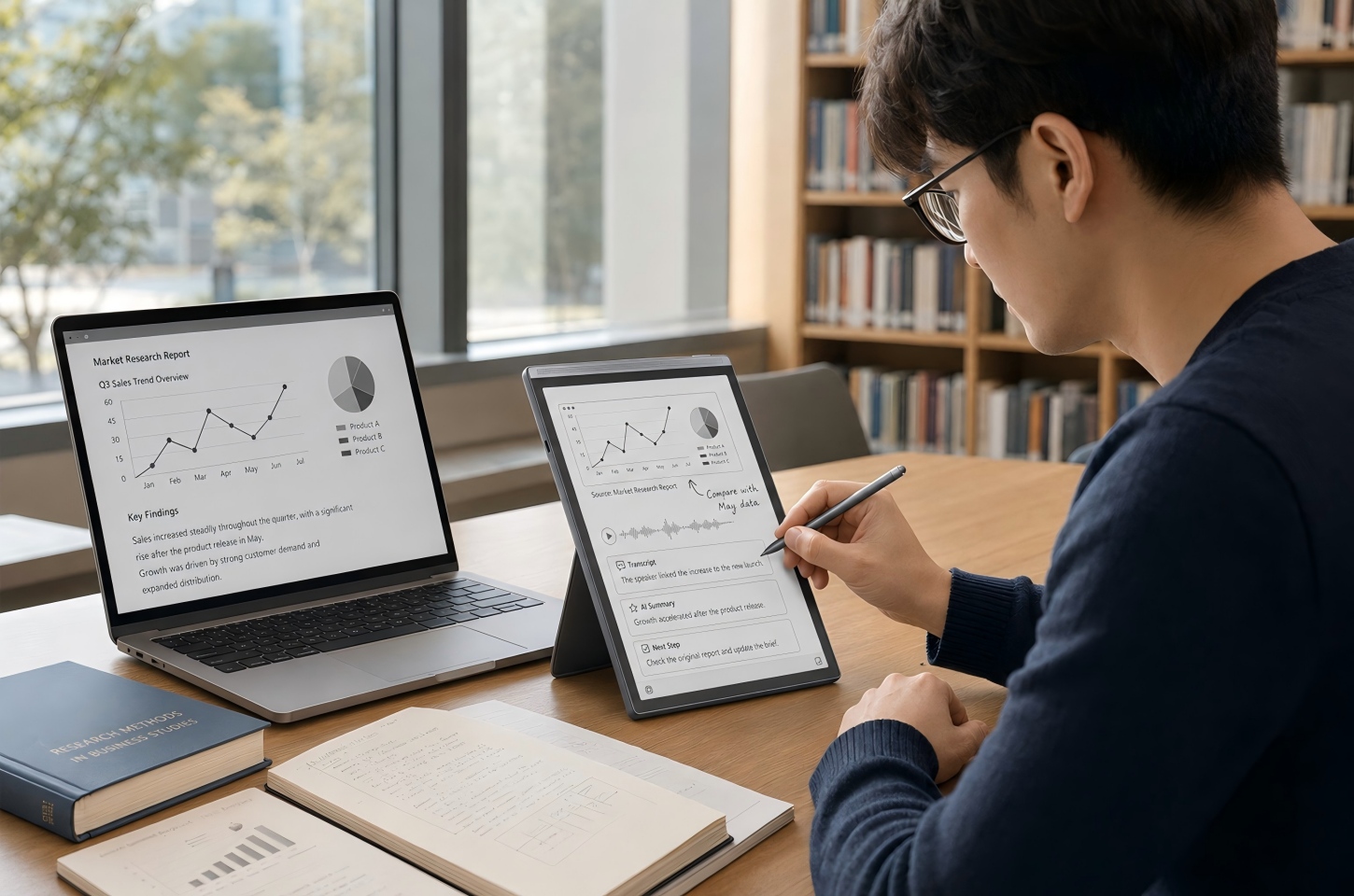
Build the Screenshot Workflow Step by Step
When screenshots, handwritten notes, recordings, transcripts, and summaries are stored in different places, important context can easily become disconnected. The six steps below show how to link each layer into one searchable workflow, from capturing the original image to organizing the final insights and next actions. If six steps still sound like a lot to manage, iFLYTEK AINOTE Air 2 can help you build the same screenshot AI workflow more easily by bringing handwriting, audio, transcription, and AI-assisted review into one connected workspace.
Step 1: Use the Screenshot as the Visual Record
Treat the screenshot as the fixed visual reference rather than the complete note. It preserves wording, layout, labels, and visual relationships that a plain-text description may miss. When the screenshot contains useful text, use OCR in a compatible note or document app to make headings, labels, and key phrases searchable, but keep the image because OCR may not preserve diagrams or layout accurately. Add a few manual keywords when the image relies more on visual meaning than readable text.
Step 2: Add Handwritten Notes Beside the Image
Handwritten notes work well for reactions that are faster to mark than to type, such as circling a suspicious number, drawing a connection, or writing a question beside a chart. Focus on information the image does not explain by itself instead of copying text that is already visible.A consistent marking system also makes searchable handwritten notes easier to review, such as using one symbol for questions and another for action items. The annotations should reveal your reasoning and show why a particular part of the screenshot deserves attention.
Step 3: Record the Explanation Behind the Screenshot
Voice is useful when the reason behind a screenshot is too detailed for a short handwritten note. After saving the image, record a brief explanation of what you noticed, what was being discussed, and what you may need to do next. In a lecture, interview, or meeting, audio can preserve the reasoning that gave the visual its meaning. Before recording other people, follow applicable laws, institutional policies, and confidentiality requirements.
Step 4: Turn the Audio Into Searchable Text
A recording preserves detail, but replaying a long file is inefficient when you only need one name, explanation, or decision. Speech-to-text adds a searchable layer that lets you scan the discussion and return to the relevant moment more quickly. It is especially useful when the speaker explains a chart, gives an example that is not visible on a slide, or assigns an action connected to the screenshot. For multilingual lectures, interviews, or meetings, iFLYTEK AINOTE Air 2 supports transcription in 15 languages and translation in 10 languages, helping users keep spoken context accessible across different language settings.
Step 5: Connect the Screenshot, Notes, and Transcript
Keep the screenshot, handwritten annotations, transcript, and source reference inside one note or clearly linked record. Use the same title, date, project name, and keywords across each part so the full context appears in one search. This prevents the screenshot from remaining in an image folder while its explanation sits in an unrelated recording or transcription app. A complete record should let you move from a search result to the original image, your comments, and the relevant spoken context without rebuilding the workflow. Air 2 can keep handwriting, audio, and transcripts linked in the same note, making it easier to return to the supporting discussion during review.
Step 6: Use AI to Summarize Key Points and Next Steps
Give AI a specific review task instead of asking it to summarize everything without direction. Ask it to separate confirmed information, personal interpretations, unresolved questions, and next actions. It should also show whether each point came from the screenshot, transcript, or handwritten notes. The result should be a practical review page rather than another long block of text.
Compared with using separate AI tools for summaries, search, and follow-up questions, Air 2 makes this step easier through three connected AI capabilities. It can generate meeting minutes, summarize content by speaker, and create more detailed professional notes. Selected-text search helps you find key information, while multi-round Q&A lets you ask further questions about the saved content. Air 2 can also review current and past notes, identify useful connections, and turn key ideas into a mind map.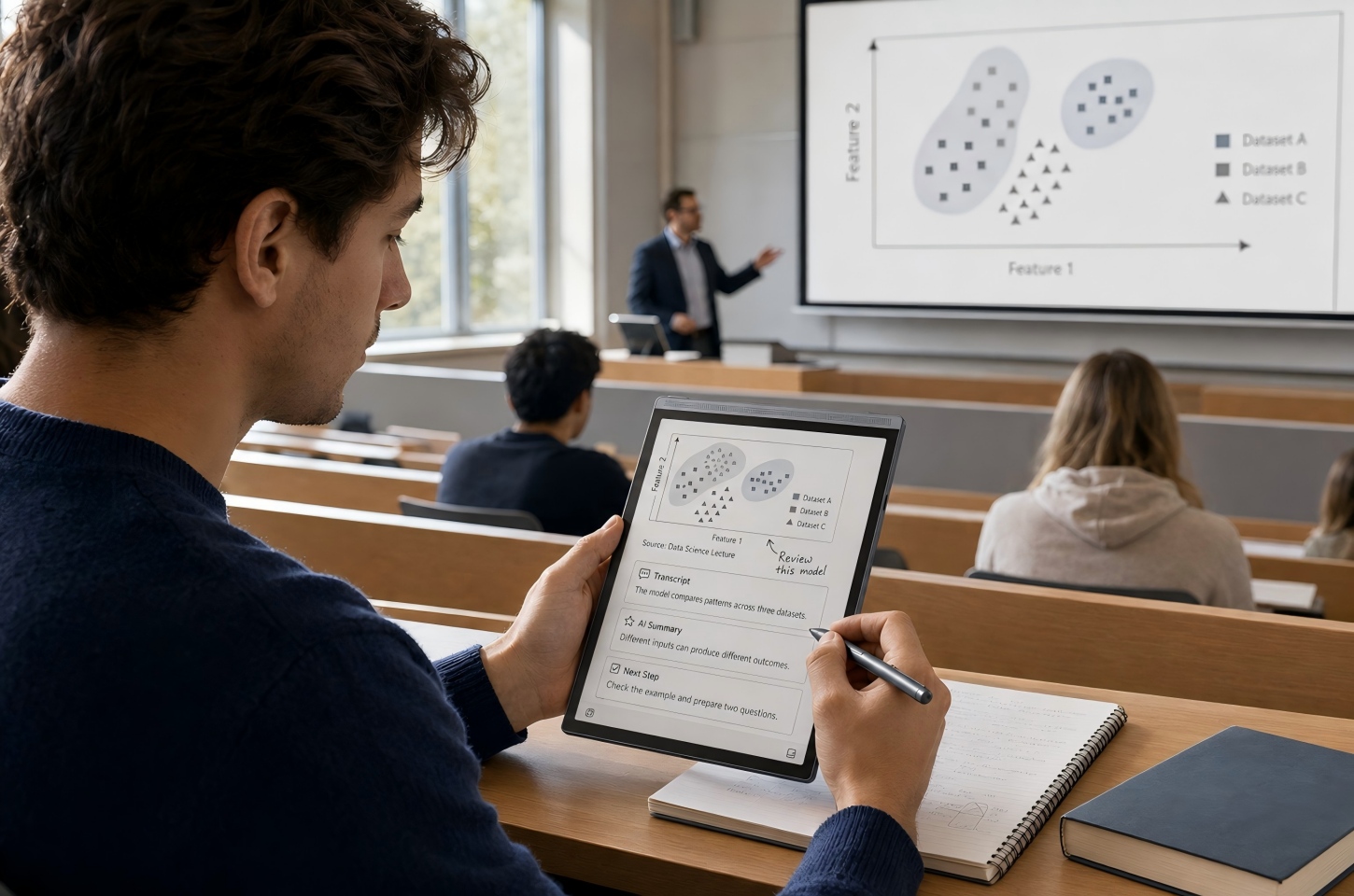
How iFLYTEK AINOTE Air 2 Uses AI to Simplify the Workflow
The six-step workflow can be built with separate apps, but every handoff creates another chance for the screenshot, notes, audio, and transcript to become disconnected. Air 2 reduces these handoffs by keeping the visual record, handwriting, recording, transcription, and AI output in one workspace. The sections below show how this connected setup supports capture, transcription, and later review.
Capture Screenshots, Handwriting, and Voice Together
Once a screenshot or source document has been added to a note, iFLYTEK AINOTE Air 2 provides a workspace for adding handwritten annotations and recorded context around the visual. Paper-like writing makes it easier to circle details, add questions, or mark actions without switching to a separate editing app. Voice recording and synchronized writing and audio help connect a handwritten mark with what was being said at that moment. A clear title, date, source reference, and project label keep the completed note easy to retrieve.
AI Transcription Turns Spoken Context Into Searchable Text
Imagine finishing a 45-minute meeting with the recording saved on your phone and handwritten notes stored in a separate app. You still need to upload the audio to a transcription service, wait for the result, and then work out what was being discussed when you circled a chart or wrote a question. Even after the transcript is ready, matching the audio, text, and handwritten notes can take extra time.
AINOTE Air 2 keeps this process in one workspace. It converts recorded speech into searchable text while you continue writing, so you can focus on the screenshot and the discussion instead of capturing every sentence manually. Tap a handwritten circle, underline, question mark, or other mark to return to the matching moment in the audio, with the corresponding transcript highlighted on screen. Handwriting-to-text also makes personal annotations easier to search while keeping them separate from the spoken transcript.
AI Summaries Turn the Full Session Into Notes and Tasks
After the meeting, class, or interview ends, Air 2 can turn the completed record into a more practical review page. Key points, unresolved questions, and follow-up actions remain connected to the original screenshot, transcript, handwritten notes, and recording, so users can return to the supporting context when a detail needs to be checked. The broader range of AINOTE digital notebooks supports the same connected approach across study, meetings, interviews, and research. This makes the final summary easier to use for revision, project follow-up, research, or meeting preparation instead of leaving it as a separate block of generated text.
AI Screenshot Workflows for Real Use Cases
The same screenshot workflow can support study, meetings, interviews, and research, but the useful output changes by situation. Start by deciding what you need to recover later, then collect only the context required to support that result.
Students: Turn Lecture Slides Into Review Notes
Students can capture a dense slide, add a handwritten explanation, and record the lecturer’s example instead of trying to copy every word. OCR and transcripts make names, definitions, and key concepts easier to search, while an AI summary can organize the material into review points and open questions. This approach works especially well for diagrams, charts, formulas, and slides that require more explanation than the visible text provides. When an instructor limits recording or photography, students should rely on the note-taking methods permitted by the course.
Meetings: Turn Charts Into Decisions and Action Items
During a meeting, a chart may show performance while the discussion explains why the result changed and what the team plans to do next. Save the chart, mark the relevant data point, and connect it with the decision, owner, deadline, and supporting explanation. The final note should distinguish the numbers shown in the chart from the team’s interpretation and agreed response. This creates an actionable meeting record rather than a screenshot that must be explained again later.
Interviews: Connect Source Materials With Spoken Context
During an interview, a résumé, research paper, portfolio, product screen, or prepared question may become the focus of a longer explanation. Save the relevant visual, then connect it with concise handwritten notes and authorized audio so the source and spoken context remain together. This makes it easier to compare what appeared in the material with what the speaker added during the conversation. Labels for evidence, personal impressions, and follow-up questions help prevent different types of information from blending together.
Research: Build a Searchable Knowledge Base
Researchers often save screenshots from papers, datasets, reports, and archival sources because a visual section contains information that is difficult to reproduce quickly. Add a citation, page number, research question, and short interpretation while the source is still fresh. OCR can make visible text searchable, while transcription can preserve a longer spoken analysis that would be inconvenient to type. Consistent project labels and keywords allow related screenshots to become part of a searchable knowledge base rather than a loose image archive.
FAQ
Can You Build an AI Workflow From Old Screenshots?
Yes, old screenshots can be added to an AI workflow when they still contain enough information to identify their meaning or source. Import them in small groups, add dates, project labels, and searchable keywords, and record only the context you can still confirm. Prioritize screenshots connected to active work instead of trying to organize an entire archive at once.
What Should You Check Before Trusting an AI Summary?
Check whether the summary correctly separates information shown in the screenshot, comments from the transcript, your own interpretation, and assigned tasks. Pay close attention to names, dates, quantities, conclusions, and responsibilities. For an important decision, return to the relevant screenshot or transcript section rather than relying on the summary alone.
Do Screenshot Workflows Need an Internet Connection?
Not every part of the workflow requires an internet connection. Taking screenshots, writing notes, recording audio, and organizing local files may work offline, while cloud synchronization, transcription, and AI processing may depend on the device, account, software, and network. Check offline availability before relying on the workflow during travel, fieldwork, or restricted network access.
How Should You Name Notes for Easier Search Later?
Use a consistent name that includes the project or course, topic, and content type. A title such as Product Launch Pricing Chart is easier to retrieve than Screenshot 42. Apply the same naming pattern to screenshots, recordings, transcripts, and summaries so related materials appear together in search results.
Conclusion
An effective tablet screenshot workflow should help you answer three questions later: what did the screen show, why did it matter, and what should happen next? Keep the original visual, add the context needed to explain it, and use OCR, transcription, and AI summaries to make the full record searchable and actionable. A connected device such as iFLYTEK AINOTE Air 2 can reduce tool switching by bringing handwriting, audio, transcription, and review into the same note environment. The workflow succeeds when a screenshot no longer sits alone in an image folder, but becomes part of a complete record that supports study, work, research, and follow-up decisions.