

AINOTE
AINOTE 2 Accessories
AINOTE Air 2 Accessories
-
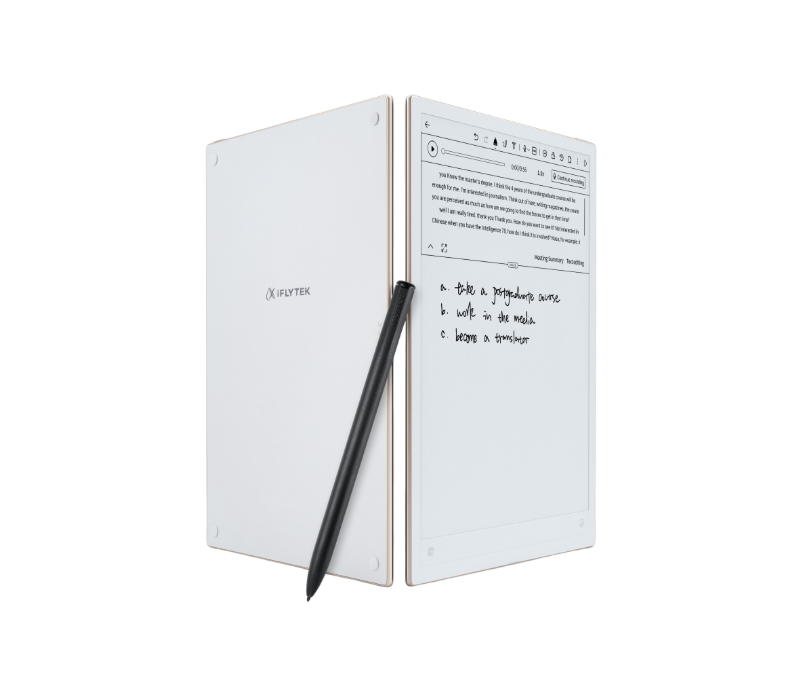 iFLYTEK AINOTE 2, The World's First LLM-Powered Paper Tablet
iFLYTEK AINOTE 2, The World's First LLM-Powered Paper Tablet
$649.00 USD
Can I Export Notes to Word, PDF, or Excel?
Can I Export Notes to Word, PDF, or Excel?
Notes and transcribed text can be exported in Word or PDF format, while audio recordings can be exported as MP3 files through AINOTE Mobile or other sharing methods. XLS and XLSX files can be imported and opened on the device, but direct note-to-Excel export is not currently listed as a supported option. Users who need a spreadsheet can transfer the exported text into Excel afterward.
Does an AI-Powered Paper Tablet Work Without Wi-Fi?
Does an AI-Powered Paper Tablet Work Without Wi-Fi?
Offline transcription support differs between models. AINOTE 2 can transcribe English without an internet connection, while other languages can be recorded first and transcribed after the device reconnects. AINOTE Air 2 can record audio offline, but a stable network is required to convert the recording into text.
Can I Install Google Play Apps or Other Third-Party Apps?
Can I Install Google Play Apps or Other Third-Party Apps?
AINOTE supports third-party application installation and offers access to productivity and reading apps through supported installation methods. Google Play access and individual app compatibility may depend on the AINOTE model, software version, and app requirements, so users should review the latest product information before purchasing the device for a specific app.
How Can I Sync Notes Between the Electronic Notepad, Phone, and Computer?
How Can I Sync Notes Between the Electronic Notepad, Phone, and Computer?
AINOTE supports several synchronization and transfer methods, including the AINOTE Mobile app, cloud synchronization, QR code sharing, Bluetooth, USB-C transfer, email, and supported third-party apps. Available methods may vary by model, but users can generally review, back up, and share their notes across devices without keeping everything on the electronic notepad.
Which iFLYTEK AINOTE Model Should I Choose?
Which iFLYTEK AINOTE Model Should I Choose?
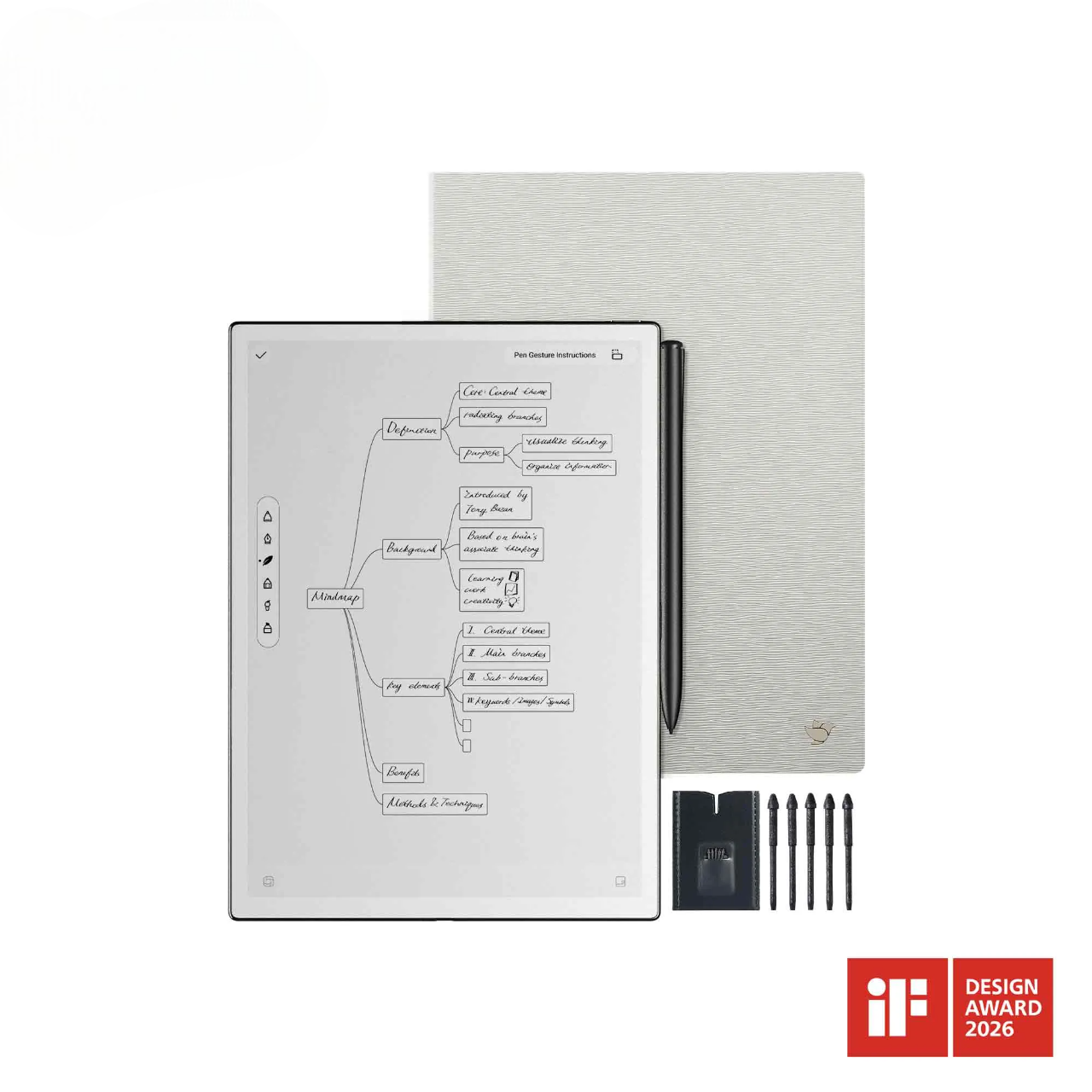
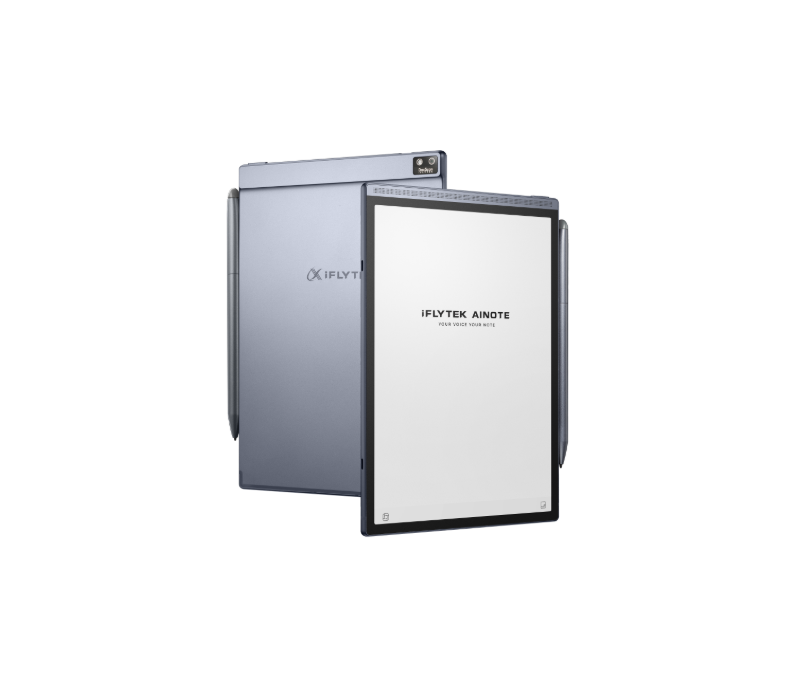
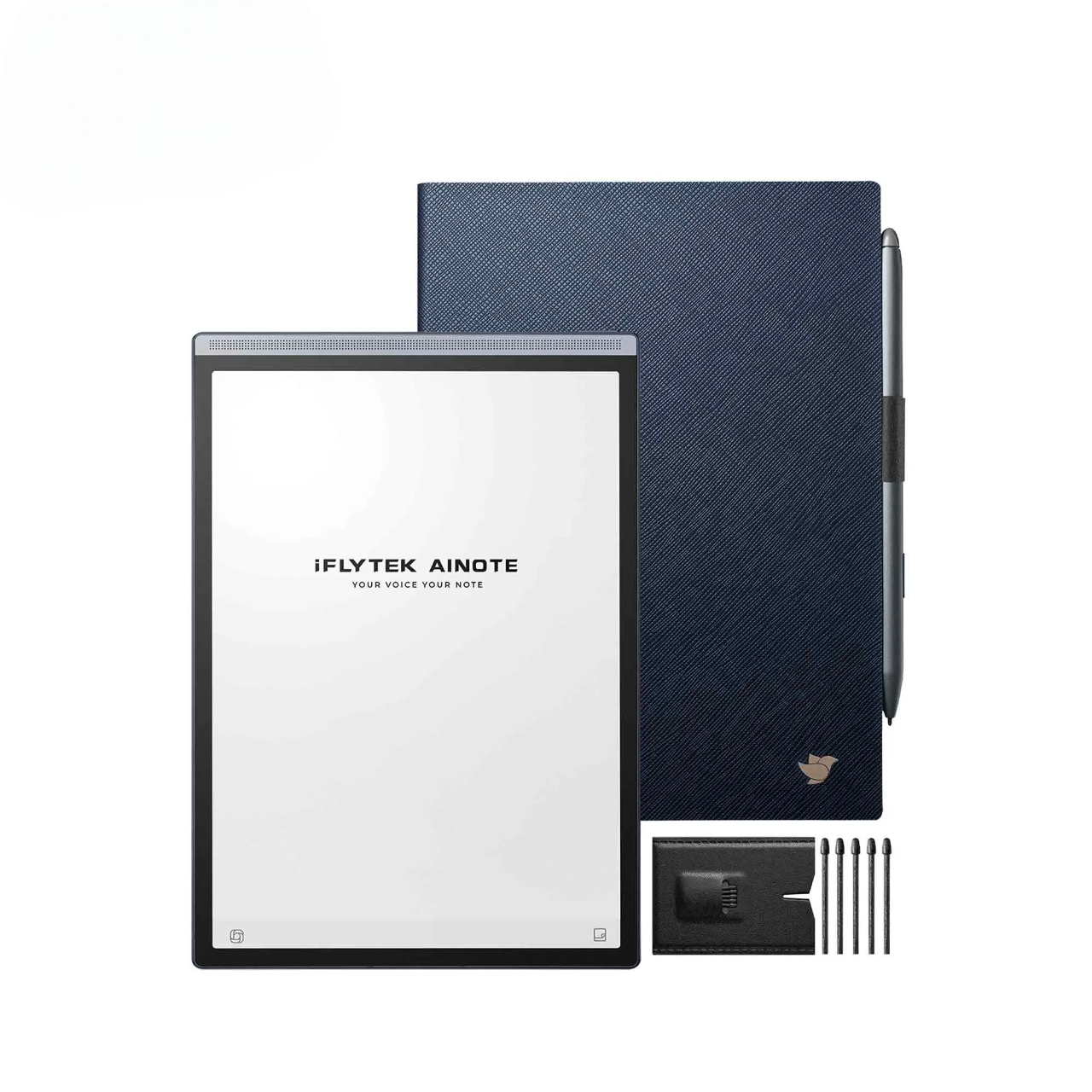
Choose AINOTE Air 2 when portability, a built-in front light, and cost-effective mobile note-taking are the priorities. It has an 8.2-inch E Ink display and weighs approximately 230 grams. Choose AINOTE 2 for a larger 10.65-inch 300-PPI screen, 64GB of storage, Android 14, broader system-language support, and a workflow focused on professional writing and deep reading.
What Is the Return and Warranty Policy for an iFLYTEK E-Ink Tablet?
What Is the Return and Warranty Policy for an iFLYTEK E-Ink Tablet?
Eligible iFLYTEK AINOTE purchases can be returned within 30 days of delivery when the device and packaging meet the return requirements. A one-year warranty covers eligible manufacturing defects and hardware issues. Keep your proof of purchase and contact customer support before returning the device or requesting warranty service.
How Are Notes and Recordings Protected on iFLYTEK AINOTE?
How Are Notes and Recordings Protected on iFLYTEK AINOTE?
AINOTE uses AWS cloud services and end-to-end encryption to help protect notes and recordings on the device, during storage, and while data is being transferred. Users can also use available device and account security settings to control access to their content.
Can I Change the System Language on an iFLYTEK Smart Notebook?
Can I Change the System Language on an iFLYTEK Smart Notebook?
Yes. You can select a supported system language during setup or change it later in the device settings. Available interface languages vary by AINOTE model and software version. System language is separate from transcription, translation, and handwriting recognition, which may support additional languages. If you need a specific interface language, check the language specifications of the selected digital notebook before purchasing.
What is the return and exchange policy for an e ink tablet?
You may return or exchange the device within 30 days of delivery, as long as it is in its original condition and packaging. A 1-year warranty covers manufacturing defects and hardware malfunctions. Please keep the proof of purchase and contact our support team if you need to initiate a return or claim a warranty repair.