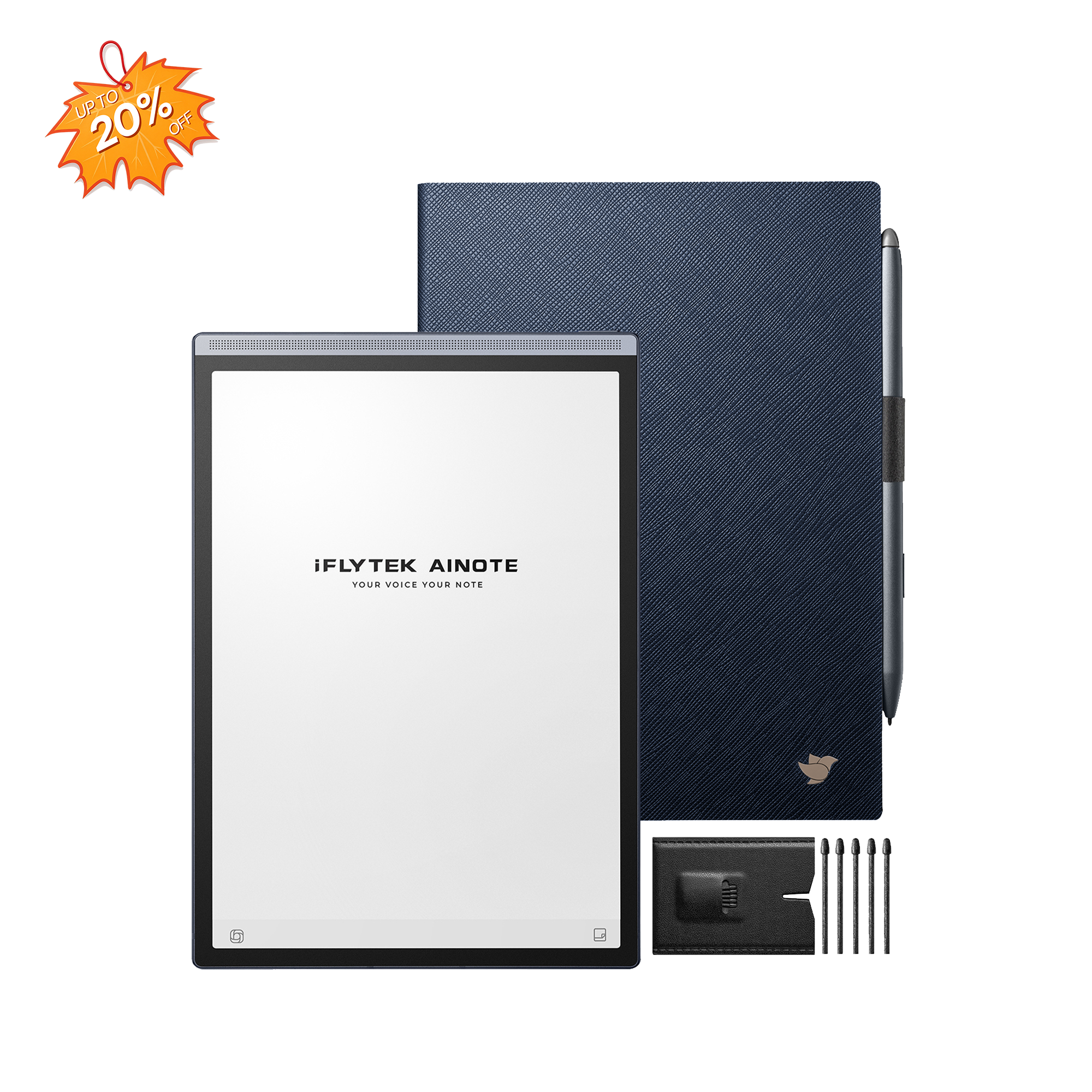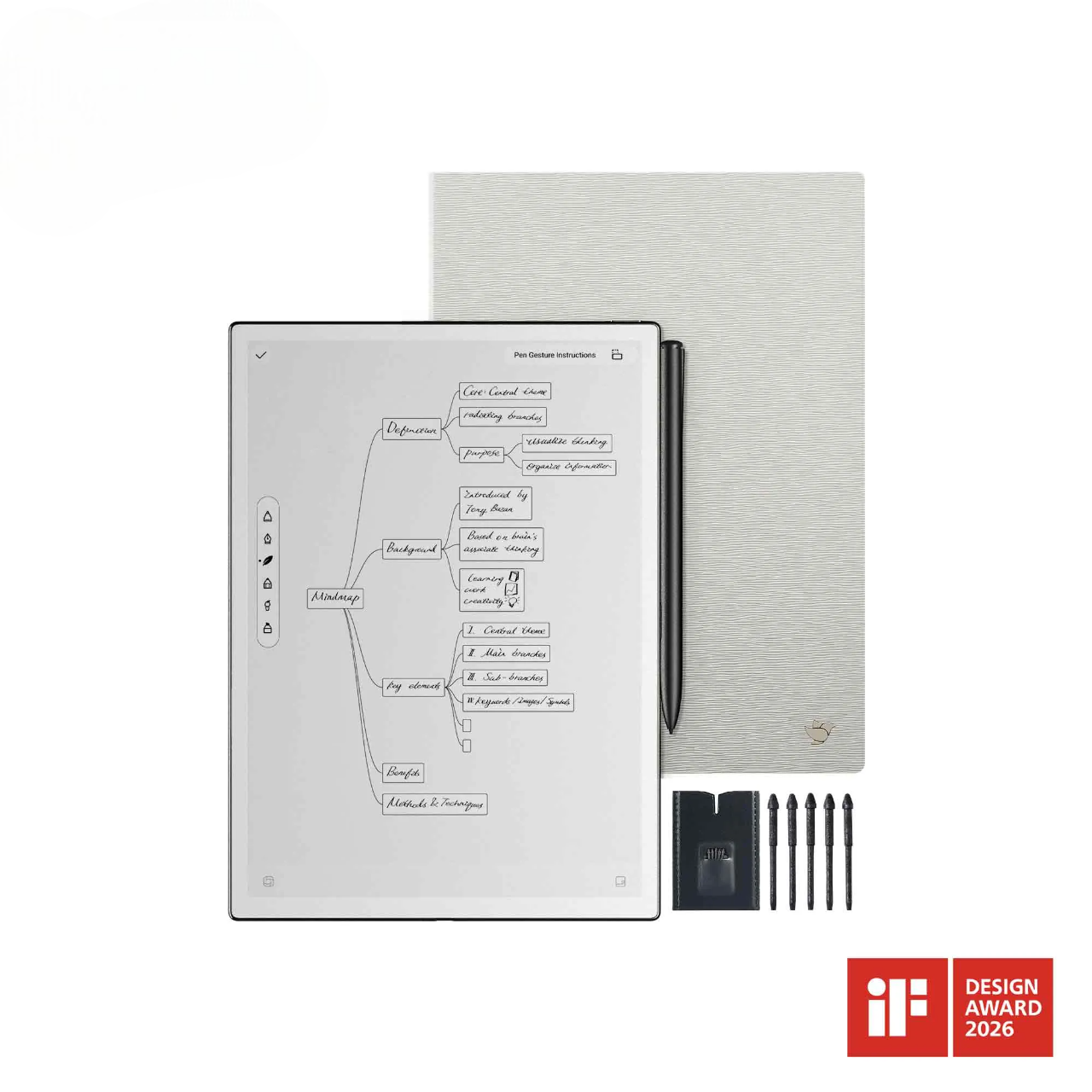

Knowing how to clean e-reader screens safely can help prevent scratches and moisture damage. Before cleaning, turn the device off, then wipe the display with a soft microfiber cloth using small circular motions and minimal pressure. If a mark remains, slightly dampen part of the cloth with water and try again. Keep moisture away from the ports and screen edges, and never spray liquid directly onto the device.
Safe cleaning is only one part of E Ink screen care. Careful storage and everyday handling can also reduce the risk of scratches, pressure damage, and heat exposure.
How to Clean an E Ink Screen Safely
E Ink screens often have matte, anti-glare, or paper-like surface treatments that can react differently to moisture and cleaning products. Start with the least aggressive method and add moisture only when a dry cloth cannot remove the mark. Always check the care instructions for your specific model before using alcohol, disinfectants, or commercial screen cleaners.
Step-by-Step: How to Clean an E Ink Screen Without Damage
Follow these steps to remove dust and fingerprints without placing unnecessary pressure or moisture on the display:
- Power down the device: Turn the e-reader off and disconnect any charging cable. This makes marks easier to see and prevents accidental input while cleaning.
- Remove loose dust: Gently wipe the screen with a clean, dry microfiber cloth. Avoid pressing on one spot or scrubbing back and forth.
- Dampen the cloth if needed: For dried marks or stubborn fingerprints, slightly dampen one corner of the cloth with water. The cloth should feel barely damp rather than wet.
- Wipe gently: Move the microfiber cloth over the screen in small circular motions, using minimal, even pressure. Work gradually across the display rather than rubbing one spot repeatedly. Avoid scraping the surface with a fingernail or another hard object.
- Dry the surface: Use a dry section of the cloth to remove remaining moisture, especially near the bezel and screen edges.
- Wait before using the device: Make sure the screen, buttons, bezel, and ports are completely dry before turning the device on or connecting a charger.
The same microfiber cloth can be used on the back and sides of the e-reader. Use a soft, dry brush to remove loose dust around buttons and charging ports, but avoid inserting tools or damp cotton swabs into an opening. Clean the stylus and protective cover separately according to their materials.
What to Avoid When Cleaning E Ink Screens
The wrong cleaning method can scratch the matte surface, weaken a coating, or allow moisture to enter the device. Avoid the following items and actions:
- Paper towels and rough fabric: They may leave lint or create fine scratches on matte screen coatings.
- Household glass cleaners: Products containing ammonia, bleach, or strong solvents may damage the display surface.
- Direct spraying: Never spray water or cleaner onto the screen because liquid may enter around the bezel, buttons, or ports.
- Heavy pressure: Do not scrub stubborn marks aggressively. Concentrated pressure can damage the display beneath the surface.
- Sharp objects: Avoid fingernails, cards, metal tools, and hard brushes.
- Unapproved alcohol products: Manufacturer recommendations differ, so confirm that alcohol is safe for your model before using it.
A stain that does not come off after gentle cleaning may be a scratch, pressure mark, or internal display problem. Continuing to rub the area can make the damage worse.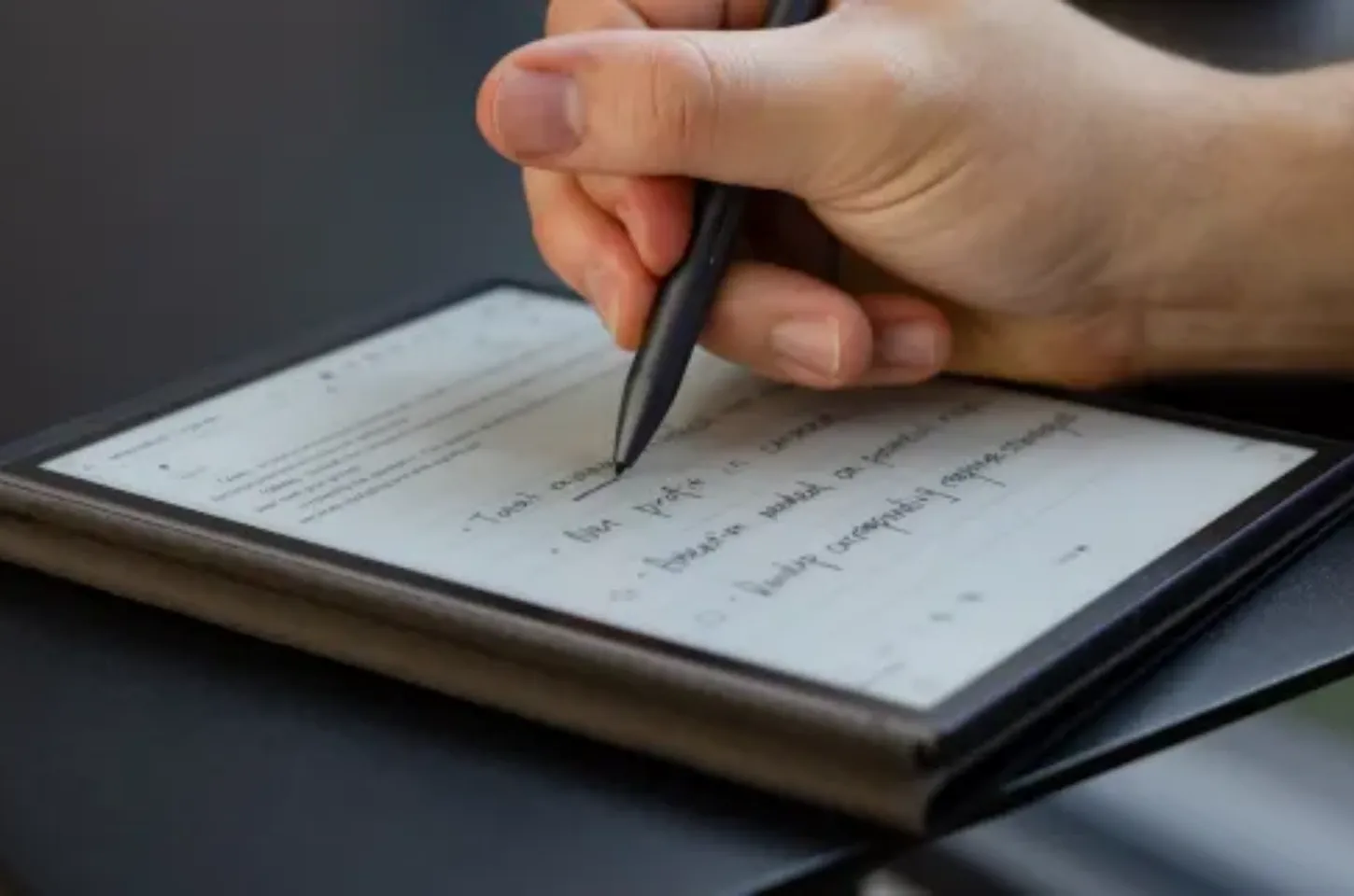
How Do E Ink Screens Work and Why Does Care Matter?
E Ink displays use electrically charged particles to form text and images without continuously emitting light. The particles move when an electrical signal is applied, allowing the screen to hold an image while using very little power. This is why an e-reader can continue showing a page even when it is not actively refreshing.
Many devices use a glass-based backplane that may crack under concentrated pressure, while some models use a more flexible plastic-based structure. The outer surface can look undamaged even when an internal layer has been affected. Because construction varies between devices, users should avoid bending the screen, pressing hard on one area, or carrying it beside heavy and pointed objects.
E Ink screens also refresh differently from LCD and OLED displays. A faint trace of the previous page may sometimes remain visible, but this does not always mean the screen is damaged.
How to Store an E Ink Device When Not in Use
Poor storage can expose an E Ink device to heat, moisture, battery degradation, and concentrated pressure. A hot car, damp room, or heavy object placed on the screen may cause damage even when the device is not being used. Store it in a dry, stable location where it cannot bend, fall, or become overheated.
Best Storage Conditions for E Ink Devices
Keep the device in a cool, dry indoor location and avoid rapid temperature changes. Do not leave it inside a parked car, beside a heater, or in direct sunlight for an extended period. High temperatures may affect the battery and other internal components.
Moisture is another concern, especially when a device does not have a confirmed water-resistance rating. Avoid storing an e-reader in a damp bathroom, near an open window, or inside a bag with a wet bottle. For extended storage, check the manufacturer’s recommended temperature and humidity range.
A rigid cover can provide additional protection against dust and pressure. Make sure the cover is clean before closing it, since small pieces of grit trapped against the screen may cause scratches.
Long-Term Storage Tips for Weeks or Months
If the device will not be used for several weeks or months, prepare it before placing it in a drawer or cabinet.
- Leave a partial battery charge: Avoid storing the device with a completely empty battery. Follow the manufacturer’s battery-care recommendations for the preferred charge level.
- Turn the device off: A full shutdown may reduce unnecessary battery drain during long storage.
- Use a protected position: Store the device flat or upright in a cover where it cannot bend or slide.
- Keep weight off the screen: Do not stack books, laptops, or other heavy items on top of it.
- Check it periodically: For very long storage periods, inspect the device occasionally and recharge it if the battery becomes too low.
Keep the e-reader away from table edges and unstable stacks. Anti-slip surfaces may reduce minor movement, but careful placement and a protective cover offer more reliable protection against falls.
How to Protect an E Ink Screen From Damage
Preventing pressure, scratches, and drops is usually easier than repairing a damaged E Ink display. A suitable case and careful handling are especially important when carrying the device in a backpack, briefcase, or travel bag.
Avoid placing an e-reader in the same compartment as keys, chargers, metal pens, or other hard objects. Even when the outer surface is not scratched, a concentrated point of pressure may affect the display beneath it.
Do You Need a Screen Protector for E Ink?
An E Ink device may not need an additional screen protector if it already has a matte writing surface and is carried in a rigid protective cover. Before adding one, consider whether the extra layer could affect:
- Screen clarity
- Glare levels
- Stylus response
- Touch sensitivity
- The original paper-like writing feel
A thin film may reduce surface scratches, but it offers less protection against bending and concentrated pressure than a rigid front cover. Users who carry an e-reader beside keys, chargers, or other hard objects should prioritize a well-fitting case that supports the screen without pressing against it. The iFLYTEK AINOTE 2 is designed to provide a paper-like writing experience, so check the manufacturer’s current accessory and care guidance before adding a third-party screen protector that could change the original stylus friction or display clarity.
Using a Case or Cover for Daily Protection
A case with a rigid front cover can help protect the screen from keys, pens, chargers, and other hard objects inside a bag. It also reduces the chance of direct pressure being applied to one small area of the display.
Soft sleeves may protect against surface scratches, but they provide less support against bending or impact. Choose a cover that fits securely without pressing against the screen when closed. Avoid cases with loose interior parts, exposed magnets, or hard objects that rest directly against the display.
Before putting the device into a case, check that the inside is free of sand, crumbs, or other small particles. These materials can rub against the screen during travel and create fine scratches.
Common E Ink Screen Problems Caused by Poor Care
Some E Ink screen issues are temporary display behaviors, while others indicate physical damage. Knowing the difference can prevent unnecessary cleaning, repeated refreshes, or attempts to fix hardware damage through software settings.
Ghosting vs. Physical Screen Damage
Ghosting appears as a faint trace of the previous page after the content changes. Light ghosting is common on E Ink displays and can often be reduced by refreshing the screen, restarting the device, or adjusting the refresh settings.
Physical screen damage looks different. Permanent lines, black or white blocks, blank sections, or a cracked pattern beneath the surface may indicate damage to the display layer or backplane. These marks usually remain after a restart or full-screen refresh and may require professional repair or screen replacement.
A frozen page is not always proof of physical damage. First charge the device, restart it, and perform a screen refresh if the settings allow it. If the image remains unchanged or damaged sections continue to appear, contact the manufacturer or an authorized service provider.
Can Scratches or Pressure Marks Be Fixed?
Surface scratches on an E Ink screen are usually difficult to remove safely. Polishing compounds, abrasive cleaners, and repeated rubbing may make the damage worse by changing the matte or anti-glare finish.
If a mark remains after gentle cleaning, stop rubbing the area. A shallow scratch may remain visible without affecting the device’s function, while permanent lines or dark blocks are more likely to indicate internal damage.
Pressure marks and cracked display layers generally cannot be repaired through settings or cleaning. Use a protective case to prevent further damage and contact a repair provider if the screen becomes difficult to read or use.
Conclusion
Cleaning an E Ink tablet safely begins with the least aggressive method: power it off, remove loose dust with a dry microfiber cloth, and use minimal moisture only when needed. If a mark remains after gentle cleaning, stop rubbing and check whether it may be a scratch, pressure mark, or display problem.
Follow the care instructions for your specific model whenever its cleaning, storage, or accessory guidance differs from general advice. Regularly checking the case for trapped debris and keeping the device away from heat, moisture, and concentrated pressure can help protect both the display and its paper-like writing surface.
FAQ
How Often Should You Clean an E Ink Display?
Clean it when dust, fingerprints, or marks begin to affect reading or writing. Unnecessary frequent wiping can increase the chance of scratches or accidental moisture exposure.
Should You Remove the Case Before Cleaning an E-Reader?
Yes, when the case can be removed safely. Taking it off makes it easier to clean the device edges and check whether dust, sand, or moisture has become trapped inside.
Can You Use Compressed Air Around an E-Reader Charging Port?
Check the manufacturer’s instructions first. High-pressure air can push debris farther into the port or introduce moisture from the can, so a soft, dry brush is usually the safer first option.
What Should You Do If Liquid Gets Under the Screen Bezel?
Turn the device off, disconnect it from power, and avoid charging or repeatedly pressing its buttons. Contact the manufacturer or an authorized service provider if liquid may have entered the device.
How Long Do E Ink Screens Usually Last?
There is no fixed lifespan for every E Ink screen. Battery aging, drops, concentrated pressure, temperature, writing frequency, and daily handling all affect how long the device remains usable.