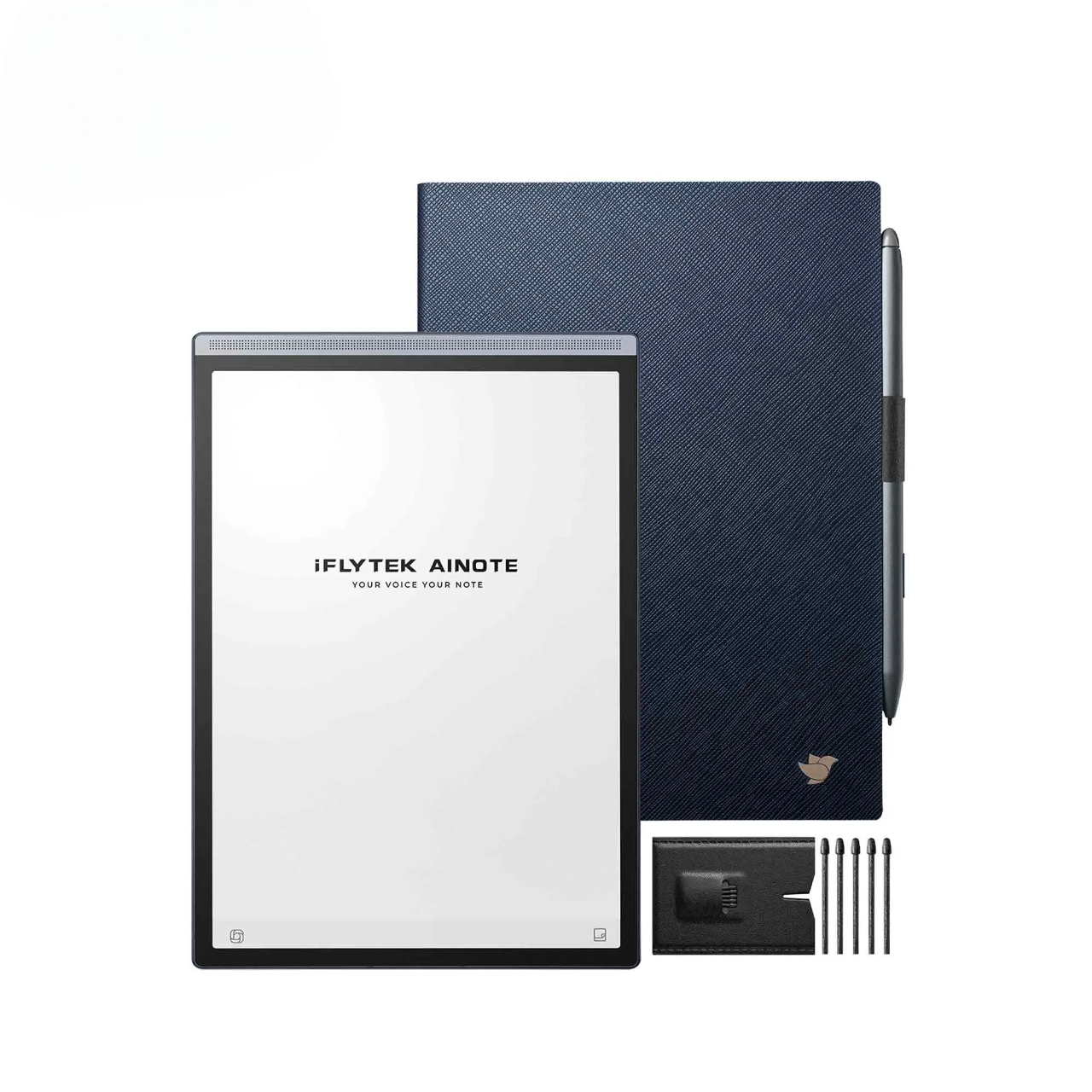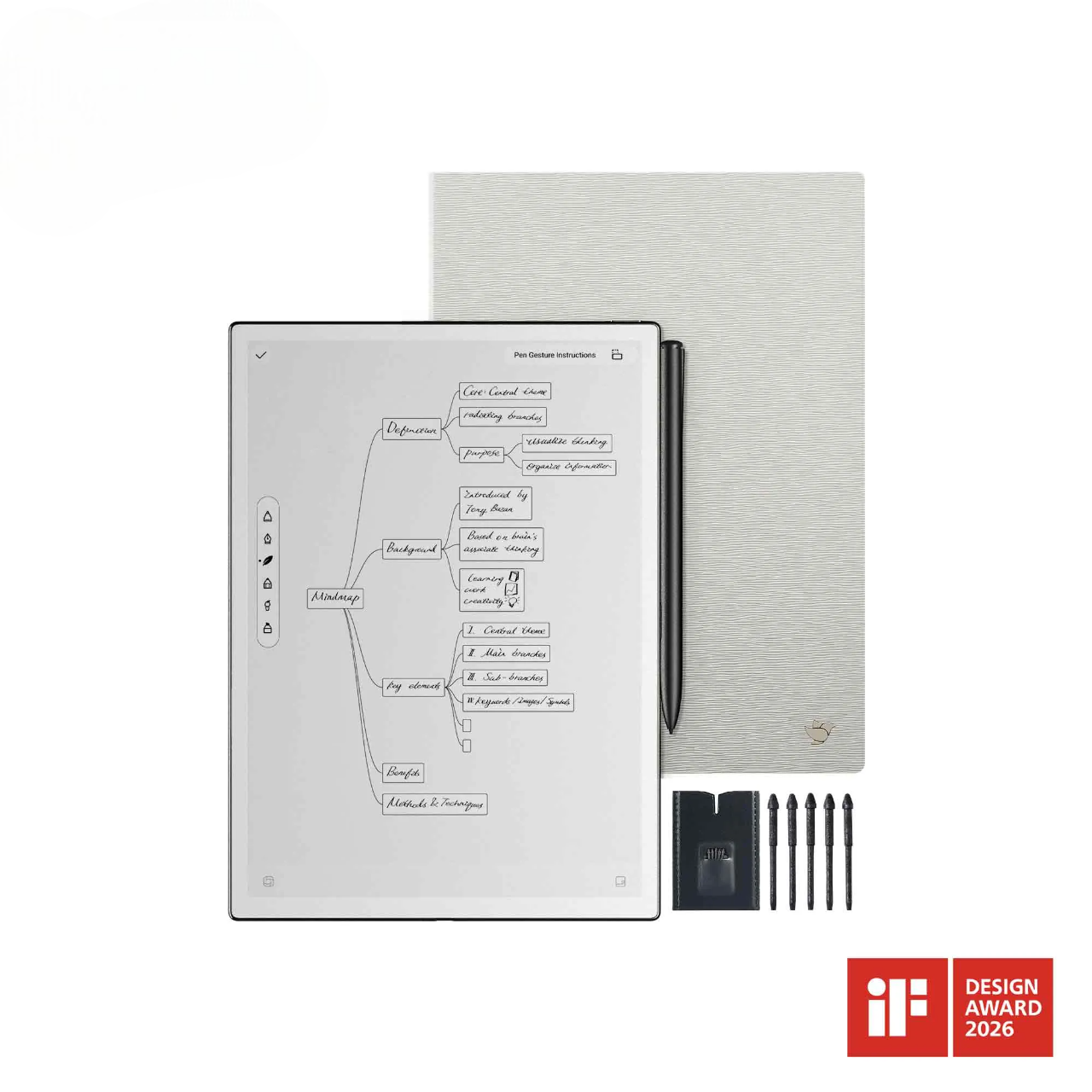

AI transcription and translation on AINOTE 2 work best when the note is prepared before the session, recorded clearly, and checked after AI output is generated. Start by creating a note for the meeting, lecture, or interview, then record the conversation, follow the transcript, and generate a summary after the session ends. For multilingual content, set the source and target languages before translating spoken or pasted text, then verify names, dates, numbers, and key terms before sharing. Supporting tools such as smart pen marks, OCR, and PDF notes can help organize the final review, but transcription and translation should remain the center of the workflow.
Set Up a Note Before Using AI Features
A clear note setup gives AI transcription and translation a stable context. Before recording or translating, create one note for the session, add a clear title, and leave space for handwritten marks, transcript review, and translated text.
Create a New Note in the App
Open the AINOTE app or the note area connected to your AINOTE 2 workflow before the meeting or class starts. Create one note for the session so the transcript, summary, handwriting, and related tasks stay in the same place.
- Create a new note before recording or translating.
- Use a specific title, such as “Client Call Notes” or “Biology Lecture Week 5.”
- Add the date, topic, and speaker name at the top if the session needs review or sharing.
- Confirm the note is saved in the right folder before the session begins.
A clear note name keeps the audio, transcript, summary, and handwritten context connected, which makes later review easier.
Choose Page Styles, Sizes, and Templates
Choose a page style that supports the way you will review the transcript later. A simple lined page works for lectures or interviews, while a meeting template with space for decisions, questions, and follow-up items helps organize business discussions. If translation will be part of the workflow, leave room to place the translated text near the original wording. This makes it easier to compare AI output with your handwritten notes after the session.
Write, Edit, and Save Notes Automatically
Start writing once the note is created, then keep key points short enough to scan after the session. Edit unclear handwriting or section labels during natural pauses, because clean headings make AI output easier to organize later. Automatic saving reduces the risk of losing work, but it is still worth checking that the note appears in the correct folder after switching pages or ending a session. For important meetings, confirm the file name before recording so the transcript and handwriting do not get separated.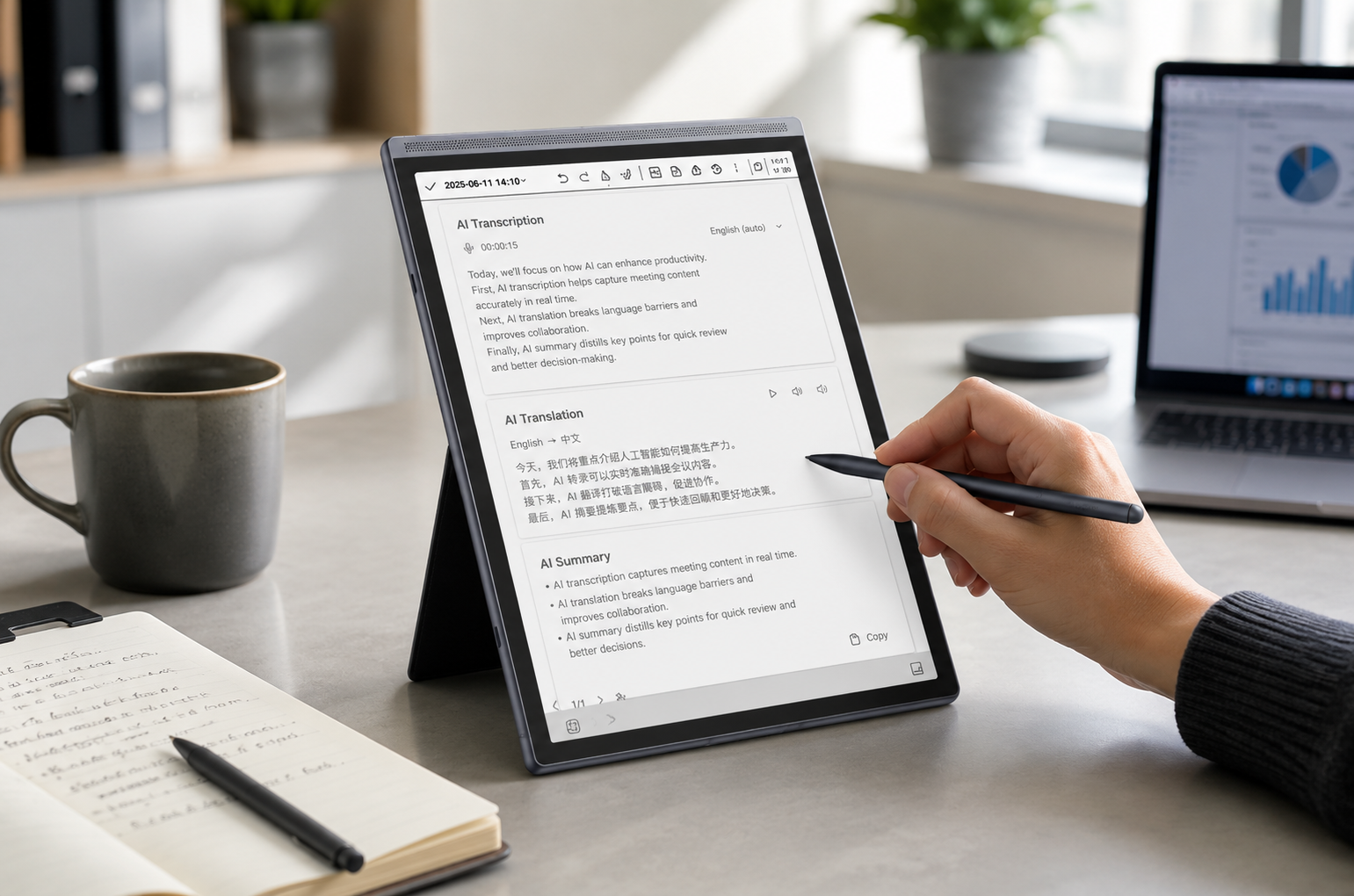
Use AI Transcription for Meetings or Classes
In fast paced lectures or meetings, key details and multilingual conversations are hard to capture by hand. AI transcription helps record speech in real time, translate language when needed, and capture important information so users can review and highlight key points later.
|
Recording Need |
Manual Notes Risk |
AI Transcription Workflow |
|
Fast business meetings |
Missed decisions |
Record speech and review the transcript |
|
Dense lectures |
Lost definitions |
Capture audio and add handwritten topic markers |
|
Interviews |
Incomplete quotes |
Record answers and summarize themes |
|
Group discussions |
Speaker confusion |
Check the transcript while adding context notes |
This workflow works best when recording, handwriting, and review stay inside the same note. The goal is not to fix every transcript line during the session, but to capture the full conversation and mark the parts that need attention later.
Start Recording From a Note
Start recording from inside the note that belongs to the meeting, class, or interview. This keeps the audio file connected to the same page where you will write highlights, questions, and action points. Before the session begins, check the room noise, speaker position, and whether the note title is correct. If the session has an agenda, write the agenda items first so the transcript can later be reviewed against the discussion flow.
Follow the Live Transcript While Listening
Follow the live transcript as the conversation happens, but do not try to correct every line during the session. Use it as a live reference while your handwritten notes capture the parts that need attention later.
- Watch for major ideas, names, deadlines, and topic changes.
- Add a short handwritten note when the transcript looks unclear.
- Mark important moments instead of stopping the conversation to edit text.
- Review the original audio after the session if a key sentence needs checking.
This keeps the session moving while still giving you enough context to clean the final notes later.
Add Handwritten Notes and Timestamps
Use handwriting to add context that the transcript cannot fully capture, such as “decision,” “risk,” “ask legal,” or “review with team.” Timestamps are useful when a sentence needs to be checked against the original audio. In a class, timestamps can mark a difficult concept that needs replaying later. In interviews and source-heavy research sessions, AI note-taking for journalists and researchers can help separate direct answers from follow-up thoughts, context notes, and details that need verification.
Generate Transcripts and Summaries
After the session, generate the transcript first, then create a summary only after the full recording is available. The transcript gives you the source material, while the summary turns the session into decisions, key ideas, and next steps. iFLYTEK AINOTE 2 can keep handwriting, recording, transcription, and summaries within the same review workflow, which makes meeting or study notes easier to organize. Before sharing any summary, compare important names, numbers, dates, and commitments with the transcript.
Use AI Translation for Multilingual Content
AI translation is useful when the original content comes from speech, pasted text, or a multilingual discussion. Treat translation as a working aid, then verify important details before sending, signing, studying, or making decisions from the translated content.
Set the Input and Output Languages
Set the input language before the session starts, then choose the output language based on who needs to read or hear the result. In bilingual meetings, confirm the main speaking language instead of changing settings during every short exchange. For classroom or interview work, label the note with both languages so the file stays clear in search results. If the conversation may switch languages often, plan a short pause before important questions or decisions.
Translate Spoken Discussions in Real Time
Use real-time translation when the goal is to follow a discussion as it happens, such as a global meeting, a school exchange, or a travel conversation. The translation is usually easier to follow when the conversation stays clear and structured.
- Set the source and target languages before the conversation begins.
- Speak in short, complete sentences when possible.
- Let one speaker talk at a time in group settings.
- Repeat important decisions in simple language before moving on.
This helps the translated output stay clearer and makes later review more reliable.
Translate Pasted Text Content
Paste text when you need to translate written material, such as meeting notes, class content, email excerpts, or interview questions. This is different from real-time spoken translation because typed content can be reviewed line by line.
- Copy the source text into the note.
- Clean up messy line breaks before translating.
- Translate the pasted text into the target language.
- Place the translated version below the original text.
- Compare both versions before using or sharing the result.
Keeping the original and translated text together makes it easier to check meaning, terms, and important details.
Check Important Details After Translation
Check names, dates, addresses, numbers, technical terms, and legal or medical wording before relying on a translation. AI translation can make multilingual content easier to understand, but context still matters. If a term has a specific meaning in a contract, diagnosis, lecture, or business agreement, compare it with the original wording. Critical documents or high-stakes language should be reviewed by a qualified person before being shared or used for decisions. .jpg?w=1450&h=960)
Use Smart Pen Marks for Tasks and Key Points
Smart pen marks make transcript and translation review easier by turning handwritten symbols into a simple organization system. Instead of rewriting notes after every session, mark important items while listening, then use those marks to find key points, tasks, and follow-up details after the note is saved.
|
Pen Mark |
Main Purpose |
Review Action |
|
Star |
Focus point |
Review key ideas first |
|
Triangle |
Page marker |
Find important pages faster |
|
Circle |
Task item |
Turn notes into actions |
|
Calendar event |
Time based follow up |
Check schedule details |
The main value is consistency. Use the same mark for the same purpose each time so your notes stay predictable.
Draw a Star to Save Focus Points
Draw a star beside a point that deserves attention during review. This works well for key decisions, exam topics, useful quotes, or ideas that should not get buried in the transcript. Use stars sparingly so they remain meaningful. If every point gets a star, the review list becomes as crowded as the original note.
Draw a Triangle to Mark Pages
Draw a triangle when a full page or section needs to be found quickly later. This is useful for lecture pages with diagrams, meeting pages with final decisions, or interview pages with strong quotes. A page mark is different from a focus point because it helps you return to a location, not just a sentence. Use it when the surrounding context matters.
Draw a Circle to Create Tasks
Draw a circle around a task when the note contains something that needs action after the session. Keep the task wording clear, such as “send draft,” “confirm deadline,” or “review chapter three.” A short task is easier to manage than a full sentence copied from the transcript. After the session, check each circled item before adding it to a task list.
Manage Tasks and Calendar Events
Review marked tasks before closing the note, especially after meetings with deadlines or classes with assignments. Add dates, owners, or reminders when a task needs follow up. If a note can create or support calendar events, check the time, title, and context before saving the event. A quick review prevents vague tasks from turning into missed work later.
Turn Handwriting, Audio, and Reading Into AI Notes
AINOTE 2 is not limited to recording speech, but supporting features should still serve the main review workflow. Handwriting, OCR, PDF highlights, pasted text, and voice input are most useful when they help clarify the transcript, translated text, or follow-up notes.
Convert Handwriting Into Markdown With OCR
Use OCR when handwritten notes need to become clean digital text for editing, sharing, or study review. This is most useful when your handwriting adds context to the transcript, such as decisions, questions, diagrams, or follow-up items. Write section titles clearly before converting, since structured handwriting usually produces cleaner output. After conversion, scan the result for unclear words, especially names, abbreviations, and technical terms.
Format Notes and Generate AI Content
After transcription or OCR, format the note into sections before asking AI to generate content from it. Strong section labels, such as “Decisions,” “Questions,” “Risks,” and “Next Steps,” give the AI clearer context. For note-taking AI for students, separate definitions, examples, and review questions before generating a study outline. For meeting notes, check key names, numbers, decisions, and deadlines against the original recording or transcript before sharing.
Highlight PDF Text and Ask AI Questions
When reading PDFs as part of a meeting, class, or research workflow, highlight only the passages that connect to your notes. Ask focused questions about the highlighted section, such as what a paragraph means, how two ideas compare, or which terms need review. This keeps the AI response tied to the reading material instead of a broad topic. Keep the page number or document title visible in the note so the source remains traceable.
Create Notes or Events by Voice
Use voice input for quick notes when typing or handwriting would interrupt the flow of review. This is useful after a meeting, while reviewing a lecture, or when capturing a follow-up task during travel. Keep voice notes brief and specific, because short commands are easier to turn into useful notes or calendar items. Before saving an event, confirm the date, time, title, and location details.
FAQ
Does AI transcription work better with clear audio?
Yes. Clear audio helps AI transcription capture names, details, and topic changes more accurately. Before recording, reduce background noise, place the device close enough to the main speaker, and avoid overlapping conversations when possible.
What is the difference between a transcript and a summary?
A transcript keeps the spoken content in a fuller text format, while a summary pulls out the main points, decisions, and next steps. Use the transcript as the source record, then use the summary for faster review after the meeting, lecture, or interview.
Can AINOTE 2 translate spoken conversations in real time?
Yes, if the feature is supported in your current device version and language settings. Set the source and target languages before the conversation starts, speak in short sentences, and check important details after translation.
Can AINOTE 2 help turn meeting recordings into action items?
Yes. After recording and transcription, key decisions and follow-up tasks can be reviewed from the transcript, summary, and handwritten marks. Check each action item before sharing so the owner, deadline, and next step are clear.
Conclusion
AI transcription and translation work best when the note is organized before the session starts and checked after the output is generated. Create a clear note, record and mark the right moments, verify important details, and turn the final content into tasks, summaries, reading notes, or calendar items that are ready to use. A broader iFLYTEK workflow can also support recording, translation, and AI note-taking needs across different work and study scenarios.