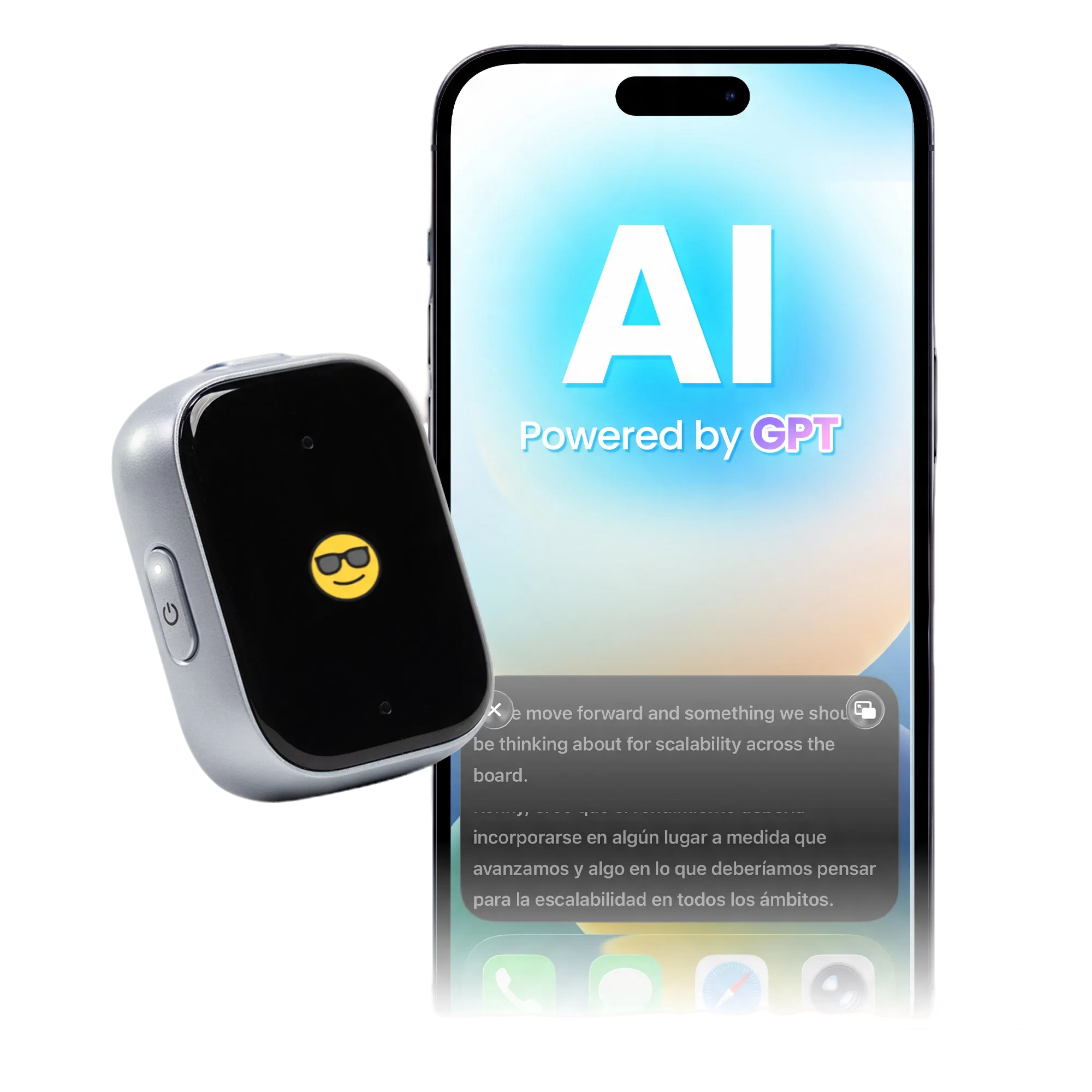
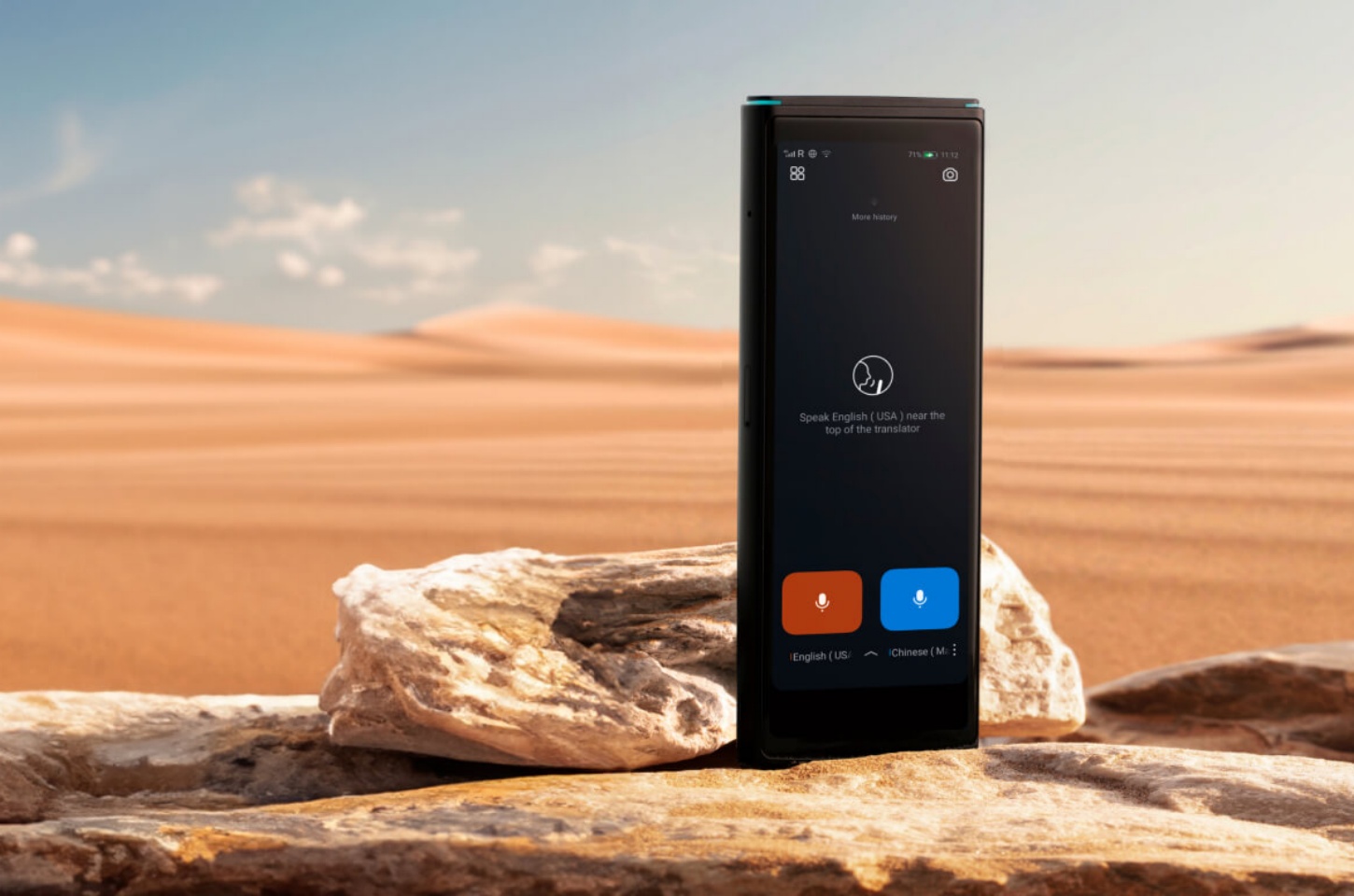
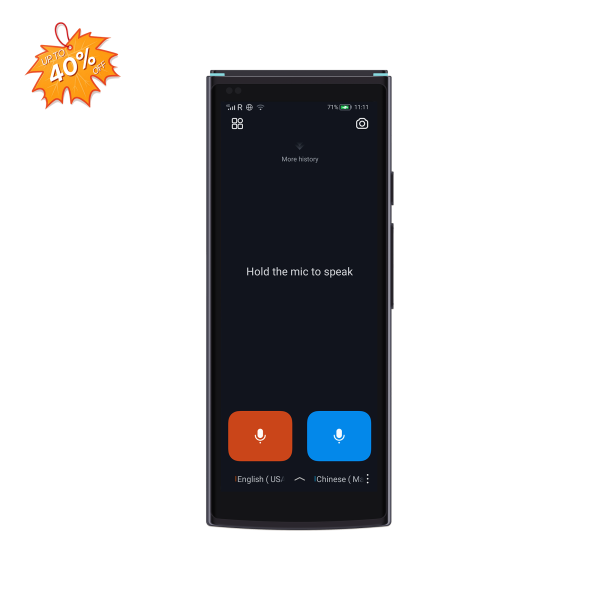
iFLYTEK Smart Translator
Seeing “I'm sorry, the translation of this text is temporarily unavailable.” usually means the translation request failed, not that the original text has disappeared or become invalid. The cause may be a brief service interruption, an unstable connection, unsupported content, incorrect language detection, or a problem within one app feature. The checks below help you determine whether to retry, change a setting, clean up the source text, or switch tools.
What Does Translation Temporarily Unavailable Mean?
The wording is broad because the translation layer often cannot identify the exact failure for the user.
The Translation Request Failed, Not Necessarily the Original Content
Translation is usually a separate process applied after an app, browser, or website loads the source. A failure can occur when the platform sends the text to a translation service, detects its language, or receives the result. If you can still read, select, or copy the original, the content itself probably remains available.
The Problem May Be Temporary or Limited to One Translation Feature
One failed caption does not prove that Google Translate is not working everywhere. Camera translation, webpage translation, typed text, speech, and an in-app “Translate” button may use different permissions, language support, or processing paths. Test another item and another mode before reinstalling anything.
Common Causes Include Connection, Language, Content, or Service Issues
Weak connectivity, VPN or firewall filtering, an unsupported language pair, and incorrect automatic detection are frequent causes. Translation may also fail on extremely long text, mixed scripts, decorative characters, images without recognized text, or content loaded dynamically. Less often, the provider or the platform hosting the content is experiencing an outage.
Where Does This Translation Error Appear and How Can You Check It?
The location of the error is the fastest clue because it shows which part of the workflow to test.
Identify Where the Translation Error Appears
Note whether the failure affects a social post, an entire webpage, a message, an image, or a dedicated translation app. Also record whether the original content loads and whether the problem affects one item or everything. That distinction separates a content-specific problem from an account, device, network, or service issue.
Run a Quick Test to Narrow Down the Cause
Use a short, plain sentence in a language you can identify, then repeat the request on another item or translation mode. The comparison is more useful than repeatedly tapping the same button.
|
Where the Problem Appears |
Typical Symptom |
Quick Check |
What the Result Suggests |
|
Social media posts, captions, or comments |
One item fails while others work |
Reload it and translate another item |
A source-language, formatting, or content restriction is likely |
|
Webpages and browser translation |
The page or some sections remain untranslated |
Refresh, test another site, and try copying the affected text |
Scripts, frames, dynamic content, or page formatting may be blocking translation |
|
Messaging apps and mobile keyboards |
Message or typing translation stops |
Try a simple sentence elsewhere and select both languages manually |
The original message, conversation, or app is probably responsible |
|
Images, videos, or scans |
Visible words are not detected |
Check clarity, cropping, orientation, and text recognition |
Image quality, OCR, or unsupported visual content is the likely cause |
|
Standalone translation apps |
Text, voice, camera, or offline mode fails |
Test a short typed sentence in each mode |
One feature may be failing rather than the whole app |
|
Several apps or websites |
Multiple tools fail together |
Switch between Wi-Fi and mobile data |
A VPN, proxy, firewall, or local network setting may be interfering |
How to Fix Translation Temporarily Unavailable Step by Step
Start with reversible checks and stop as soon as translation works; resetting the app first can erase useful settings or downloaded languages.
Step 1: Retry the Translation and Reload the Original Content
Wait briefly, retry once, and then refresh the post, page, or conversation. Reopen the app if necessary. This clears stale page state and temporary request failures without changing your data; repeated rapid retries rarely help during a service-side problem.
Step 2: Check the Connection and Remove Network Restrictions
Open another live webpage, then switch from Wi-Fi to mobile data or the reverse. Temporarily disable a VPN, proxy, private DNS filter, or strict firewall only if your security policy permits it. If translation works on the alternate network, troubleshoot the original network instead of the translation app.
Step 3: Manually Set the Source and Target Languages
Replace automatic language detection with the actual source language and confirm the target language. Short phrases, names, mixed-language messages, and closely related languages can be misidentified. A full sentence provides more context than an isolated word, a practice also reflected in Google's instructions for written translation.
Step 4: Clean the Text and Isolate the Problem Section
Copy the text into a plain-text field and remove excessive emoji, invisible formatting, repeated punctuation, or broken line spacing. Divide a long passage into smaller meaningful sections rather than individual words. If one segment consistently fails, inspect it for unusual symbols, mixed scripts, confidential-content controls, or unsupported material.
Step 5: Update and Reset the Affected Translation Feature
Update the app and operating system, restart the browser or device, and ensure JavaScript and required permissions are enabled. Next, clear the browser cache for the affected site or the app cache where the operating system permits. Reinstall only after saving phrasebooks or other local data and noting which offline language packs must be downloaded again.
Step 6: Check Account, Region, and Language Availability
Sign out and test again only when the feature normally works without an account; otherwise, verify account age, administrator controls, and regional availability. Not every language supports every mode, and website translation is not available in all regions according to Google Translate Help. A disabled speech or download button may indicate unsupported availability rather than a fault.
Step 7: Check for a Service Outage or Test Another Device
Test the same short sentence on a second device or through the provider's web interface. If it fails across devices and networks, look for an official status page or support notice and wait before changing more settings. If only one device fails, compare app versions, permissions, storage, date and time settings, and network configuration.
What to Use When Built-In Translation Still Does Not Work
Choose a fallback based on the source format, privacy requirements, connectivity, and how often the problem occurs.
Paste the Original Text Into a Separate Translation Tool
Copyable text is quickest to test in a standalone translator. Paste one complete section, set both languages manually, and compare the result with context you understand. Avoid uploading confidential contracts, health records, internal messages, or personal data unless the tool's privacy terms and your organization's policy permit it.
Use Screenshot or Photo Translation for Visual Content
For subtitles, scanned notices, menus, or text embedded in an image, capture a sharp, tightly cropped image with good contrast. Straighten the image and remove unrelated text so optical character recognition can identify the correct reading order. If accuracy matters, verify names, numbers, dates, warnings, and technical terms against the original.
Use a Translation App With Downloaded Offline Languages
When traveling with poor reception or limited mobile data, you may wonder, does Google Translate work offline? It does, as long as you download the required language packs before leaving a reliable network. Google states that downloaded languages can be used for translation without an internet connection, although languages without a download option are not available offline, and downloaded packs may occasionally require updates (Android, iPhone and iPad). Offline translation can be useful for everyday phrases while traveling, though language availability and translation results may differ from online modes.
[product_card1]
Consider a Dedicated Translation Device for Frequent Offline Use
A dedicated device can suit travelers, field teams, and cross-language staff who cannot depend on phone availability or reliable mobile service. The iFLYTEK Smart Translator is designed around this workflow: its official specifications include offline translation, bilingual recognition, online translation across 60 languages, and photo translation across 50 languages. It also includes two years of mobile data coverage in more than 148 countries and regions, providing an online fallback when local Wi-Fi is unavailable.
That does not make a dedicated translator necessary for every “translation temporarily unavailable” error. For occasional copyable text, a phone with downloaded languages is usually the simpler and less expensive choice. Consider a separate translator device when translation is frequent, conversations are time-sensitive, or keeping a phone available for calls and other work matters. Before buying, confirm that the required language pair and offline mode are supported; for legal, medical, or safety-critical communication, use a qualified human interpreter rather than relying on machine output alone.
Conclusion
“Translation temporarily unavailable” is usually a request-level problem that you can narrow down by changing one variable at a time. First determine whether it affects one piece of content, one mode, one device, or every service on the network. Then retry, verify connectivity and languages, simplify the source, and update only the affected feature. A separate text, image, or offline translator provides a practical fallback. A device such as the iFLYTEK Smart Translator becomes relevant when offline or cross-language communication is frequent enough to justify dedicated hardware, not as the first response to a temporary error. When failures persist across devices and networks, waiting for the provider to restore service is often better than repeatedly resetting your setup.
Read More: