Handwriting is quick and flexible. Finding a specific note later—or moving it into an email or document—is not. Converting handwriting to text gives you an editable, searchable copy without having to type everything again.
The best option depends on what you are starting with. A phone works well for a page or two, OneNote can convert digital ink created with a stylus, and handwriting-aware OCR can process existing photos and scanned files. If you convert notes regularly, a digital notebook can keep the writing, conversion, and organization steps on the same device.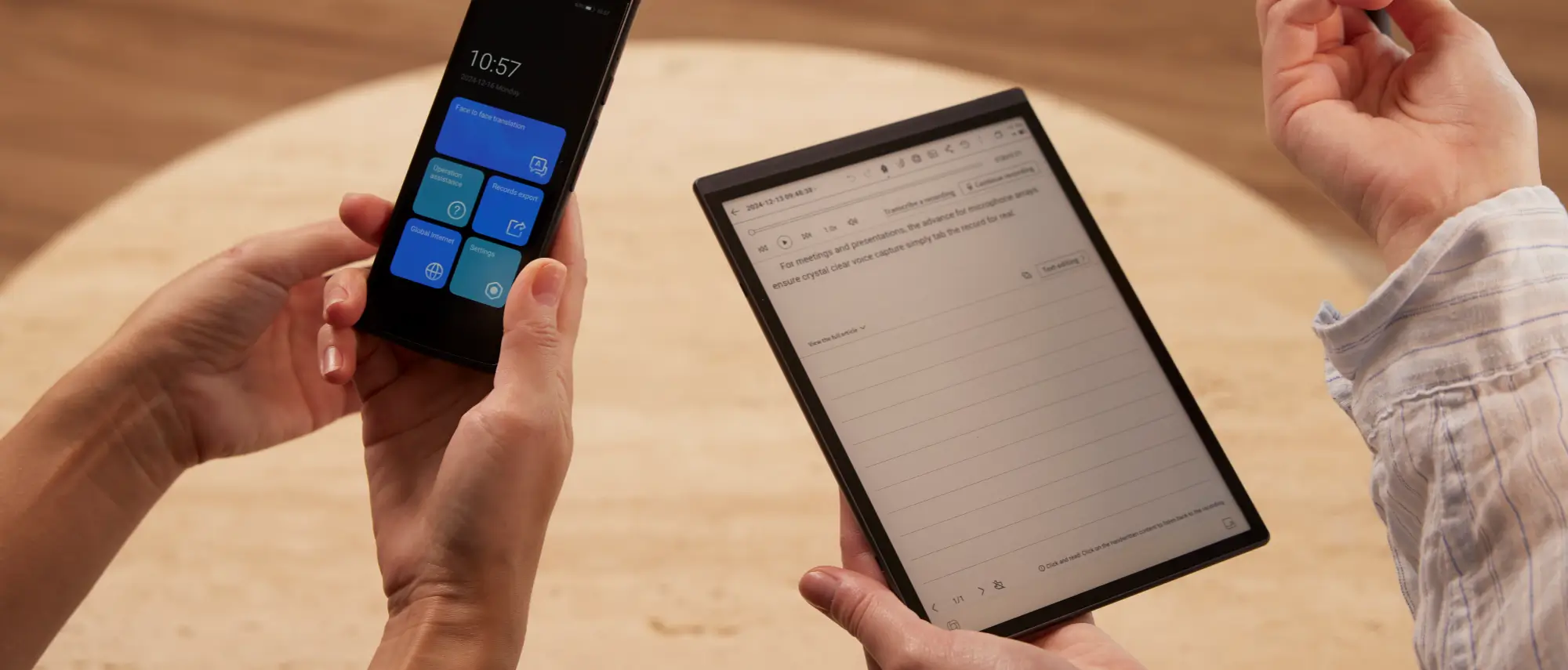
1. Convert Handwriting with Your Phone
For an occasional handwritten page, a phone is usually the fastest option.
Supported Apple devices can use Live Text to select recognized text from a photo. Android users can use Google Lens through supported Google apps.
The basic workflow is simple:
- Take a clear photo of the handwritten page.
- Select the recognized text.
- Copy it into Notes, Word, Google Docs, or another editor.
- Review the result before using it.
For a page or two, that is often all you need. If you convert notes every day, though, taking, cropping, and organizing a new photo each time can quickly become tedious.
2. Convert Digital Handwriting in OneNote
If your notes were created with a stylus in OneNote, you can convert the digital ink directly into typed text.
Use Lasso Select to select the handwriting, then choose Ink to Text. OneNote converts the selected ink into editable text that can be formatted, copied, or shared.
This works with digital ink created inside supported OneNote desktop versions—not handwriting in a photo.
If you have a photographed or scanned page instead, you can insert the image into OneNote and try Copy Text from Picture. Keep in mind that image OCR may struggle with handwriting, especially cursive or highly stylized text. Check the result carefully, and use a handwriting-specific OCR tool when accuracy matters.
3. Convert Scanned Notes and PDFs with OCR
If your notes already exist as photos or scans, look for an OCR tool that specifically supports handwriting. Not every OCR service does. Even with a compatible tool, neat writing and a clear, straight image will usually produce better results than cursive writing or a poorly lit photo.
Upload the image or document, choose the recognition language, run the conversion, and check the text before copying or exporting it.
This method is useful when your handwritten content already exists as:
- A photographed notebook page
- A scanned document
- A JPG or PNG image
- A handwritten PDF
- An archived letter or form
Online OCR is practical for occasional conversions, but it usually requires several separate steps: scanning, uploading, converting, downloading, and moving the result into another application.
Before uploading confidential notes or business documents, check how the service stores and processes uploaded files.

When Basic OCR Is Not Enough
A quick phone scan is fine once in a while. Do it after every class or meeting, however, and the extra steps start to add up: take the photo, crop it, upload it, fix recognition errors, and move the text into another app.
If that is part of your regular routine, it may be easier to write digitally from the start. A digital notebook lets you keep the handwritten page, generate a typed version, and organize or export the note without photographing it first.
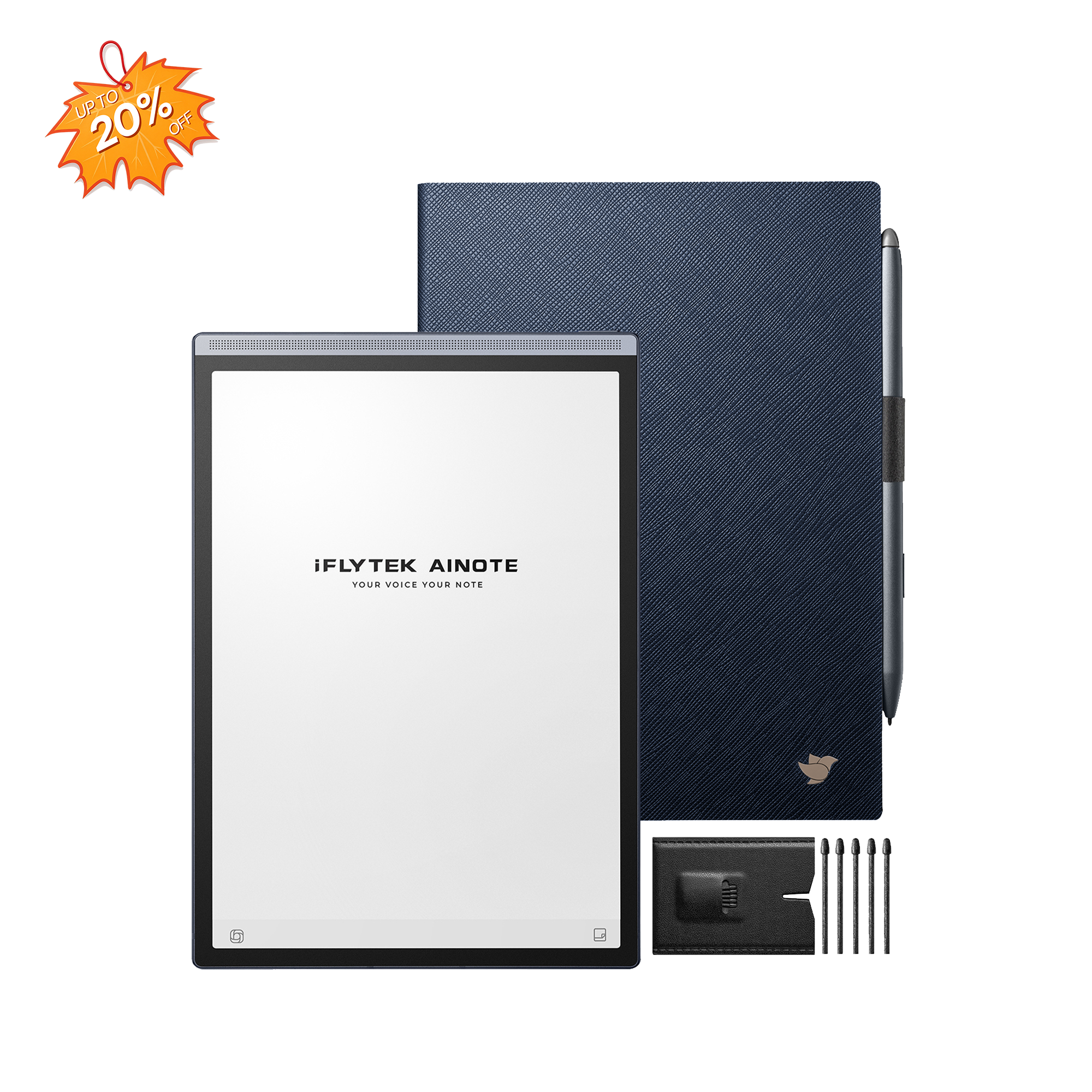
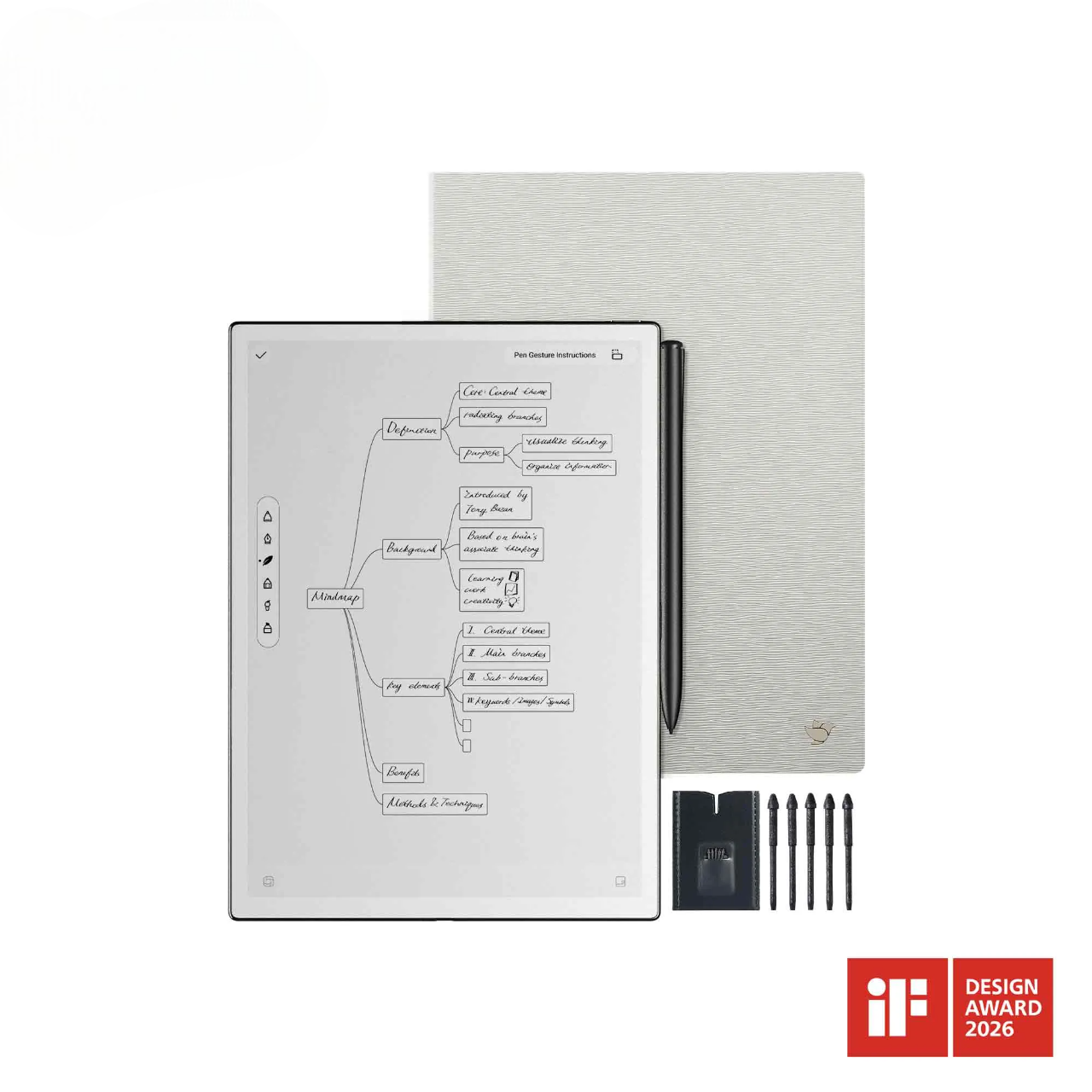
4. Convert Handwriting with iFLYTEK AINOTE Air 2
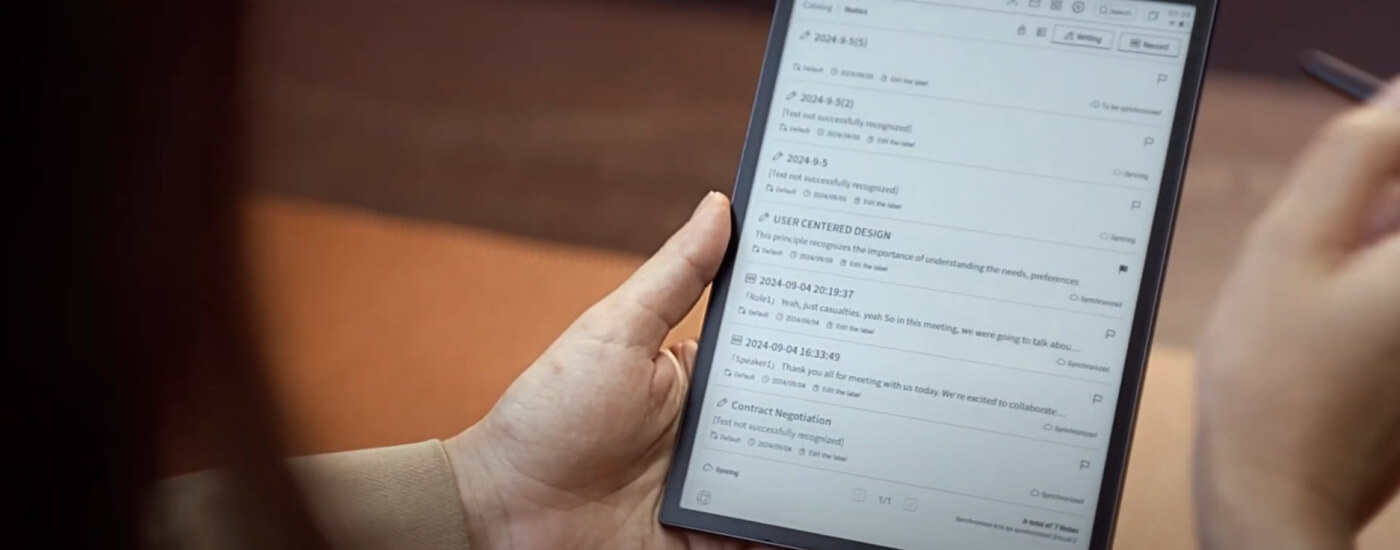
iFLYTEK AINOTE Air 2 keeps the writing and conversion steps on the same device. You can write with the stylus as usual, generate a typed version when you need one, compare it with the original handwriting, and then export or share it.
This avoids the need to photograph and upload every page after you finish writing.
How It Works
- Create or open a handwritten note.
- Write naturally with the stylus.
- Open the handwriting-to-text function.
- Select the appropriate recognition language.
- Generate and review the converted text.
- Export or share the result.
AINOTE Air 2 processes handwriting recognition locally, so converting handwritten notes to text does not require an internet connection.
Why It Is More Efficient
Compared with writing on paper and scanning the page later, AINOTE Air 2 cuts out several steps:
- No need to photograph every handwritten page
- Writing and conversion happen on the same device
- Handwriting and converted text can be reviewed together
- Notes remain organized after conversion
- Converted text can be exported and shared
- Local handwriting recognition works without an internet connection
This is most useful if you take handwritten notes several times a week—for example, during meetings, lectures, or interviews. For an occasional page, a phone may still be simpler. For regular note-taking, keeping the original handwriting and converted text together can save a fair amount of cleanup later.
Phone OCR vs. Online OCR vs. AINOTE Air 2
|
Feature |
Phone OCR |
Online OCR |
AINOTE Air 2 |
|
Best For |
Occasional photos |
Existing images and PDFs |
Regular handwritten notes |
|
Input |
Photograph paper notes |
Upload scanned files |
Write directly on the device |
|
Workflow |
Multiple apps and steps |
Upload and download |
Writing and conversion together |
|
Offline Recognition |
Varies |
Usually unavailable |
Processed locally |
|
Note Organization |
Requires another app |
Limited |
Integrated workflow |
For a one-off conversion, a phone or online OCR tool is usually enough. If you do this most days, keeping the writing, conversion, and organization steps on one device can save more time.
FAQ
Can a phone convert handwriting to text?
Yes. Supported iPhones can recognize text in photos with Live Text, while Android users can use Google Lens through supported Google apps. Results depend on the handwriting and image quality.
Can OneNote convert handwritten notes to text?
Supported OneNote desktop versions can convert digital handwriting using Lasso Select and Ink to Text. Scanned images require an OCR workflow rather than digital ink conversion.
Can handwriting be converted without an internet connection?
Yes. Some apps and devices can recognize handwriting offline. AINOTE Air 2 handles handwriting recognition locally, so you do not need an internet connection for this step. Features that rely on cloud services or AI may still require one.
Which Method Should You Choose?
For an occasional page, start with your phone. It is quick, requires no extra hardware, and may be all you need.
Choose online OCR when you already have a collection of photos, scans, or handwritten PDFs. Just make sure the tool supports handwriting rather than printed text only.
OneNote is the better fit when the notes were written digitally with a stylus and are already stored in your Microsoft workspace.
If you write by hand most days and regularly need typed copies, AINOTE Air 2 removes the separate scanning and uploading steps. You can write, convert, check, and export the note on the same device.
Related articles:
- Why Choose iFLYTEK AINOTE Air 2 Digital Notebook?
- What Is Digital Notebook?
- Why E Ink Tablet is Perfect for Note-Taking? — iFLYTEK AINOTE Air 2 Review
- What Is the Difference Between Transcription and Translation