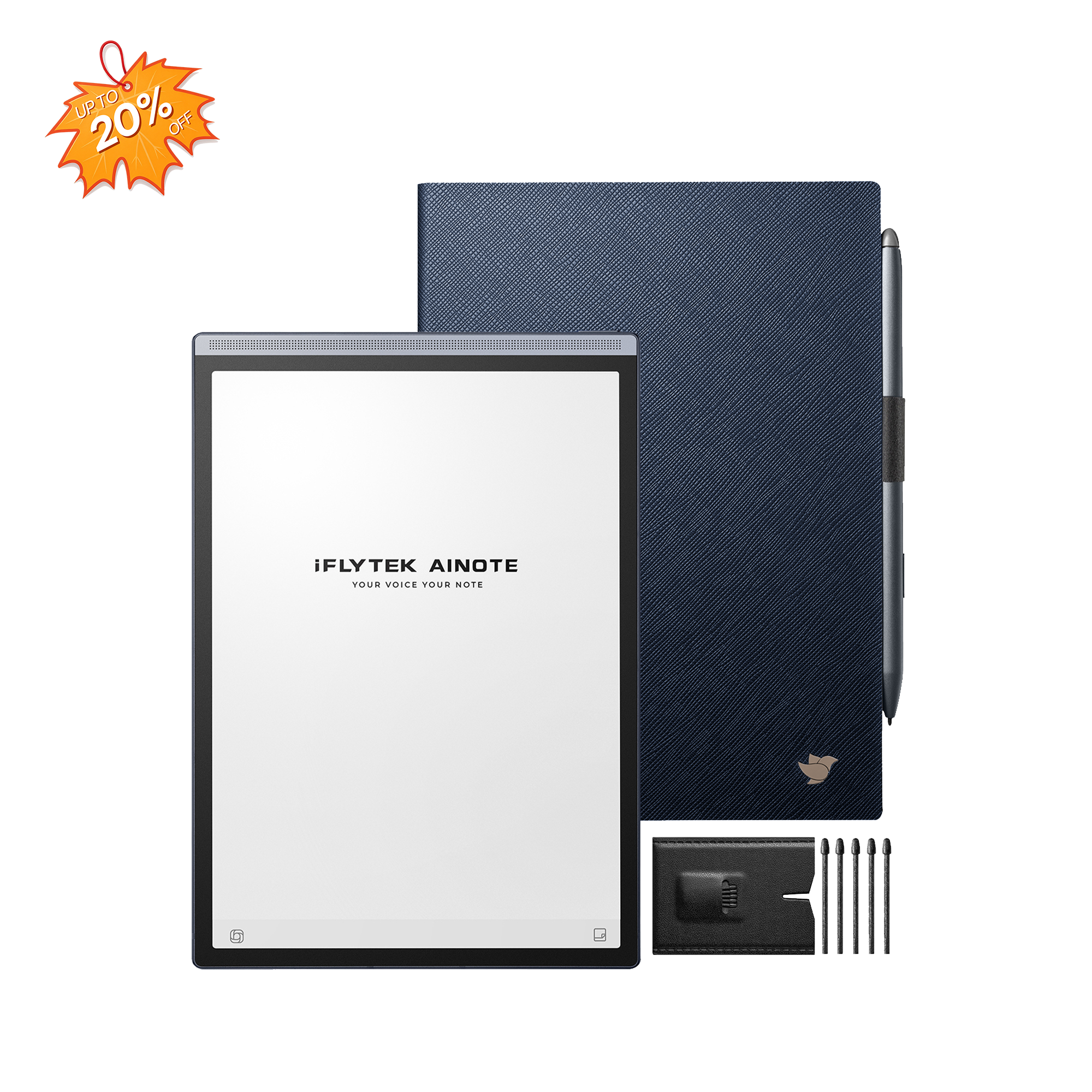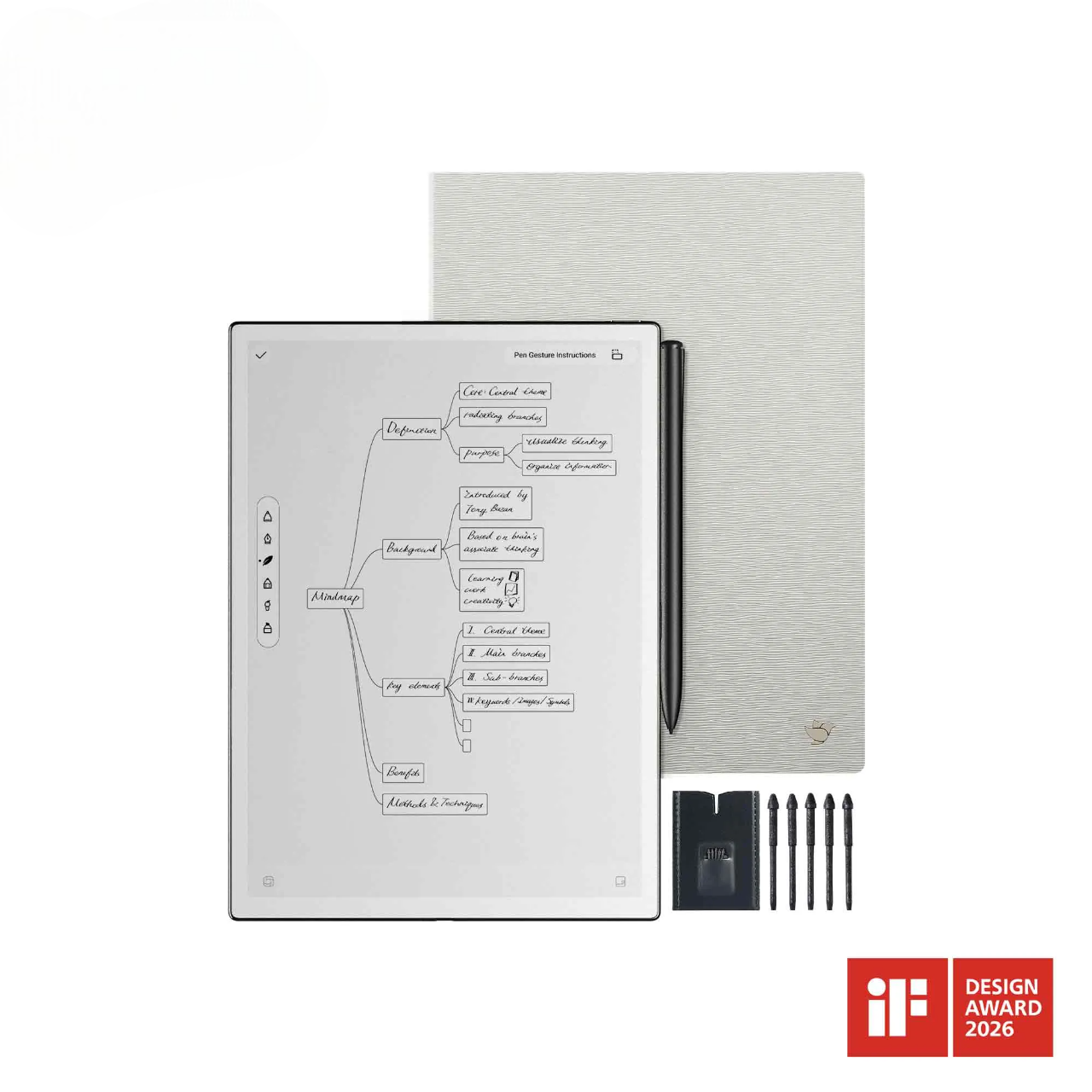
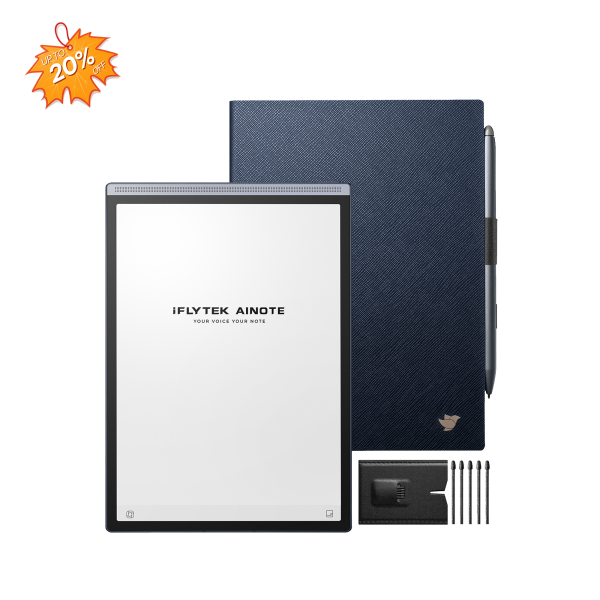
iFLYTEK AINOTE Air 2
A digital planner works best when it is simple enough to use every day. AINOTE Air 2 keeps schedules, handwritten notes, tasks, reminders, search, and cloud synchronization in one portable E Ink workspace. This guide explains how to use its built-in planner layouts, import custom templates, choose between image templates and PDF planners, and turn handwritten plans into trackable tasks.
Planner Templates Available on AINOTE Air 2
AINOTE Air 2 includes several built-in layouts under the Planner category:
- Schedule
- Daily Schedule
- Weekly Schedule
- Monthly Plan
Each template is inserted as a single page in a note. You can use different templates within the same notebook, making it possible to combine a monthly overview, weekly planning pages, daily priorities, and meeting notes in one place.
AINOTE Air 2 also supports custom template images. This is useful when you need a project planner, habit tracker, study schedule, content calendar, or another layout that is not included in the built-in library.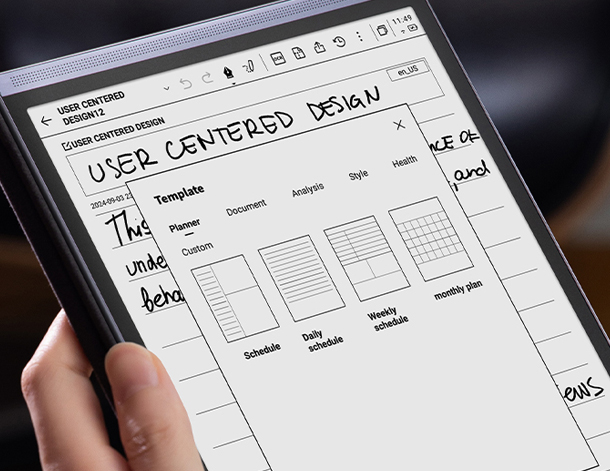
How to Use a Built-In Planner Template
To add a planner template:
- Open an existing note or create a new one.
- Tap the template button in the note toolbar.
- Open the Planner category.
- Select Schedule, Daily Schedule, Weekly Schedule, or Monthly Plan.
- Tap the template image to insert it on the next page of the current note.
A template inserts one page at a time. When you add another page, you can quickly select the same template again or choose a different layout.
For example, one planning notebook might begin with a Monthly Plan, followed by four Weekly Schedule pages and separate Daily Schedule pages for especially busy days.
How to Import a Custom Planner Template
AINOTE Air 2 supports custom template images transferred to the device’s Template folder. For the best result, use a portrait image that matches the device’s display proportions and keeps important content away from interface margins. Test the template on the device before regular use to confirm that its writing areas, spacing, and line weight display correctly.
To import a custom template:
- Prepare the planner layout as a compatible portrait image.
- Connect AINOTE Air 2 to a computer with a USB cable.
- Open the device storage on the computer.
- Copy the image into the Template folder.
- Disconnect the device safely.
- Open a note and tap the template button.
- Select the Custom category.
- Tap the imported template to add it to the note.
Use a high-contrast design with clear writing areas. Thin gray lines and decorative colors may not display as clearly on an E Ink screen as they do on a computer.
Templates and PDF Planners Are Different
A custom note template is an image inserted as a single page in a notebook. A PDF planner is imported as a document and opened in the reading interface.
AINOTE Air 2 supports PDF files and allows you to write annotations on them. However, importing a PDF does not automatically add its pages to the Custom template library.
Choose a custom image template when you want to reuse the same page layout inside your notes. Choose a PDF planner when you need a prepared multi-page document, such as a dated annual planner.
Turn Handwritten Plans into Tasks
A handwritten plan can become a trackable task instead of remaining on the page.
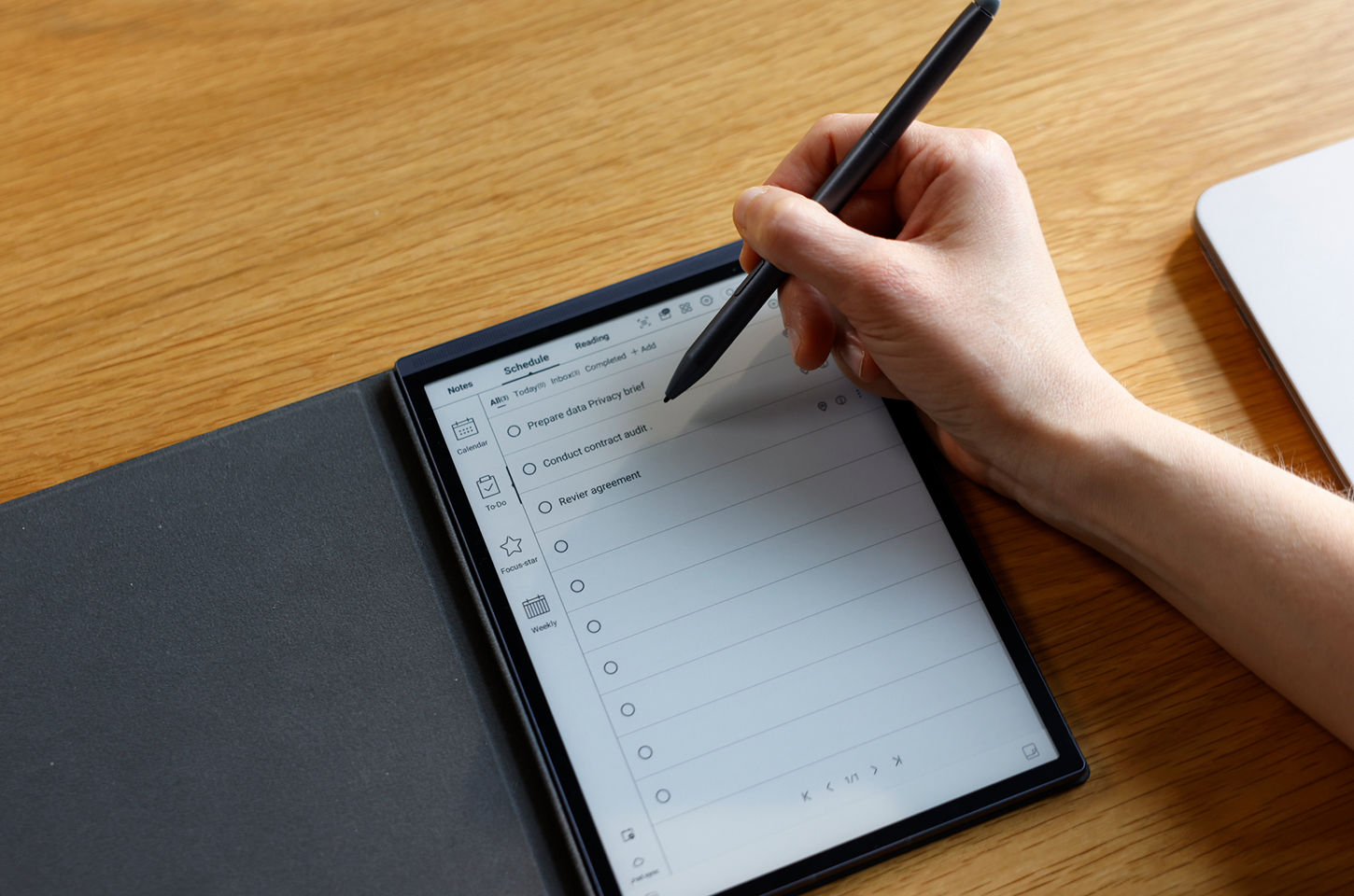
AINOTE Air 2’s Smart Pen can recognize supported handwritten marks. You can mark handwritten content as a to-do, collect important items with Focus Star, and review them in the schedule system.
After creating a to-do, you can add a deadline and reminder. The schedule area provides day, week, and month views, allowing you to review tasks and scheduled activities without searching through every notebook.
A simple weekly workflow looks like this:
- Start the week with a Weekly Schedule template.
- Write your main goals and appointments.
- Mark actionable items as to-dos.
- Add deadlines and reminders to time-sensitive tasks.
- Use Focus Star for information that requires continued attention.
- Review completed tasks and unfinished items at the end of the week.
Search, Convert, Sync, and Export Your Plans
Handwritten plans do not have to remain isolated on one page. AINOTE Air 2 can convert handwriting into editable text and search handwritten content within notes.
When note synchronization is enabled, notes can be uploaded to the cloud and viewed through the AINOTE mobile app. The app supports viewing, editing, and sharing synchronized notes across devices.
Notes can also be shared in formats including web pages, Word documents, and PDFs. This makes it easier to turn a handwritten plan into a document that can be reviewed by colleagues or saved for later reference.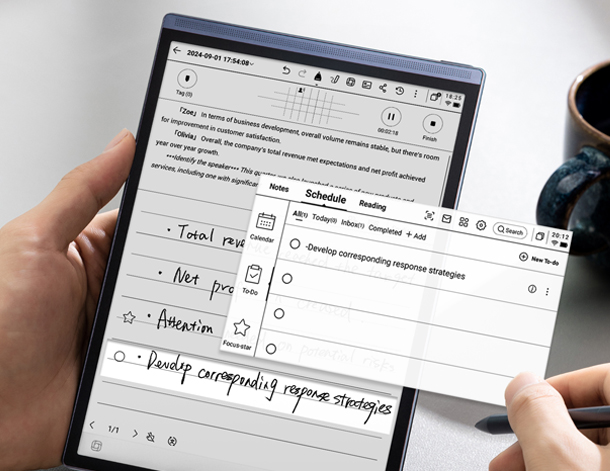
Do Air 2 Templates Work on AINOTE 2?
AINOTE Air 2 and AINOTE 2 have different screen sizes and resolutions, so a template designed for one model may not retain the same spacing or proportions on the other. For the best results, keep the original editable file and export a version optimized and tested for each device.
Because AINOTE 2 has a larger display and a library of more than 80 built-in templates for meetings, projects, brainstorming, and other workflows, check its available layouts before adapting an Air 2 template. You may find that a suitable template is already included.
FAQ
Can I use a PDF planner on AINOTE Air 2?
Yes. AINOTE Air 2 supports importing and annotating PDF documents. A PDF planner opens in the reading interface rather than becoming a reusable single-page note template.
Does the AINOTE Air 2 schedule sync with Google Calendar?
No. AINOTE Air 2 supports cloud synchronization for notes through the AINOTE mobile app, but its schedule does not currently sync with Google Calendar or other calendar applications on a phone or computer.
What is the difference between a background and a template on AINOTE Air 2?
A background can be set as the default for newly created pages in a notebook. A template is inserted as an individual page, which allows you to use different planner layouts within the same notebook. Choose a background when you want every new page to use the same design and a template when you want to mix daily, weekly, monthly, or other layouts.
Can I copy or rearrange planner pages after adding them?
Yes. Open Page Management to add, copy, paste, or move pages within the current notebook. This makes it possible to duplicate a weekly layout or reorganize planner pages without importing the template again.
Does handwriting-to-text require an internet connection?
No. Handwriting recognition is performed locally on AINOTE Air 2 and does not require an internet connection. Additional recognition-language packages may need to be downloaded before they can be used.
Build a Planning System That Fits Your Work
Built-in daily, weekly, and monthly layouts provide a quick starting point, while custom templates let you adapt AINOTE Air 2 to different projects and routines. Its combination of handwriting, task management, reminders, search, and cloud sync reflects the connected planning experience available across the iFLYTEK AINOTE lineup.