Recording voice on your iPhone is simple and built right into the system through the Voice Memos app. This built-in tool works well for basic recording needs such as capturing lectures, meetings, ideas, or personal notes.
In this article, we will guide you through the steps to record voice on your iPhone and discuss some limitations you may encounter with the built-in recorder.
How to Record Voice on iPhone? (Step-by-Step)
Apple includes a built-in app called Voice Memos, which allows you to easily record voice on any iPhone. Below are the steps to record voice using the iPhone's Voice Memos app:
Step 1: Open the Voice Memos App
Find and tap the Voice Memos app on your iPhone. You can search for it using Spotlight if it’s not visible on the Home Screen. It’s usually located in the “Utilities” folder.
Step 2: Start Recording
Tap the red circular button at the bottom to begin recording. Your iPhone’s built-in microphone will start capturing audio immediately.
Step 3: Pause or Stop Recording
To pause, tap the pause icon, then tap resume to continue. When you’re finished, tap the red square button to stop the recording.
Step 4: Save the Recording
The recording is saved automatically. You can tap the file name to rename it for easy identification later.
Step 5: Edit or Share the File
Tap the saved recording to access editing tools to trim, replace, or enhance. You can also tap the Share icon to send the file via AirDrop, Messages, or email.

Limitations of iPhone Voice Recording
While convenient, iPhone voice recording is not designed for complex or high-stakes environments. The device’s microphone is built for general use, which means it may struggle with background noise or multi-speaker scenarios. In large rooms or outdoor settings, the audio can be unclear or muffled.
Moreover, the lack of built-in transcription or real-time text conversion limits its utility for professionals who need quick documentation. You also won’t find features like directional mic focus, multi-language support, or advanced noise filtering.
For users who frequently rely on accurate, clear, and organized voice data, such as journalists, researchers, and business professionals, these shortcomings can pose significant challenges.
When to Consider a Professional Voice Recorder?
If your recordings serve more than a casual purpose, it may be time to consider a dedicated voice recorder. Professional devices are built for clarity, reliability, and efficiency.
They often include high-fidelity microphones, advanced AI transcription, and even multilingual capabilities. These features are especially valuable in meetings, interviews, lectures, or international conferences.
Unlike smartphones, which multitask across apps and services, a professional recorder is designed for capturing voice with precision. For anyone who needs consistent quality and streamlined data management, a specialized recorder can significantly elevate your workflow.

Meet iFLYTEK Smart Recorder Pro — The Most Professional Voice Recorder
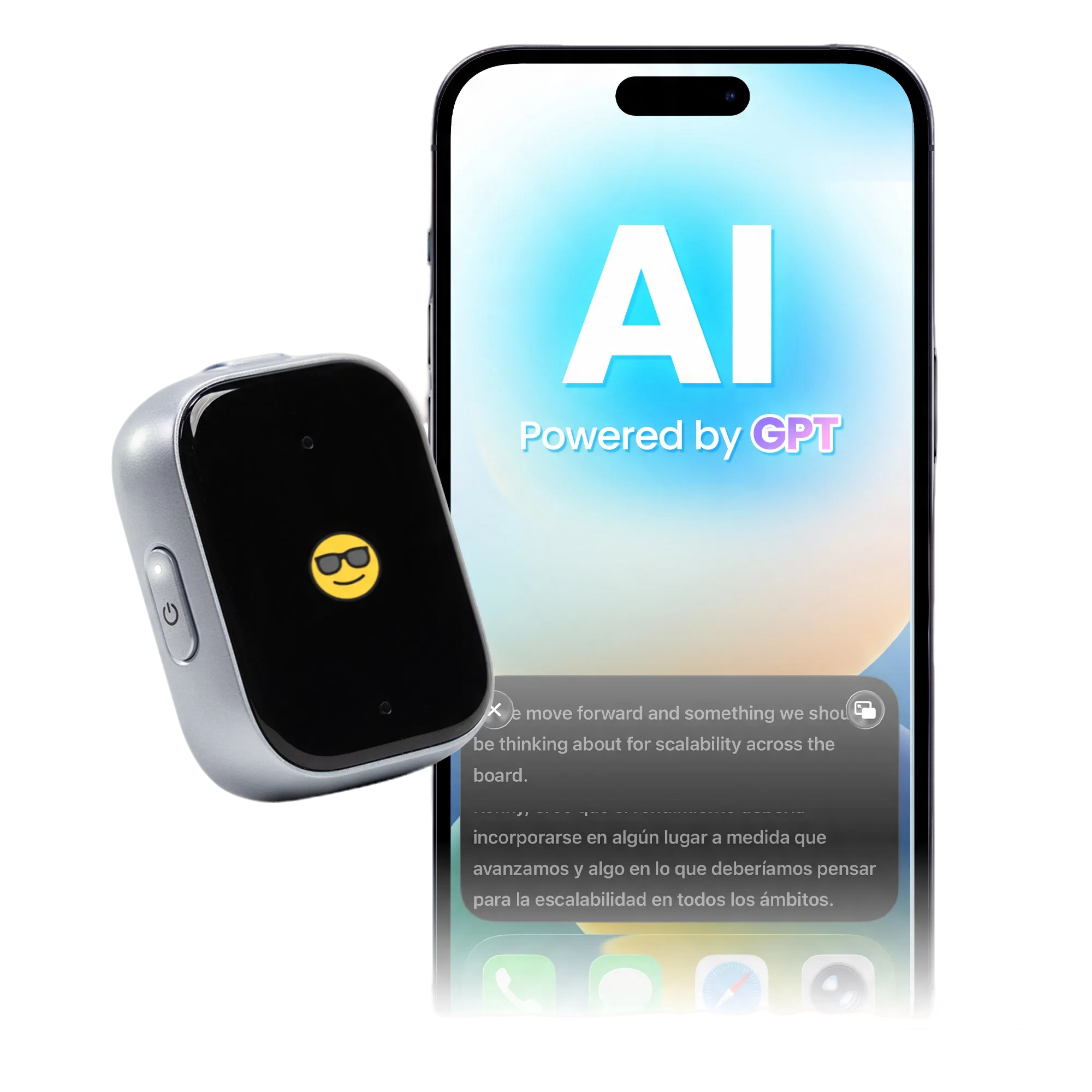
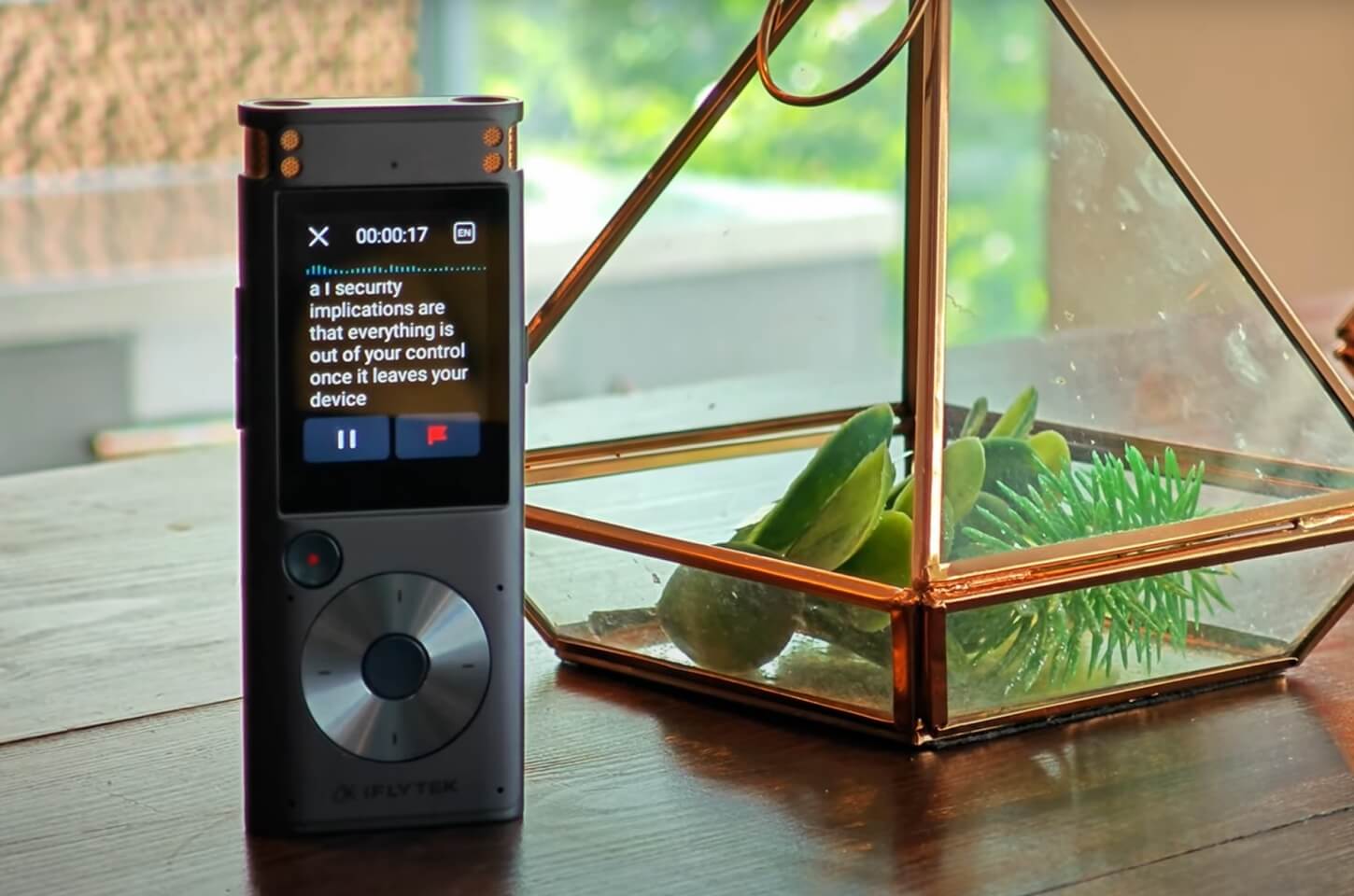
If you need more than just casual voice notes, the iFLYTEK Smart Recorder Pro is designed with professionals in mind. Unlike the basic recording functions found in the iPhone’s Voice Memos app, this advanced recorder delivers studio-grade clarity, smart transcription, and multilingual support, all packed into a compact, intuitive device.
Powered by a quad-core 64-bit AI processor, the Smart Recorder Pro offers lightning-fast online transcribing, capturing voice and converting it into text in real time, even while still recording.
This feature dramatically reduces post-recording work and boosts productivity, making it an ideal tool for journalists, researchers, and business professionals who need fast, accurate documentation.
With 8 built-in microphones (2 directional + 6 omnidirectional), it picks up clear audio from up to 50 feet (15 meters) away. Advanced AI noise reduction ensures clean sound even in busy environments.
It also supports real-time multilingual transcription in 8 major languages, including English, Japanese, and Spanish, making it an invaluable asset for international communication and documentation.

Other standout features include:
- Long-distance pickup up to 50 feet (about 15m) with AI noise reduction
- Real-time transcription in 8 languages with 90% accuracy
- On-screen subtitles for video content creators and visual learners
- Quad-core 64-bit AI processor for lightning-fast performance
- 32GB internal storage + 5GB free cloud (3 years)
- Multi-platform support for seamless syncing and access
- Multiple recording modes tailored for different use cases
From performance to versatility, the iFLYTEK Smart Recorder Pro sets a new standard for professional-grade voice recording, far beyond what a smartphone app can offer.
Comparison
Understanding the differences between the iPhone’s built-in Voice Memos app and a dedicated professional device, iFLYTEK Smart Recorder Pro, is essential. Below is a detailed comparison highlighting how each performs across key features:
|
Feature |
iPhone Voice Memos |
iFLYTEK Smart Recorder Pro |
|
Audio Quality |
Basic, suitable for casual use |
Studio-grade with AI noise reduction |
|
Noise Reduction |
Limited |
Advanced AI-powered noise filtering |
|
Real-Time Transcription |
Not available |
Yes, supports 8 major languages with 90% accuracy |
|
Long-Range Recording |
NO |
Yes, record up to 50 Feet |
|
Storage |
Basic file storage |
32GB internal storage plus 5GB free cloud for 3 years |
|
User Interface |
Simple and minimalistic |
3.5-inch touchscreen with intuitive controls |
|
Suitable For |
Casual voice notes and reminders |
Professionals, students, journalists, and content creators |
FAQs
1. Can I use Voice Memos for interviews or podcasts?
You can, but the quality may not meet professional standards. Consider using a dedicated recorder like the iFLYTEK Smart Recorder Pro.
2. Does iPhone support voice-to-text in Voice Memos?
Not natively. You’d need to manually transcribe or use third-party apps, which may compromise accuracy.
3. Is a professional recorder worth the investment?
If you rely on recordings for work, research, or content creation, a dedicated device like iFLYTEK pays off in efficiency and quality.
Conclusion
Recording voice on your iPhone is easy and convenient for basic needs. But for professionals who value clarity, accuracy, and productivity, the iFLYTEK Smart Recorder Pro offers a powerful upgrade. With cutting-edge AI features, offline capabilities, and unmatched audio performance, it’s the smarter choice for serious voice recording tasks.
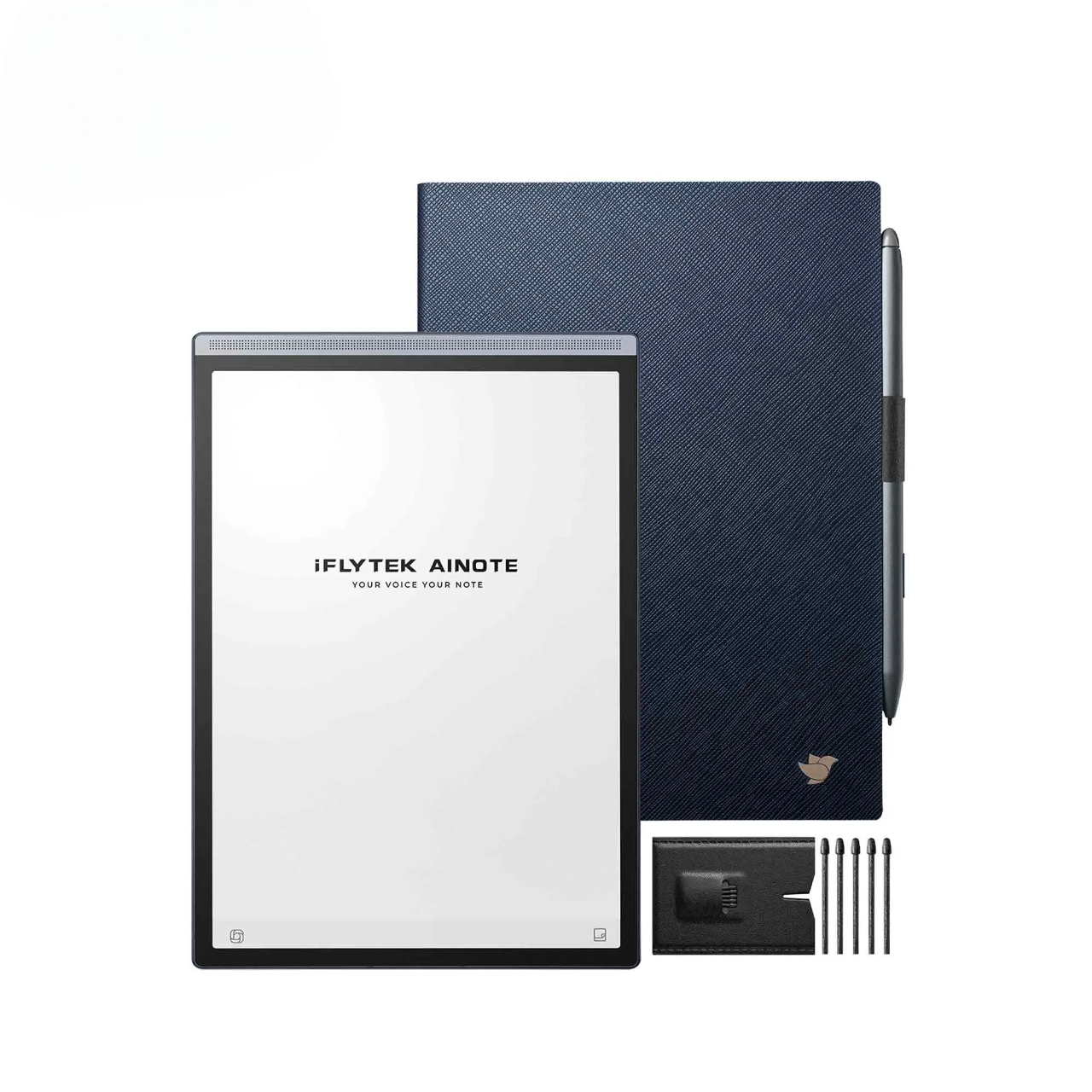
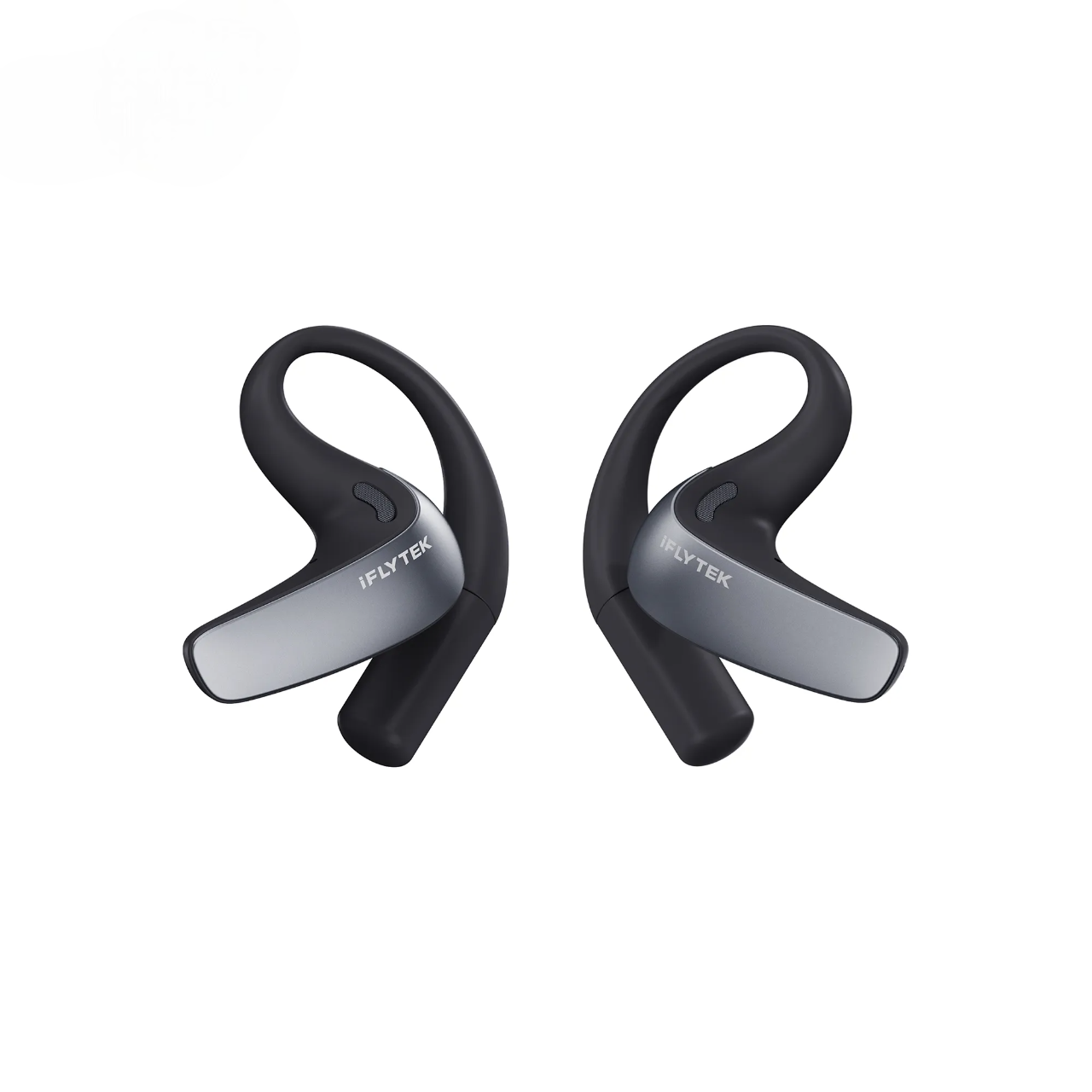
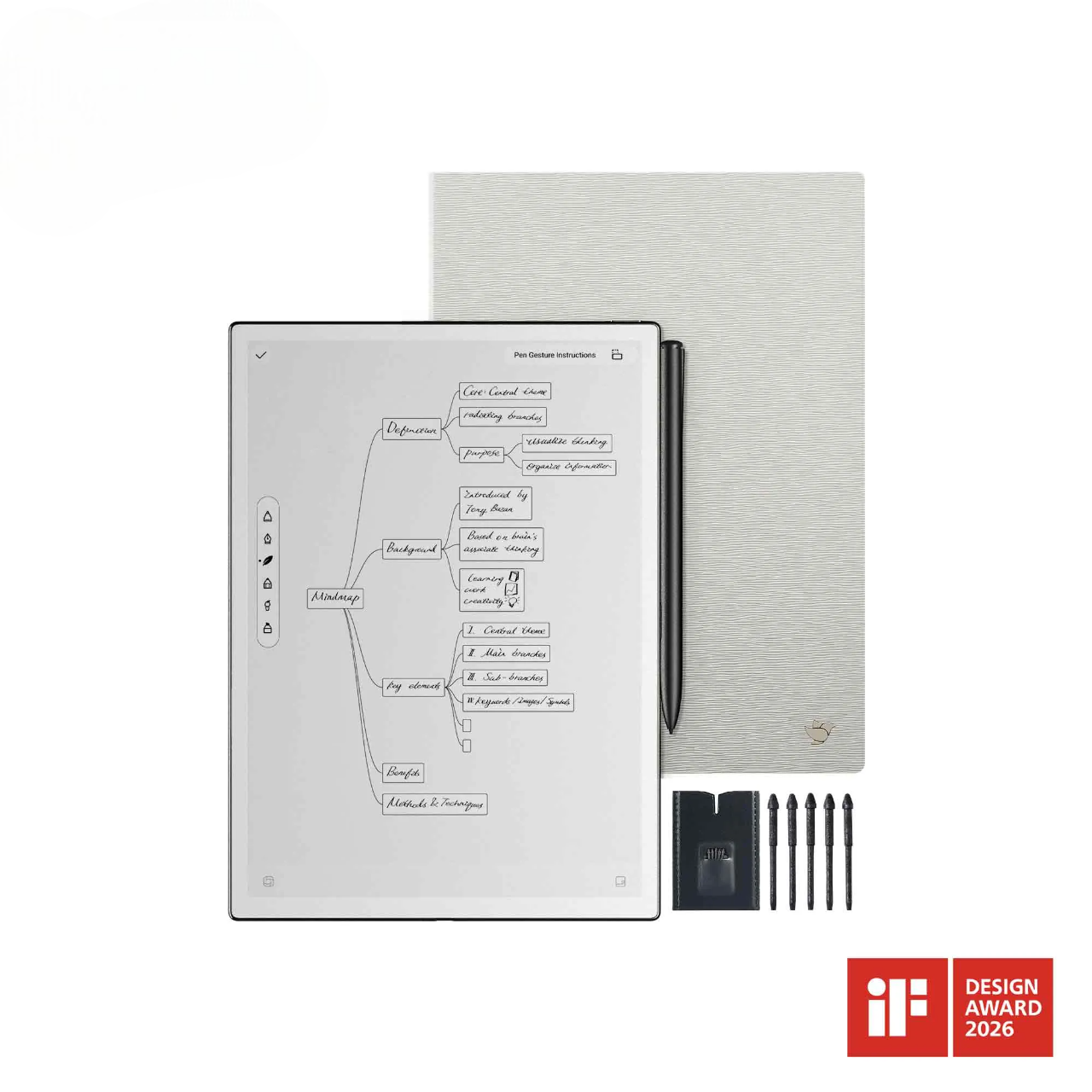
If you frequently work across languages or need seamless integration of audio and notes, consider pairing the iFLYTEK Smart Recorder Pro with a reliable voice translator or a digital notebook.
These tools enhance your workflow by making translation effortless and organizing your recordings and notes in one place. Upgrade your productivity today with smart devices designed for modern professionals.
Related articles:
1. The Ultimate Guide to Smart Translators
2. Best Translator Device Without Internet (2025 Guide)
3. Why Does My Voice Sound Different in Recordings
4. Best E-ink Tablet for Note Taking
5. Dictionary Pen vs. Translation App: Which One is Right for You in 2025?