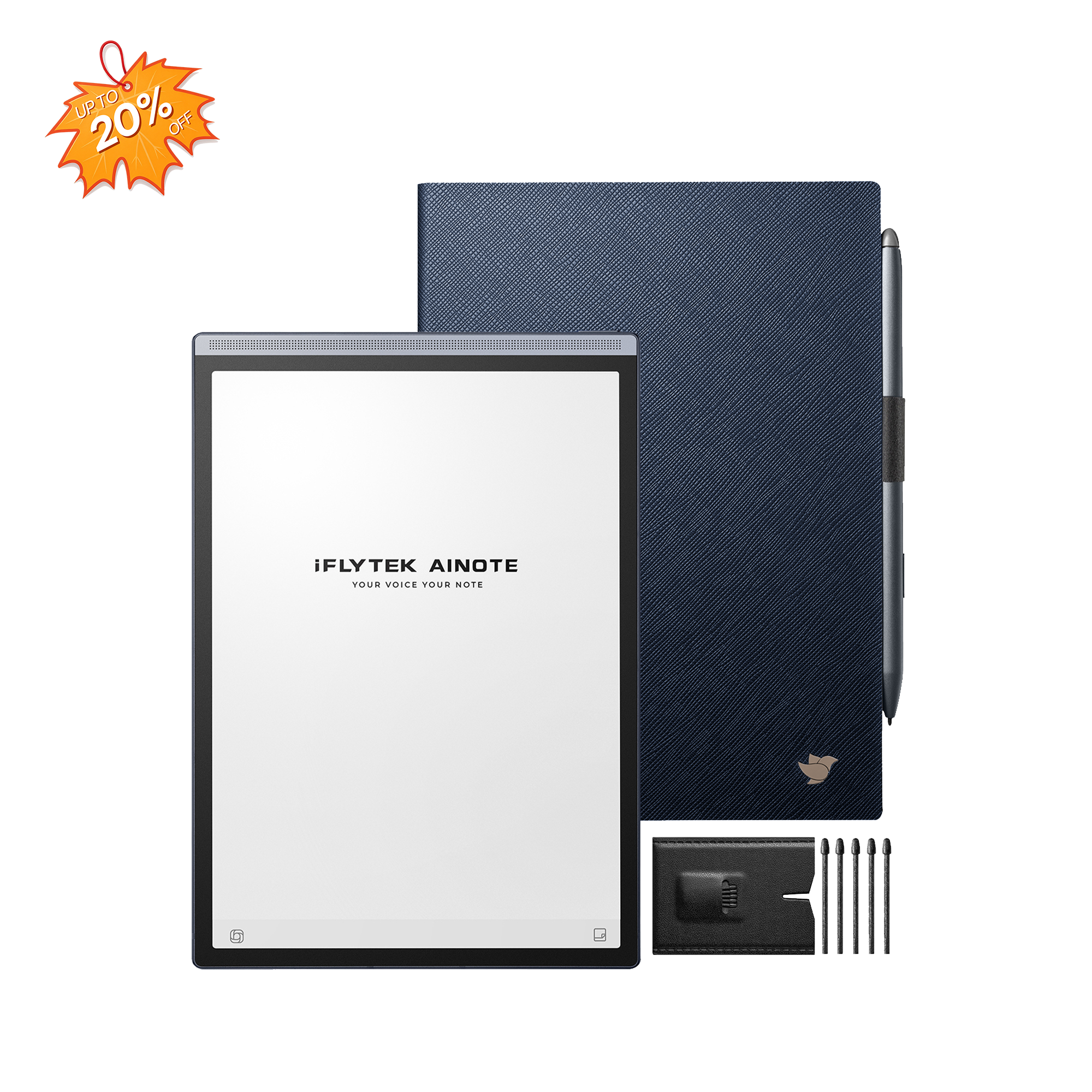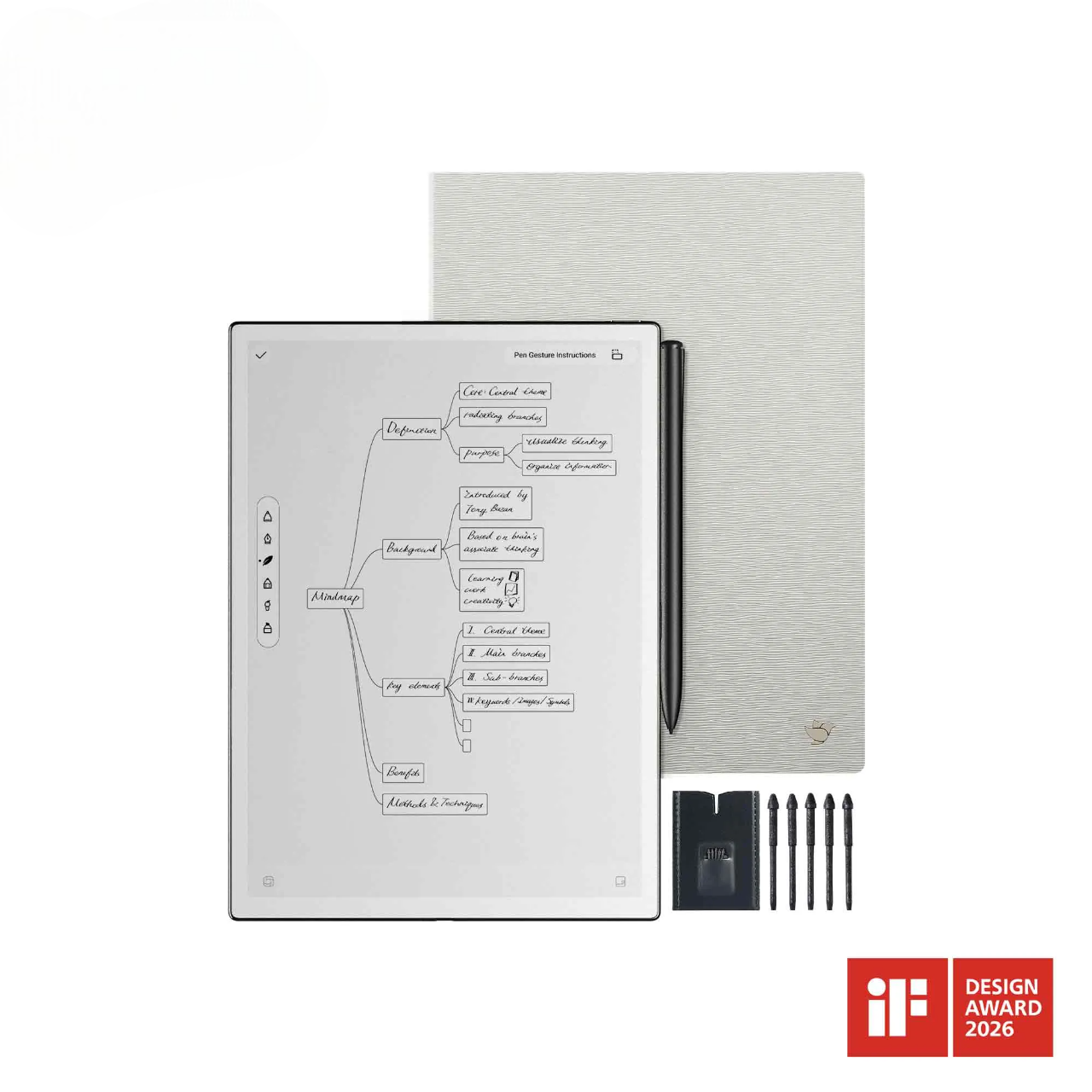
Creating notes on the iFLYTEK AINOTE 2 is designed to be both intuitive and highly efficient, making it an ideal companion for students, professionals, and multilingual users. With its combination of advanced AI capabilities and a smooth writing experience, the device transforms traditional note-taking into a smarter and more organized process. Whether you're jotting down ideas in a meeting or capturing key points during a lecture, AINOTE 2 ensures that every detail is recorded clearly and can be easily accessed later.
Key Features of iFLYTEK AINOTE 2 for Efficient Note Creation
What sets the iFLYTEK AINOTE 2 apart is its integrated suite of AI-powered features designed to streamline the entire note-taking process. From real-time translation to cloud synchronization, each function enhances productivity while preserving a natural writing experience. Together, these features reduce manual effort and help users focus on capturing ideas rather than managing them.
Real-Time Translation During Note Creation
Smart Note Organization with Tags and Folders
Beyond capturing information, the AINOTE 2 simplifies organization through intelligent tagging and folder management. Users can quickly categorize notes by topic, project, or priority, making retrieval fast and efficient.
This structured system helps build a clear and searchable knowledge base, ensuring that important information remains accessible over time.
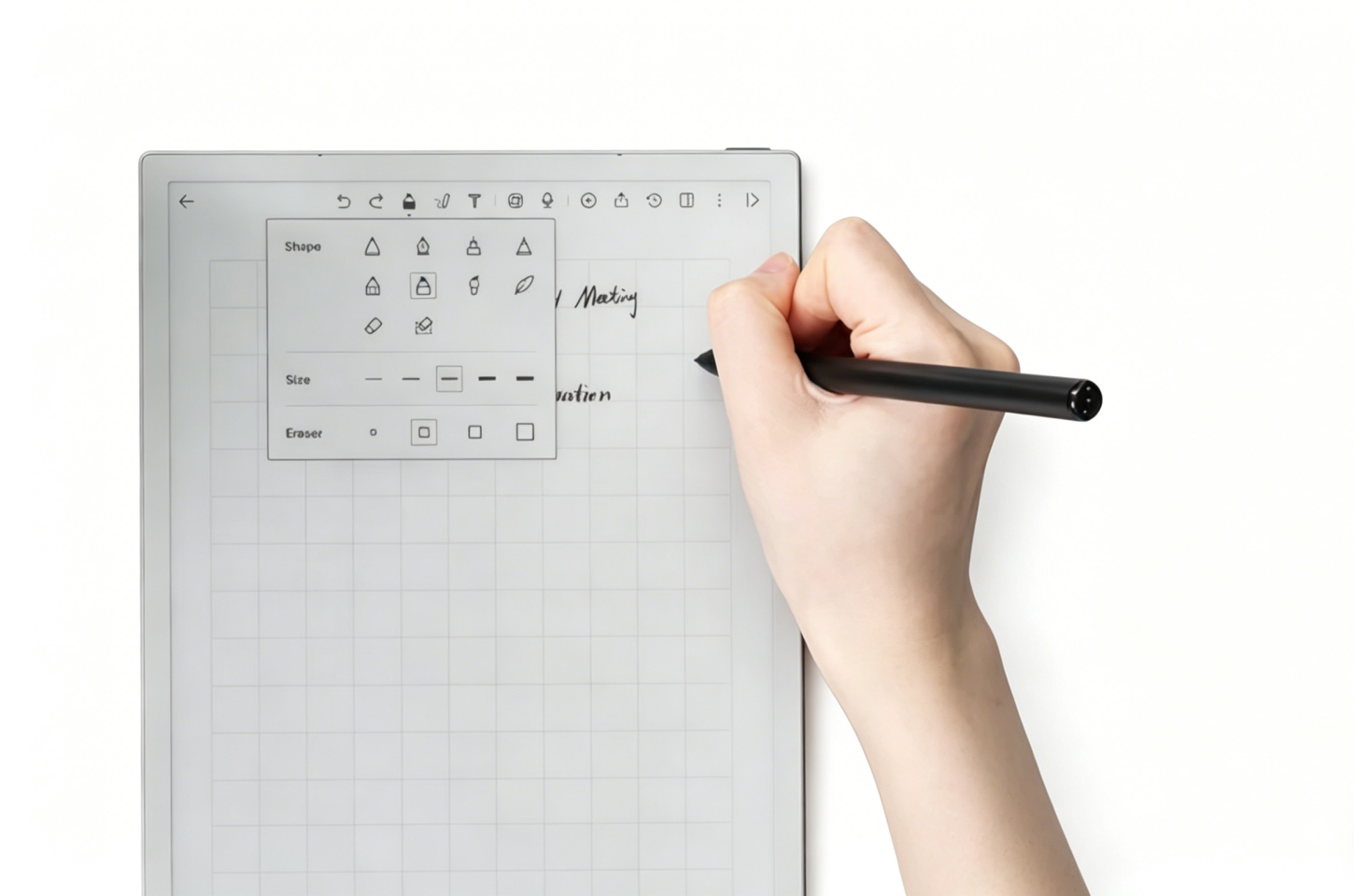
Diverse Brush Designs Satisfy Your Preferred Writing Styles
To deliver a natural handwriting experience, the AINOTE 2 offers multiple brush styles (around 6–8 options) with adjustable stroke thickness and writing effects.
Users can choose styles that match their preferences, creating a more comfortable and personalized writing experience that closely mimics pen-on-paper.
Seamless Cloud Sync and Cross-Device Access
The AINOTE 2 supports seamless cloud synchronization, ensuring that all notes are securely stored and always accessible.
Notes can be synced across devices and accessed anytime, allowing users to review, edit, and manage content without interruption. This ensures continuity and keeps information consistently up to date across platforms.
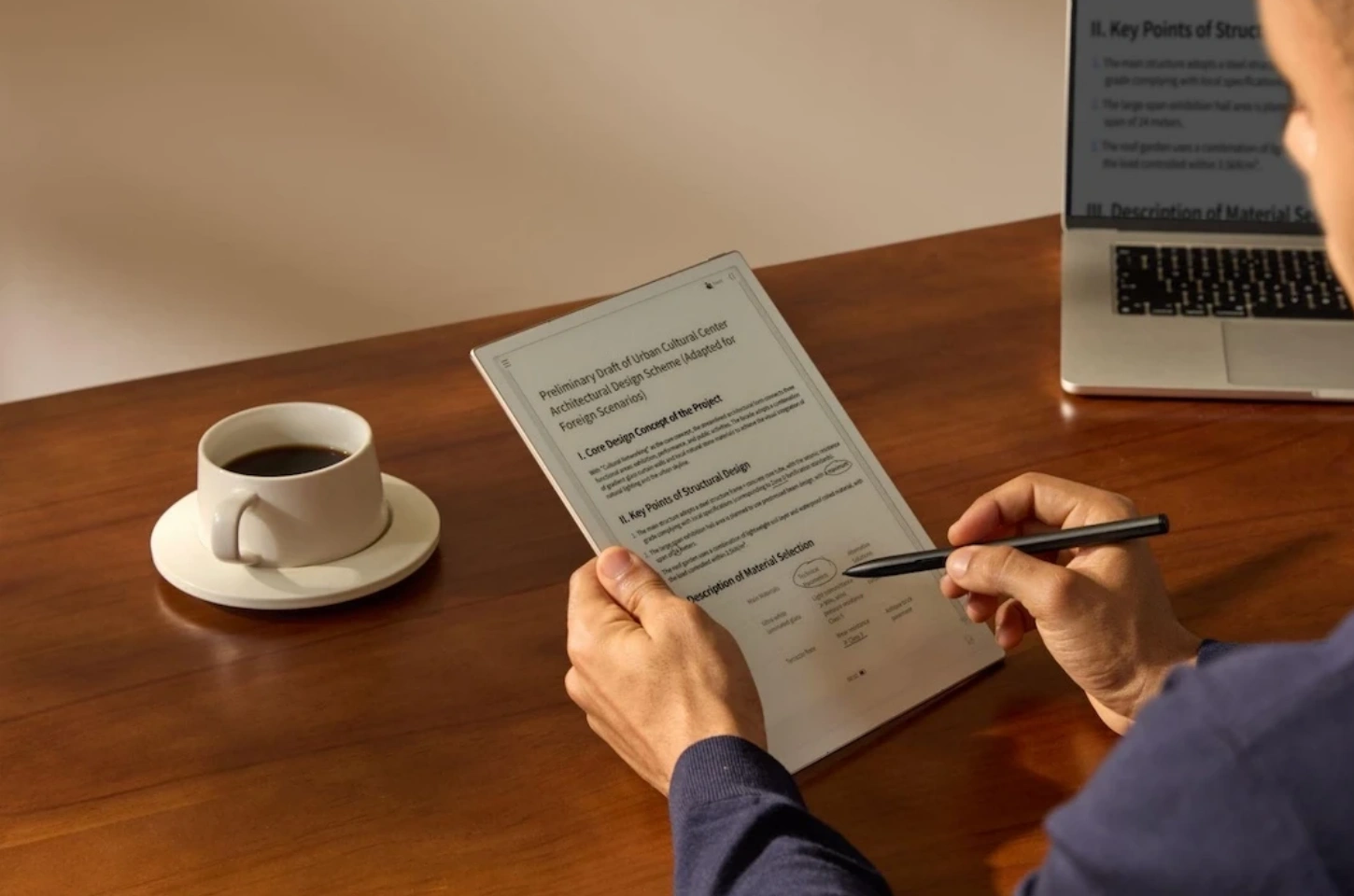
Step-by-Step Guide to Creating Notes on iFLYTEK AINOTE 2
Creating notes on the iFLYTEK AINOTE 2 is a straightforward and flexible process. With its intuitive interface, customizable page options, and AI-powered tools, users can quickly start writing and organize content efficiently.
The following steps outline how to create, customize, and enhance your notes using the built-in features of the device.
Step 1: Open the Notes App and Start a New Note
Turn on your iFLYTEK AINOTE 2 and open the Notes application from the home screen.
Tap “New Note” to create a fresh page. The system is designed for instant access, allowing you to begin writing within seconds without complicated setup.
Step 2: Choose a Page Format That Fits Your Needs
After creating a new note, select a page style that matches your task:
- Lined pages for structured writing
- Dotted pages for flexible layouts
- Grid pages for diagrams, charts, or technical notes
- Blank pages for free-form thinking
Choosing the right format helps improve clarity and makes your notes easier to read later.
.png?w=1450&h=960)
Step 3: Select the Appropriate Page Size
Next, choose a suitable page size based on how much content you plan to write.
Larger pages are ideal for meetings, brainstorming, or long-form notes, while smaller pages work better for quick ideas, reminders, or short tasks.
Step 4: Apply a Built-in Template for Faster Setup
To save time, you can apply one of the 80+ built-in templates available on the device.
Simply browse the template library and select one that fits your purpose. This eliminates the need to manually structure your notes and allows you to focus directly on content creation.
Step 5: Use Scenario-Based Templates for Better Organization
The AINOTE 2 provides templates tailored to different scenarios, including:
- Class schedules for study planning
- Pomodoro timers for productivity tracking
- Meeting note templates for professional use
- SWOT analysis templates for structured thinking
- Medication trackers and fitness plans for daily life
Using these templates helps you organize information more effectively and maintain consistency across your notes.
Step 6: Start Writing and Let Auto-Save Work in the Background
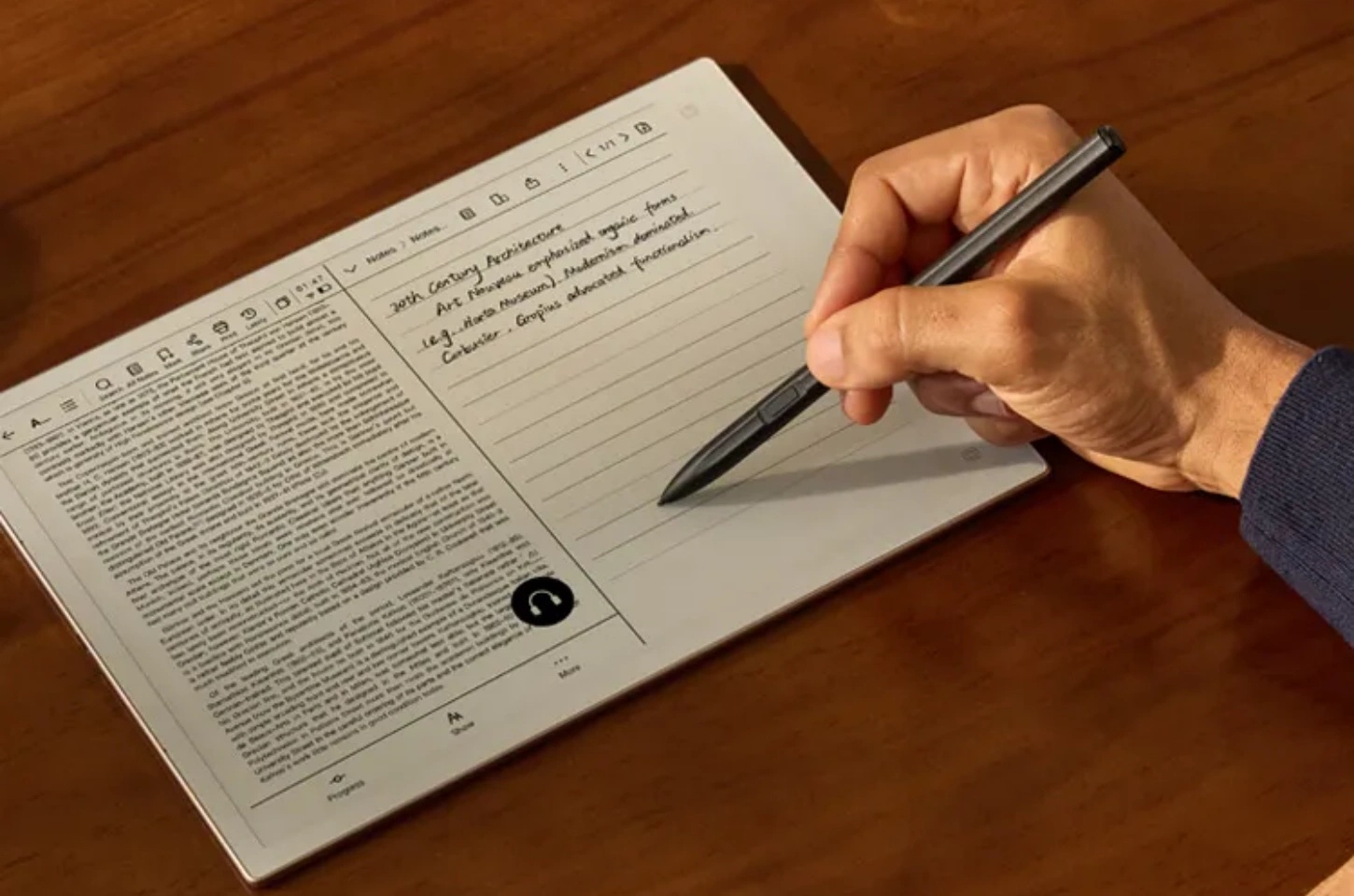
Begin writing with the stylus directly on the screen. The device offers a smooth, paper-like writing experience with multiple brush styles.
All content is automatically saved in real time, so you don’t need to worry about losing information, even during long writing sessions.
Step 7: Import Content and Sync with External Tools
You can enhance your notes by importing external content or integrating them with other tools.
The AINOTE 2 also allows you to:
- Add tasks directly into your workflow
- Manage schedules within the device
- Sync with external calendars such as Google Calendar
This creates a unified system where notes, tasks, and schedules are connected.
Step 8: Use AI Smart Pen Features to Turn Notes into Actions
The built-in AI smart pen adds advanced functionality to your notes through simple gestures:
- Draw an irregular star → Automatically creates a “Focus Star” section to highlight key content
- Draw a circle → Instantly generates a task and adds it to the task list
- Draw a triangle → Marks content for page management or organization
These AI-powered features transform handwritten input into structured actions, making your notes more interactive and productive.
-16.png?w=1450&h=960)
Best Practices for Organizing and Managing Notes Effectively
Organizing and managing notes effectively is essential for improving productivity and ensuring information can be easily retrieved. The iFLYTEK AINOTE 2 provides multiple tools to help users structure, edit, and locate notes efficiently. By applying the following best practices, users can build a clear, organized, and searchable note system.
Highlighting, Annotating, and Editing Notes
To make notes more useful, users should highlight key information and add annotations where necessary. Important points can be emphasized using different brush styles or markers, while annotations help clarify ideas or add context. The AINOTE 2 also allows easy editing, so notes can be updated anytime to remain accurate and relevant, improving both readability and long-term usability.
Using Tags, Categories, and Folders
Using tags, categories, and folders is essential for organizing large volumes of notes. Users can assign tags based on topics or priorities and group related notes into folders for different projects or workflows. This structured approach improves navigation, reduces search time, and helps maintain a scalable system as more notes are created.
Creating a Clear and Consistent Note Structure
A clear and consistent note structure makes information easier to read and review. Users can organize content with titles, headings, bullet points, or templates to keep ideas logically arranged. Starting each note with a defined structure ensures better clarity and makes it easier to scan content quickly, especially when revisiting notes later.
Leveraging Search and Filter Functions to Find Notes Faster
The iFLYTEK AINOTE 2 includes powerful search and filter functions that allow users to quickly locate specific notes. By using keywords, tags, or categories, users can retrieve relevant information within seconds. This is especially helpful when managing a large number of notes, ensuring that important content is always easy to find and access.

Conclusion
The iFLYTEK AINOTE 2 is more than just a digital notebook—it is a comprehensive AI-powered tool designed to simplify note creation, organization, and management. With features such as real-time translation, smart templates, handwriting recognition, and seamless cloud synchronization, it enables users to capture and structure information more efficiently.
By following a clear note-taking workflow and applying best practices for organization, users can turn everyday notes into a well-structured and searchable knowledge system. Whether for study, work, or daily planning, the AINOTE 2 provides a flexible and intelligent solution that adapts to different needs.
FAQ
Can I Organize My Notes While Creating Them?
Yes, you can organize your notes while creating them on the iFLYTEK AINOTE 2. The device allows users to apply tags, choose folders, and use templates during note creation, so content is structured from the beginning. This helps reduce the need for later editing and keeps notes organized in real time.
Is There a Limit to How Many Notes I Can Create?
There is no fixed limit to how many notes you can create on the iFLYTEK AINOTE 2. The number of notes depends on available storage and cloud capacity. With cloud synchronization enabled, users can store and manage a large volume of notes without worrying about space limitations.
Why Are My Notes Not Syncing Across Devices?
Notes may not sync across devices if cloud sync is disabled, the device is not connected to the internet, or the account is not properly logged in. To fix this, ensure that cloud sync is turned on, your network connection is stable, and all devices are using the same account.
Can I Convert Handwritten Notes into Editable Text?
Yes, the iFLYTEK AINOTE 2 supports handwriting-to-text conversion. Users can convert handwritten notes into editable digital text with high accuracy, making it easier to search, edit, and share content.
Which Input Method Is Better for Note-Taking: Voice, Handwriting, or Typing?
The best input method depends on the use case. Handwriting is ideal for flexible and natural note-taking, voice input is best for capturing long discussions or meetings, and typing is useful for structured or formal content. The iFLYTEK AINOTE 2 supports all three methods, allowing users to choose or combine them based on their needs.