Have you ever needed to quickly capture a brilliant idea, record a crucial meeting, or save a personal voice note? Your Android phone is a powerful tool capable of more than just calls and texts; it's a versatile sound recorder. While the built-in functionality is great for everyday use, knowing its limits is key to achieving truly professional audio.
Let's dive into a complete guide on how to record sound on Android.
Understanding Your Android Device’s Recording Capabilities
Before hitting the record button, it's helpful to know what your Android device is capable of. Every Android phone comes equipped with at least one microphone, usually located at the bottom of the device. This mic is primarily designed for calls, meaning it performs best when the source of sound is close and clear.
When you use your phone for recording, you're leveraging its basic Voice Recorder or Sound Recorder app. This app is perfect for casual scenarios, such as dictating a shopping list, quickly recording a short lecture excerpt, or leaving a voice message for yourself. However, its performance often declines rapidly in noisy environments or when trying to capture sound from a distance.
Step-by-Step Guide: Recording Sound on Android
Now that you understand the basic capabilities, let's walk through the simple steps to start recording sound using your device's native app. Here are the instructions you provided, organized into clear, numbered steps:
Step 1: Locate the App Swipe up to access your app drawer and search for "Voice Recorder," "Sound Recorder," or "Recorder."
Step 2: Open the App Tap the icon to launch the recording application.
Step 3: Start Recording Look for a prominent microphone icon or a red button and tap it once to begin.
Step 4: Pause/Stop Tap the same button (it usually turns into a pause or stop icon) to temporarily pause the recording, or the dedicated "Stop" button to finish and save the file.
Step 5: Save and Name Most apps will immediately prompt you to name and save your audio file.
Limitations of Android Voice Recording
While convenient, the basic Android voice recorder has significant limitations when you need high-quality audio or advanced features. For students, journalists, or professionals, these drawbacks can be dealbreakers.
- Microphone Quality
Built-in phone microphones are optimized for close-range voice calls, not for capturing sound from a distance or multiple directions. This can result in muffled audio, poor noise cancellation, and difficulty picking up quiet voices in a large room or group discussion. - Audio Format and Sampling Limitations
Most native recording apps support only basic formats like AMR or low-bitrate MP3, which compress the audio heavily and reduce fidelity. Sampling rates are typically limited to 8–44 kHz, which is fine for simple voice notes but insufficient for professional transcription, detailed lectures, or high-quality audio editing. - Storage and Battery Constraints
Long recordings can quickly eat up your phone’s storage, especially if you try higher-quality formats like WAV or AAC. At the same time, extended recording sessions drain the battery fast, and native apps rarely offer automatic file splitting or cloud backup, making it risky to rely on your phone for lengthy meetings or lectures.
When You Should Consider a Professional Voice Recorder
If your needs go beyond a quick voice memo, it's time to step up your recording game. A professional voice recorder is a necessity, not a luxury, in several key scenarios where audio clarity and advanced functionality are paramount.
For Long Meetings or Lectures
For Long Meetings or Lectures, the essential requirements are an all-day battery, clear audio pickup from a distance, and accurate transcription. Unfortunately, a standard Android phone often fails here because the phone battery dies quickly, and the captured audio is distant and muffled.
For Interviews or Journalism
In demanding situations like Interviews or Journalism, the need for a multi-directional microphone setup, robust noise cancellation, and instant text conversion is paramount. The phone struggles to meet this, as background noise easily ruins the interview, and the lack of automated transcription means transcribing manually takes hours.
For Creative Work
For Creative Work, where high-quality audio formats like WAV or FLAC are required for professional editing, the Android's native app falls short by limiting users to low-bitrate, compressed formats.
In these critical situations, relying solely on your Android device introduces the risk of unusable audio, wasted time on manual transcription, and missing key information.
Meet iFLYTEK Smart Recorder – The Most Professional Voice Recorder
If your recording needs go beyond quick voice memos, relying solely on your Android device may not be sufficient. In situations like long lectures, client interviews, or creative projects, external microphones or dedicated recording devices become essential. They provide superior audio clarity, multi-directional capture, longer battery life, and advanced features like automatic transcription, which a phone alone cannot reliably deliver.
For instance, students or professionals attending long lectures need a device that can clearly pick up voices from across the room without draining the phone battery. Journalists conducting interviews in noisy environments require robust noise cancellation and accurate, real-time transcription to avoid hours of manual work. Creative professionals producing podcasts, music, or voice-overs demand high-fidelity audio formats like WAV or FLAC for editing.
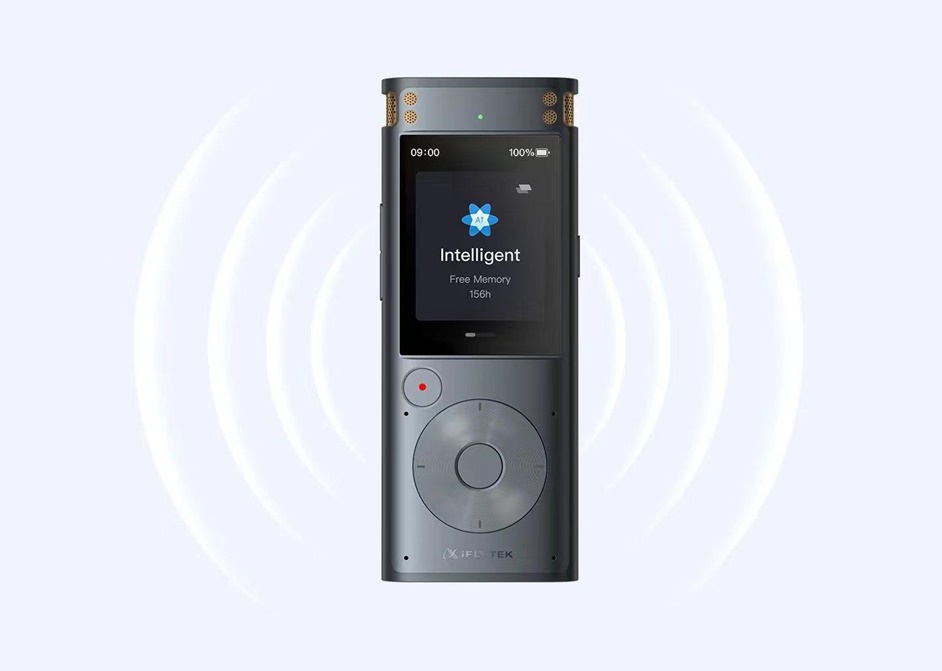
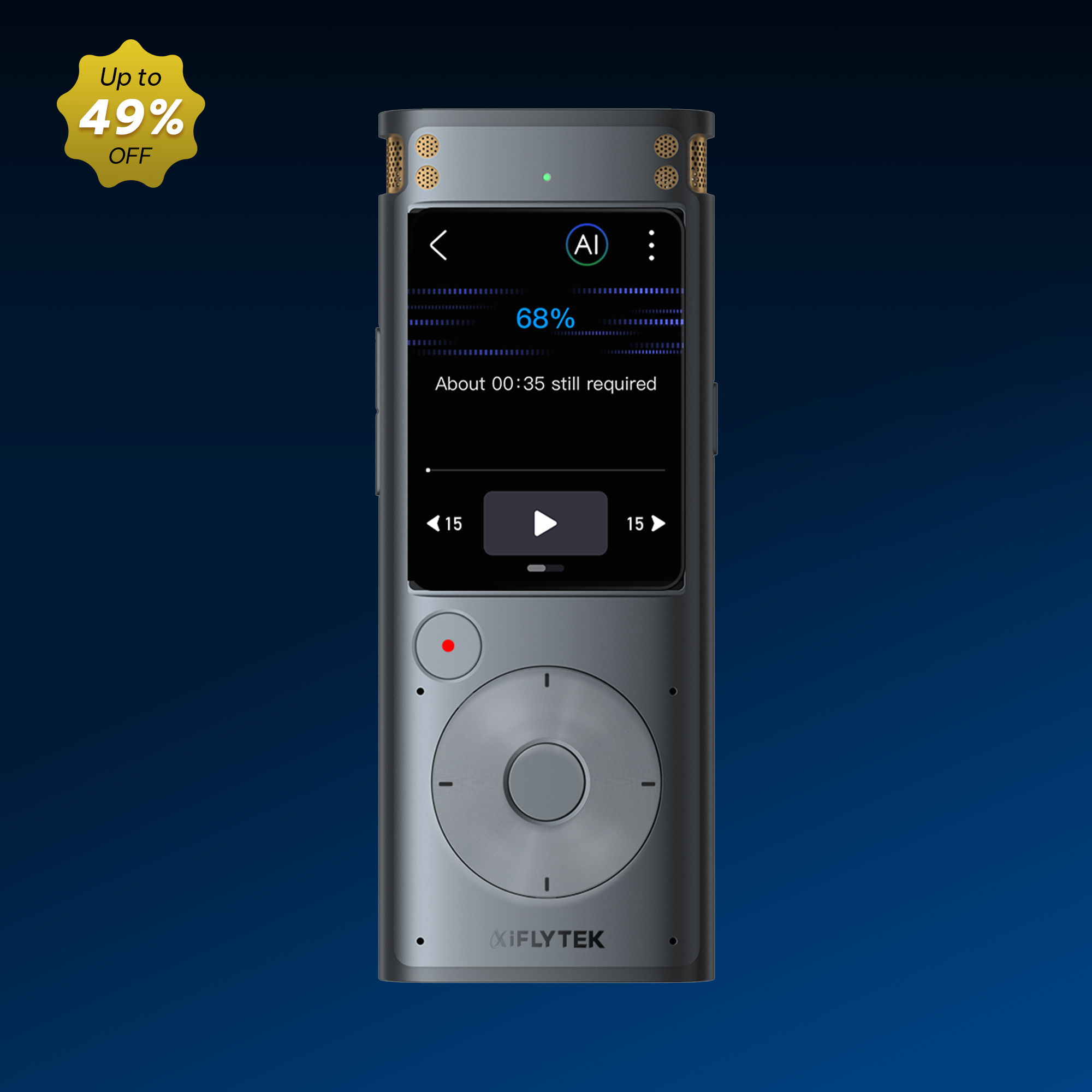
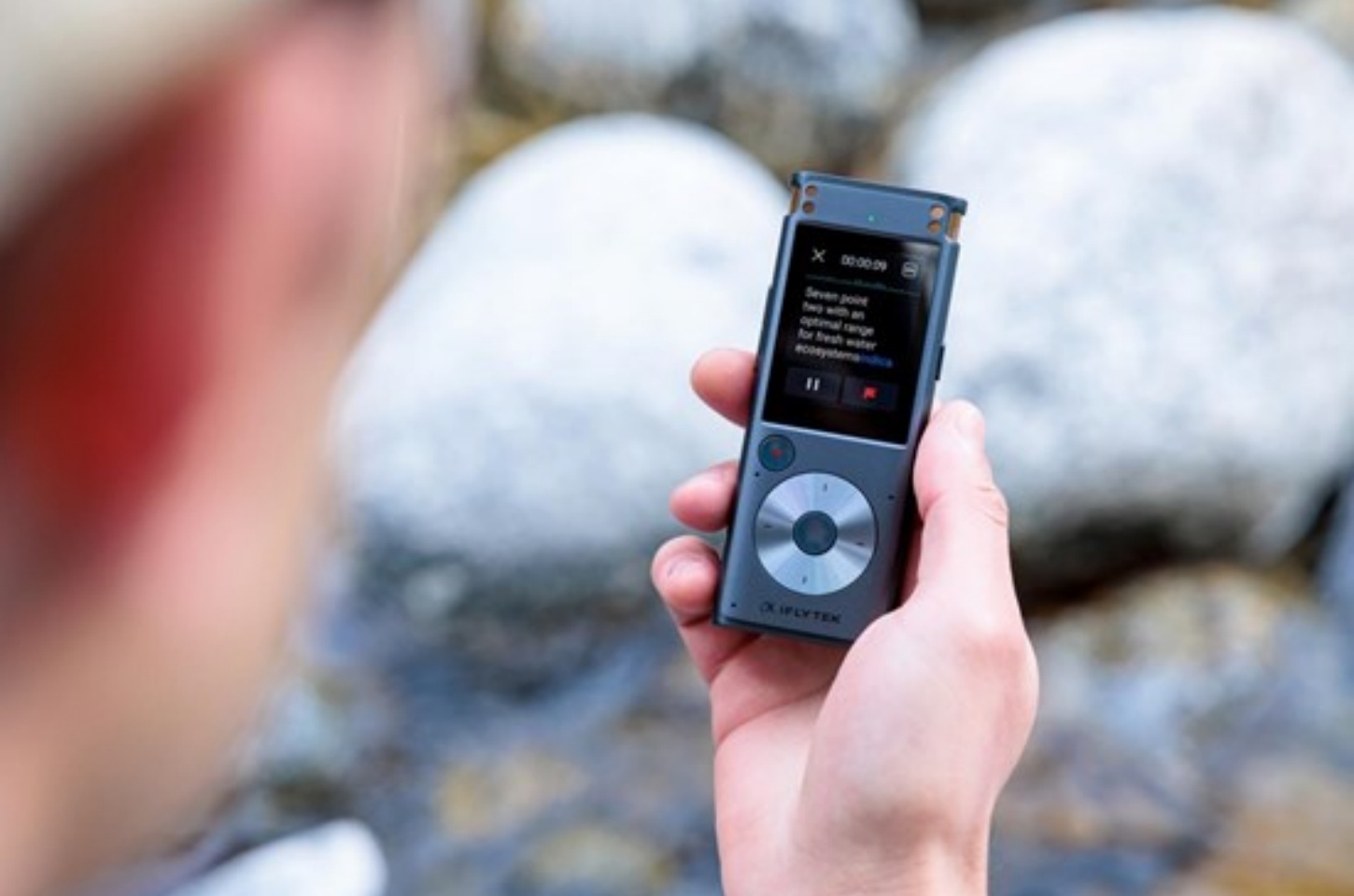
This is where the iFLYTEK Smart Recorder comes in. It combines multiple high-sensitivity microphones, AI-driven noise reduction, and real-time transcription capabilities into a single, portable device. Unlike a smartphone, it is purpose-built for capturing professional-quality audio in any environment, making it the ideal solution for anyone whose work or study depends on precise and reliable recordings.
Key Advantages of iFLYTEK Smart Recorder
Crystal-Clear Audio Capture: Record high-quality sound from up to 10 meters with directional microphones, ideal for lectures, meetings, and interviews.
Real-Time Multi-Language Transcription: Supports Chinese, English, Japanese, Korean, and Russian without internet, making note-taking effortless.
Intelligent Noise Reduction: Filters background noise for clear voice recordings even in busy environments.
Versatile Recording Modes: Preset modes for meetings, speeches, and interviews optimize audio capture for different scenarios.
Long Recording & Ample Storage: Record up to 7 hours continuously with 32 GB storage, ensuring no detail is missed.
Easy Operation: Start recording with one click and navigate seamlessly via a 2-inch touchscreen.
Comparison: Android vs. iFLYTEK Smart Recorder
To highlight the difference between a casual recording tool and a professional device, here is a quick comparison table:
|
Feature |
Android Phone (Native App) |
iFLYTEK Smart Recorder |
|
Microphone |
Single, close-range |
Multi-directional array |
|
Noise Cancellation |
Basic filtering |
AI-powered noise reduction |
|
Transcription |
Not available |
Real-time AI transcription |
|
Translation |
Not available |
Real-time multi-language |
|
Battery Life |
Short, shared with phone use |
Long, dedicated battery |
|
Audio Quality |
Low-bitrate (AMR/MP3) |
Hi-Fi / Lossless (WAV) |
The choice is clear: use your Android for quick voice notes, but rely on the iFLYTEK when the quality and content of the recording directly impact your work or studies.
FAQs
Can I record an ongoing phone call on Android?
Due to privacy regulations, most modern versions of Android no longer support native call recording. While third-party apps exist, their reliability and legality vary by region. For recording important conversations, it is always recommended to use a separate, dedicated device like the iFLYTEK Smart Recorder and inform all parties involved.
Why does my Android recording sound tinny or muffled?
This is usually because the phone's internal microphone is not optimized for environmental sound capture. It often struggles with reverberation in large rooms or background noise. Using an external microphone accessory or upgrading to a device with superior acoustics, such as the iFLYTEK Smart Recorder, will solve this problem.
What is the best audio format for recording a lecture on Android?
If your Android app offers a choice, select the highest quality option, usually AAC or WAV (if available), over the more compressed AMR. However, dedicated devices like the iFLYTEK Smart Recorder offer higher-bitrate WAV recording, ensuring far better audio fidelity for transcription and review.